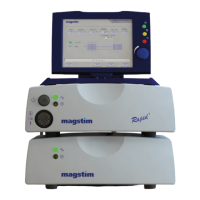
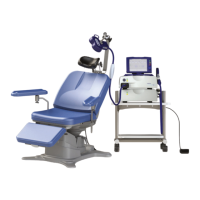
Magstim Rapid²
Operating Manual
© The Magstim Company Limited 41 MOP03-EN-03
4.4.6.2 Creating and Using Files
Creating a File:
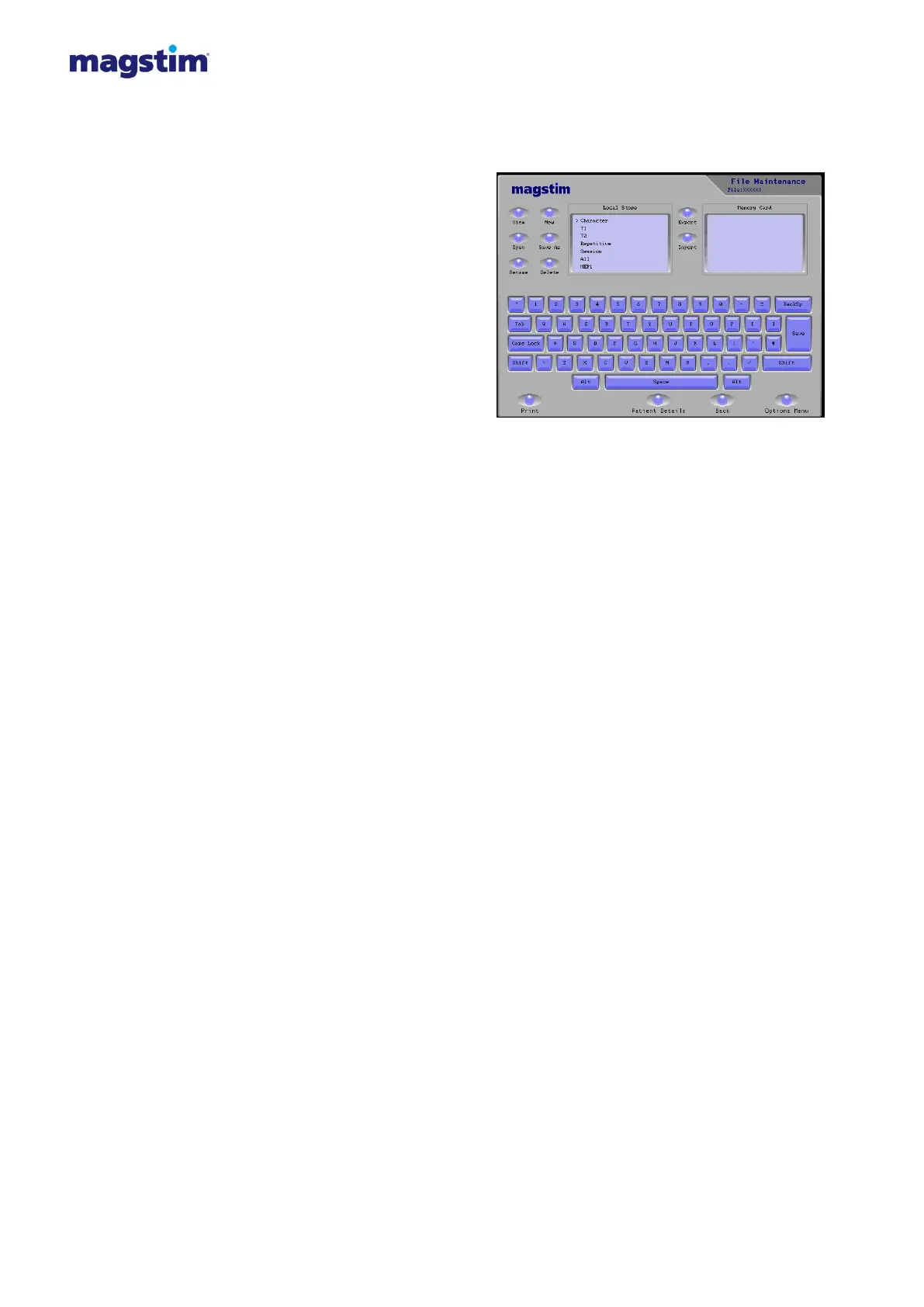
1. Go to File Maintenance.
2. Press the Local Store panel to select
(a black line appears around the
panel)
3. Press New
4. In the Local Store, an arrow will point
to a blank line.
5. Enter the new file name, using the on
screen keyboard
6. Press Save on the Keyboard.
7. Make sure that the Local Store
Screen is selected; use the Rotary
control knob to move the arrow to point to a new file name.
8. Press Open, then Patient Details. The File name will appear in the top right-hand corner.
9. Select the required windows and enter details using the on- screen keyboard. Press Save on
the Keyboard when the information is complete.
10. Press File to return to File Maintenance.
11. Press Close.
To View a File:
1. In file Maintenance select the Local Store Window. Use the Rotary Control Knob to select a
file.
2. Press View, then Patient Details.
3. Press File to return to File Maintenance.
To Open and Edit a File:
1. Select the Local Store Panel in File Maintenance
2. Use the Rotary Control Knob to select a file
3. Press ‘Open’, then Patient Details
4. Select the required window and make changes using the on-screen keyboard.
5. Press ‘Save’ on the keyboard to confirm
6. Press ‘File’ to return to File Maintenance
7. Press ‘Close’
To Rename a File:
1. Select the File in the Local Store panel using the Rotary Control Knob.
2. Press ‘rename’ and use the on-screen keyboard to make changes.
3. Press ‘Save’ on the keyboard to confirm
Figure 4.30: File Maintenance Window


 To Next Page