Operation Manual easyTone
5.8 Add Notes
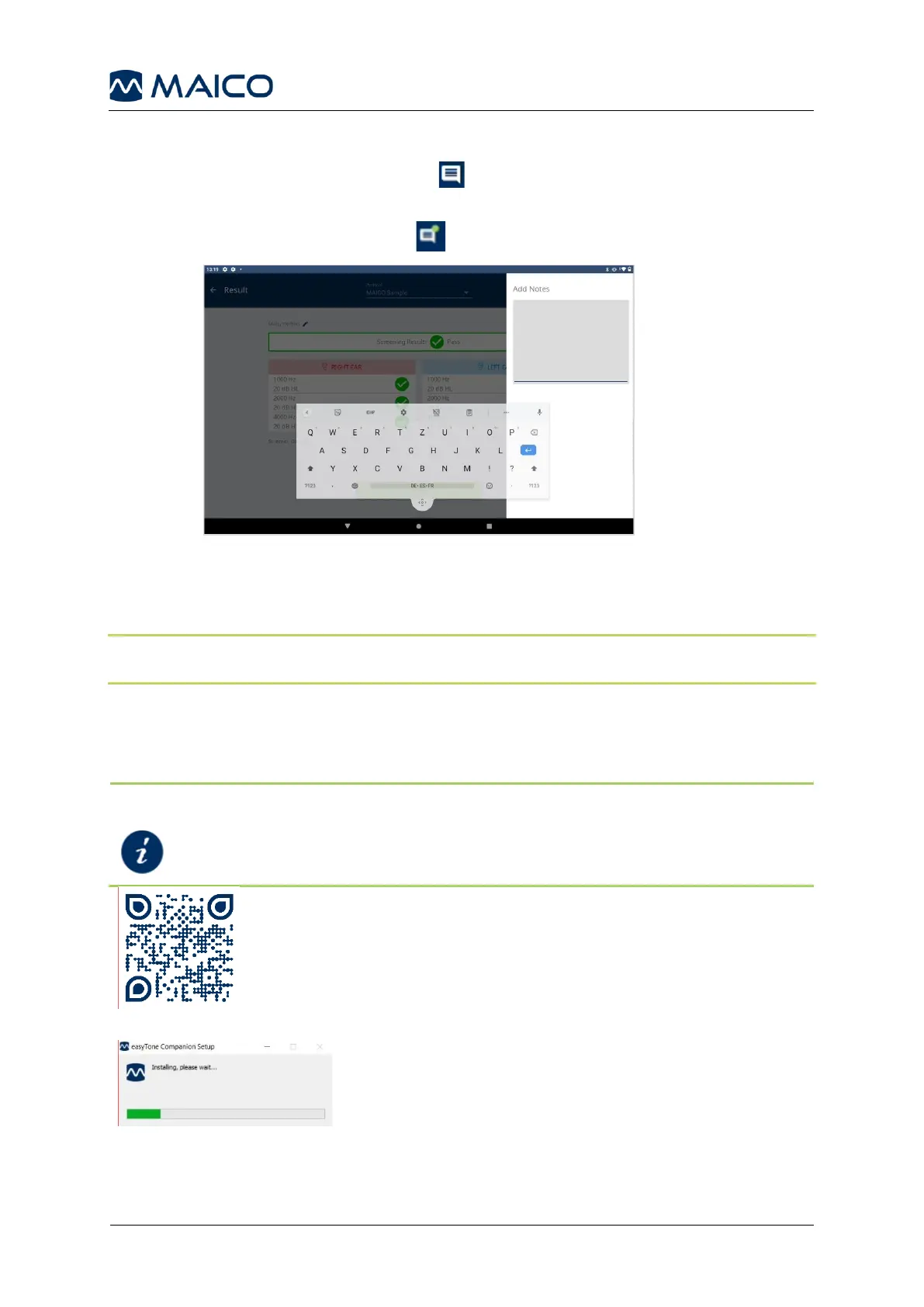
To add a note to a test result, press the icon in the app bar.
The Add Notes field will display. Tap the box to expand the keyboard for entry (Figure
28). Once a note is entered, the icon displays a green dot.
5.9 easyTone Companion Software
5.9.1 General
NOTE: The easyTone Companion software must be installed separately for each PC/Mac
user. The settings are managed centrally. The settings are shared among all users.
The easyTone Companion Software allows for Screening Lists to be loaded onto the
tablet. This is for ease in a mass screening and in the documentation process.
5.9.2 Installing the easyTone Companion Software
NOTE: Before installation check the system requirements:
easyTone Hardware – EASYTONE COMPANION SOFTWARE
– SYSTEM REQUIREMENTS
easyTone Companion Software for download under:
www.easytone.app
Close all open or running programs. To start the
installation process, double-click easyTone
Companion Setup.exe.
The application will be installed (Figure 29) and opens
automatically after installation is completed.


 To Next Page