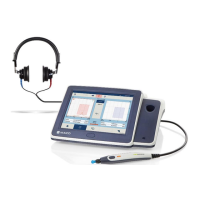
Operation Manual
touchTymp MI 26
and
MI 36
Version
5.6.19 Settings – License Management – General
The License Management screen allows additional feature/test operation to be
incorporated into a base model by entering a license key. Contact MAICO or your local
distributor for more information.
The tab General contains a field to enter a new license
code in order to activate the license on the device. In the
middle, all available licenses are shown. The checkboxes
are activated automatically as soon as a license is
activated (Figure 169).
To enter a new license code, activate the keyboard by
pressing into the field License code and type in the code
(Figure 170).
If the code entered is invalid a message box will be shown
telling you to verify the code (Figure 171).
Ask your local distributor if any problems occur. If you
entered a correct code a message box will tell you
“Licensing completed”.
5.6.20 Settings – Service – General
Calibration reminder: Annual calibration of the
touchTymp and its transducers is recommended.
Select or deselect this item to enable or disable a
reminder that will display daily. The reminder starts
1 month prior to the expiration of the calibration date for
your acoustic transducer(s) (Figure 172).
The user can always bypass the reminder message and
continue with screening.
Display calibration date: Only for service (Figure 173).
Device calibration: Only for service (Figure 174).
Restart to service mode: Only for MAICO Technical
customer support (Figure 175).
Screen calibration: Only for Service (Figure 176).
Test printout: prints a test printout (without a session
result, Figure 177).


 To Next Page
 Loading...