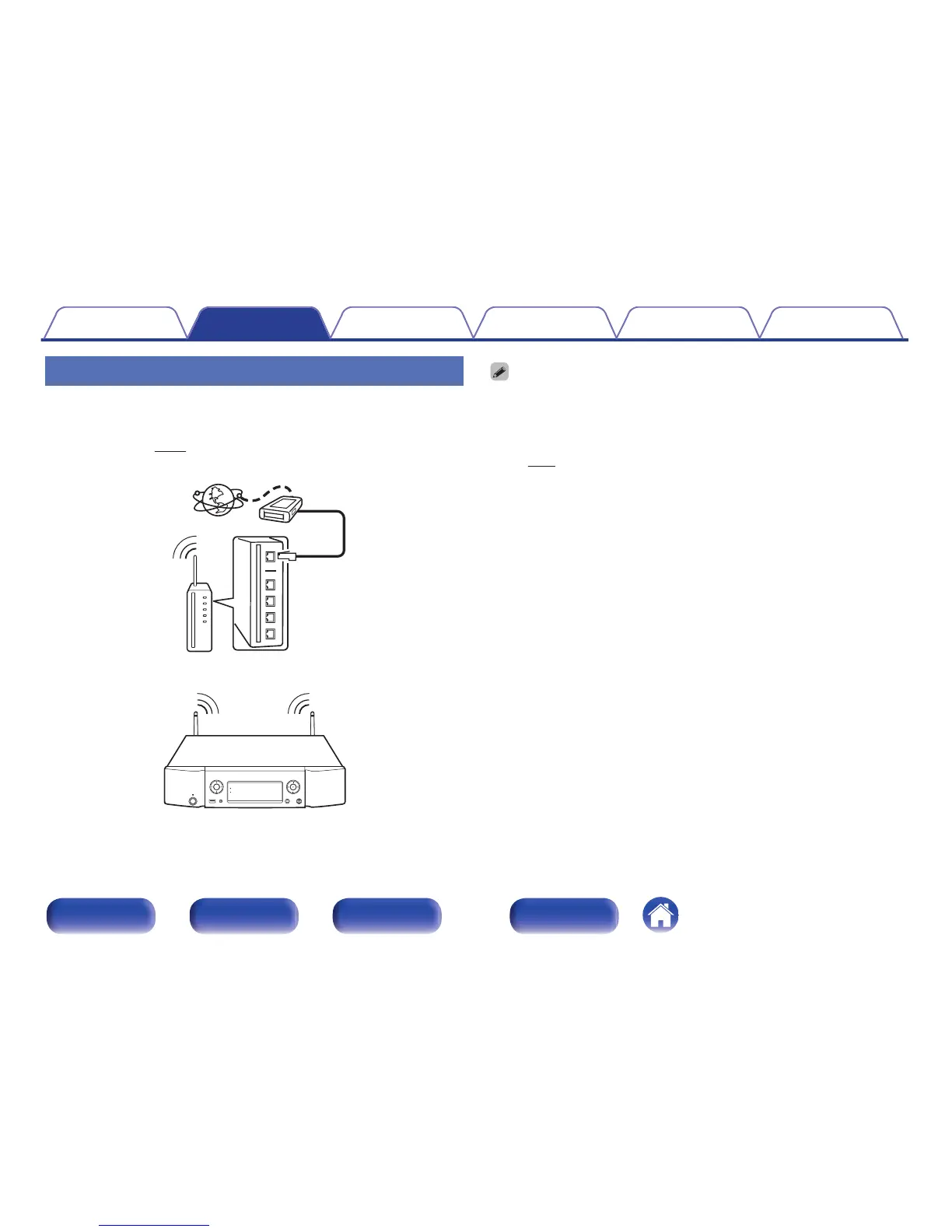
Wireless LAN
When connecting to the network via wireless LAN, connect the external
antennas for Bluetooth/wireless connectivity connection to the rear panel
and stand them upright.
See “Settings” (v
p. 94) on how to connect to a wireless LAN router.
.
0
With this unit, it is possible to use the DHCP and Auto IP functions to make the
network settings automatically.
0
With this unit, it is possible to use the DHCP and Auto IP functions to make the
network settings automatically. When using this unit connected to a network with
no DHCP function, make the settings for the IP address, etc., at “Network”.
(v
p. 92)
0
When using this unit, we recommend you use a router equipped with the following
functions:
0
Built-in DHCP server
This function automatically assigns IP addresses on the LAN.
0
Built-in 100BASE-TX switch
When connecting multiple devices, we recommend a switching hub with a
speed of 100 Mbps or greater.
0
Use only a shielded STP or ScTP LAN cable which is easily available at
electronics stores. (CAT-5 or greater recommended)
0
The normal shielded-type LAN cable is recommended. If a flat-type cable or
unshielded-type cable is used, other devices could be affected by noise.
0
When using a WPS (Wi-Fi Protected Setup) compatible router, you can connect
easily to Wi-Fi by pressing the Wi-Fi CONNECT WPS button on this unit. (See the
separate “Quick Start Guide”.)
Contents
Connections Playback Settings Tips Appendix
29
Front panel Rear panel
Remote control
unit
Index


 To Next Page