2.3. File structure on USB Memory
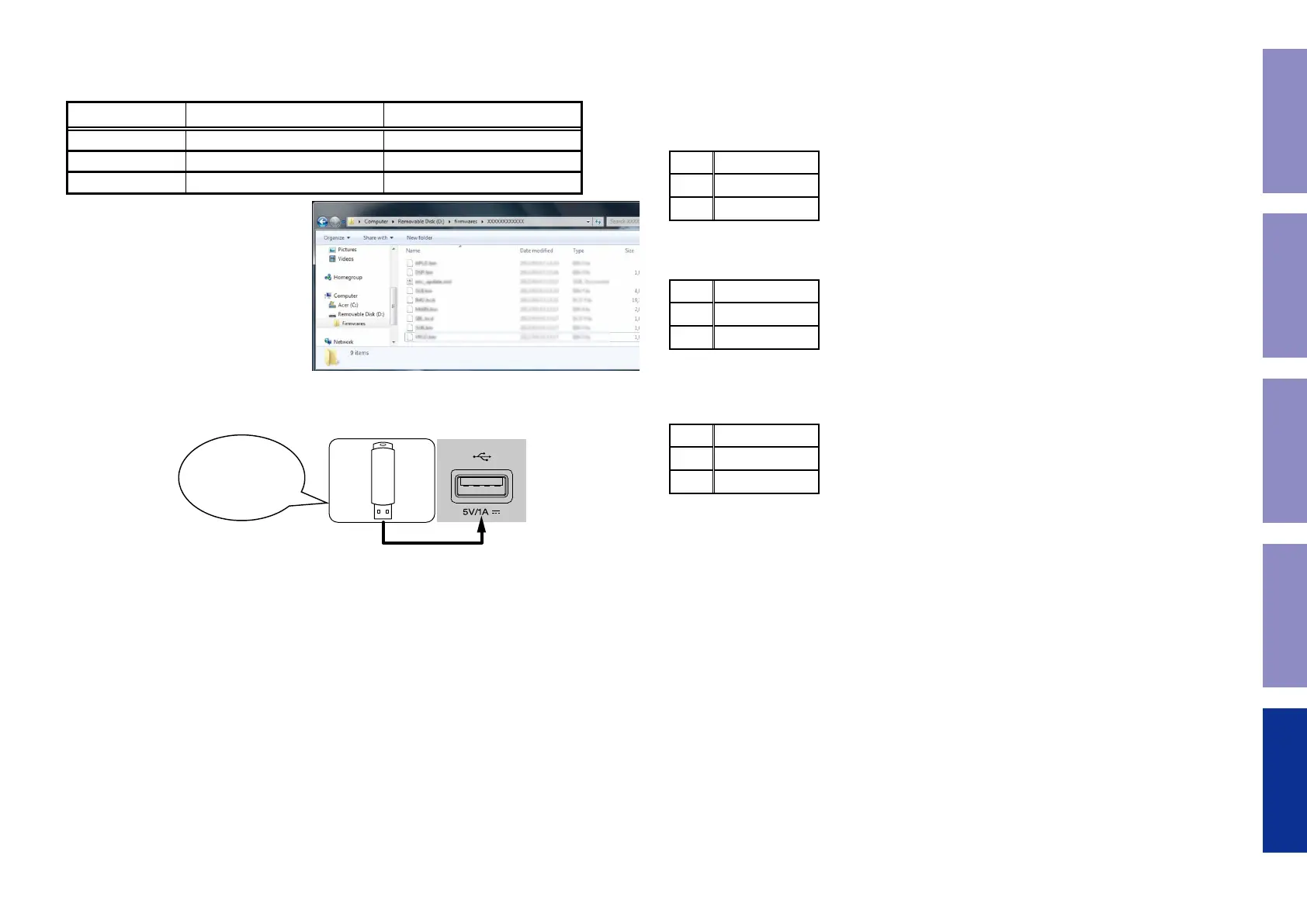
Copy the update les to the USB memory with the following structure.
USB memory root
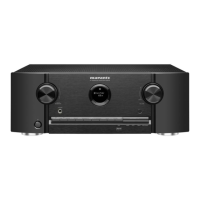
Model Name Model Area Product ID
SR5011 U North America (U) 100100490100
SR5011 N Europe (N) 100100490200
SR5011 K China (K) 000100920500
+ rmwares
+ X00100XXXXXX
+ APLD.bin
+ DSP.bin
+ enc_update.xml
+ GUI.bin
+ IMG.bcd
+ MAIN.bin
+ SBL.bcd
2.4. Insert the USB memory into the USB port.
NOTE : Remove the LAN cable from this unit when performing updates.
Download firmware
in USB flash drive.
2.5. Start the update.
While holding down buttons "
TUNER PRESET CH +
" and "
STATUS
" simultaneously, press the power
button to turn on the power.
2.6. Display during USB update
After around half minutes, display shows the following message.
L1
USB Updt
L2
Start
L3
2.7. Press the "ENTER" key on the remote control unit or this unit.
Then start Firmware Update.
L1
Update
L2
File
L3
Check
2.8. The rmware update nishes.
When the update is completed, the following message appears on the display, then the unit returns to
the normal status.
L1
Updating
L2
Complite
L3
---Cautions on Firmware Update---
• Never remove the USB memory before the update is nished.
• Do not turn off the power until updating is completed.
• It takes around 1 hour to complete the update.
Once an update is started, normal operations cannot be performed until it is completed.
The GUI menu settings and image adjustment settings of this unit may be initialized.
Note down the settings before updating, and set them again after updating.
154
Caution in
servicing
Electrical Mechanical Repair Information Updating


 To Next Page