23
© 2018
Ma
k
a
T
e
c
hnologie
s
G
roup
. A
ll Righ
ts
Re
s
er
v
ed
.
Getting
Started
Operation
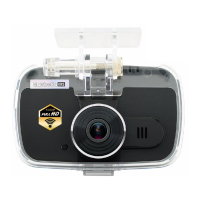
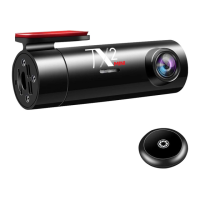
of your TX2mini
F
HD
Digital
Roadcorder
TM
Video / Photo / Remote Button
Video
When Wifi establish, open the apps and the mobile phone will display the real-
time view of the TX2mini. Click on the icon on the live screen to start
or stop recording. A voice prompt will be heard when Stop/Rec.
Photo
When Wifi establish, open the apps and the mobile phone will display the real-
time view of the TX2mini. Click on the icon on the live screen to take a
photo shoot. You will hear a clicking sound on the device show photo is taken.
Remote Button
This remote button allow user to take a photo or manually lock existing video
clip recording file without going into the apps to take a photo.
1. To take a
Photo
, press once on the button to capture a photo without
connecting to apps. A click sound will be prompt when photo is being taken
2. Emergency recording (G-sensor) can be manually trigger using the remote
button without any accident happen. Press and hold on the button for
4
second
to create a lock file on the existing 1 recording file
Note : if the Remote button does not work, check the indicator light on the
remote button if it is on. Then long press 15second to pair the remote with the
device and a sound will be heard when the pairing is successful


 To Next Page