EasyManua.ls Logo

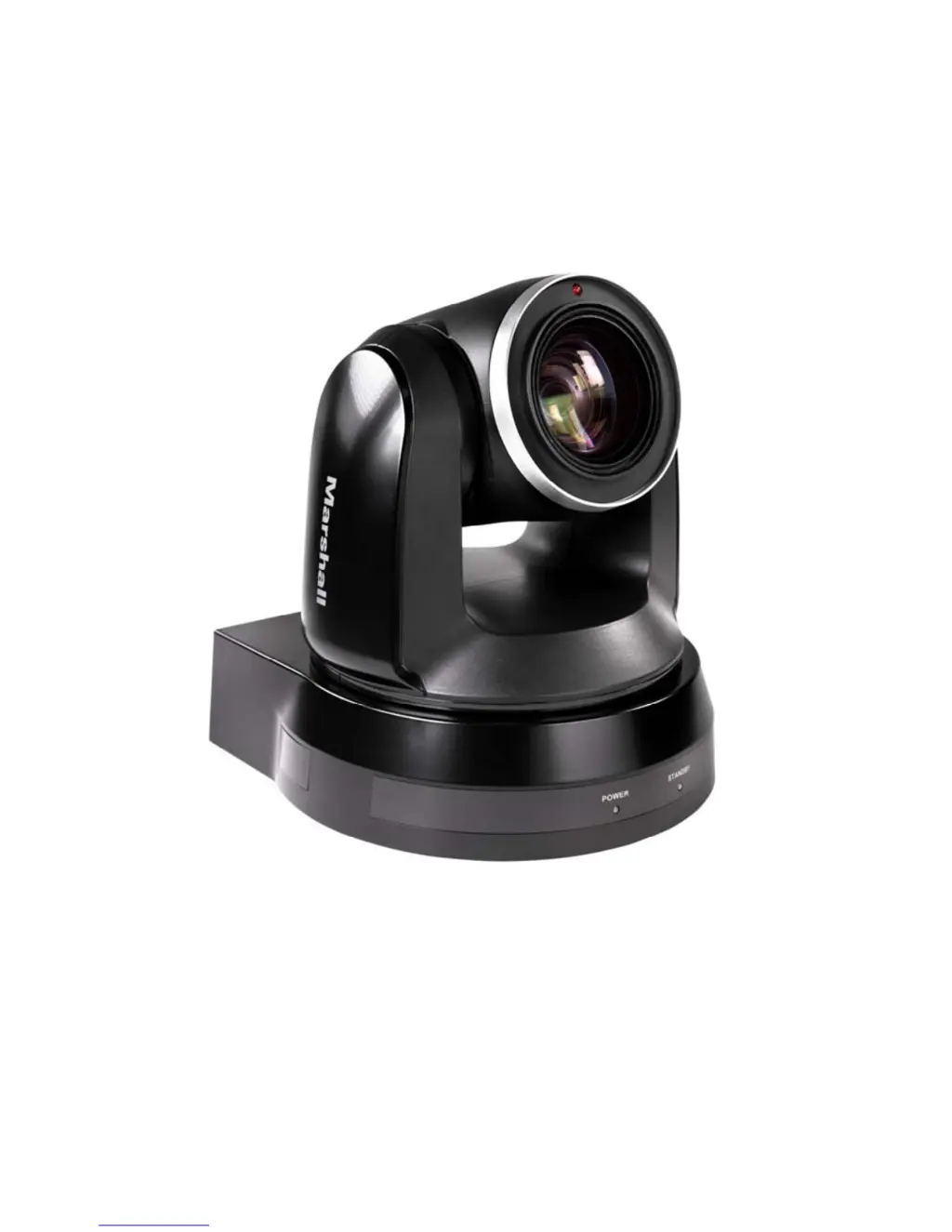
Marshall Electronics CV612HT-4K - User Manual

Marshall Electronics CV612HT-4K
36 pages
Print Icon
To Next Page IconTo Next Page
Loading...
Marshall Electronics
CV612HT-4K
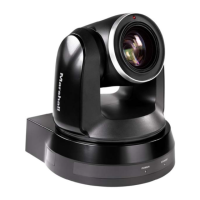
4K Broadcast PTZ Camera
Installation Guide
Ver.2

Other manuals for Marshall Electronics CV612HT-4K

Questions and Answers

  • W
    wagnerlaurenAug 6, 2025
    Why Marshall Electronics CV612HT-4K security camera cannot be operated by remote control?
    • J
      jfordAug 6, 2025
      If your Marshall Electronics CV612HT-4K security camera isn't responding to the remote control, consider these potential solutions: * Check if the Camera Select on the remote is compatible with the IR Select on the CV612HT-4K. * Ensure the CV612HT-4K is not exposed to direct sunlight. * Keep energy-saving bulbs and IR touch screens away from the camera to minimize interference. * If multiple CV612HT-4K cameras are in use, operating two remote controls simultaneously can cause signal interference. Try using only one remote control at a time.
  • R
    Regina DelgadoAug 11, 2025
    What to do if Marshall Electronics CV612HT-4K not working after changes to DIP Switch setting?
    • L
      Lori RobinsonAug 11, 2025
      If your Marshall Electronics security camera isn't working after you've changed the DIP switch settings, unplug the power cord, reconnect it, and then turn the camera on. This will apply the new settings.
  • S
    Sherry ClarkAug 15, 2025
    What to do if Marshall Electronics security camera device cannot be controlled with Codec?
    • W
      William MillsAug 15, 2025
      If you're unable to control your Marshall Electronics security camera with a Codec, verify the following: * Consult your distributor to confirm you have the latest firmware version. To check the firmware version: 1. Press [MENU] on the remote control. 2. Choose [Status]. 3. Go to Page 5 of [System]. 4. Ensure the firmware version is correct. * Ensure the connection (RS-232/422 Input) is correct. * Confirm that System Switch DIP 1 and DIP 3 are correctly set.
  • J
    Jacqueline ParkerAug 19, 2025
    What to do if Marshall Electronics security camera has no image output from CV612HT-4K?
    • L
      Lauren ReyesAug 19, 2025
      If there is no image output from your Marshall Electronics CV612HT-4K security camera, please check the following: * Ensure the camera is receiving power. * Verify that the DIP switch is properly set. * Confirm that your display supports the output resolution, such as 1080p60, 1080i60, or 720p60. * Try replacing the cables to rule out any faults.
  • S
    Samantha WilsonAug 25, 2025
    What to do if Marshall Electronics security camera device cannot be controlled with RS-232/RS422?
    • M
      Melissa CookAug 25, 2025
      If you're experiencing issues controlling your Marshall Electronics security camera with RS-232/RS422, ensure that: the connection (RS-232/422 Input) is correctly established and System Switch DIP 1 and DIP 3 are correctly configured.
  • T
    Thomas PhillipsAug 27, 2025
    Why Marshall Electronics CV612HT-4K security camera image is severely delayed?
    • K
      kingamandaAug 28, 2025
      If the image from your Marshall Electronics CV612HT-4K security camera is severely delayed, try using 1080p or 720p at 60/50 Hz signals instead of 25/30 Hz signals.
  • G
    Gina HamiltonSep 1, 2025
    How to fix Marshall Electronics CV612HT-4K that won't boot without power signal?
    • E
      Eric SchwartzSep 1, 2025
      If your Marshall Electronics security camera won't boot and shows no power signal, verify that the power cord is properly plugged in and ensure that the Service DIP switch is in the Off position.

Summary

Safety and Compliance

General Safety Guidelines

Covers operation, installation, storage, cleaning, and remote control safety.

Installation - Desk Mounting

Preparation and Desk Installation

Safety, preparation, and desk mounting instructions.

Desk Installation Steps

Detailed steps for installing the camera on a desk.

Installation - Ceiling Mounting Details

Ceiling Mounting Parts and Equipment

Lists necessary parts and tools for ceiling installation.

DIP Switch Configuration

OUTPUT Switch Settings

Details on setting the output mode using DIP switches.

Troubleshooting Guide

Power and Image Output Issues

Resolving problems with camera power and video signal output.

Image Delay and DIP Switch Issues

Addressing image delay and troubleshooting DIP switch changes.

Remote Control and Connectivity Problems

Solutions for remote control, Codec, and RS-232/RS422 connection issues.

Marshall Electronics CV612HT-4K Specifications

General IconGeneral
Sensor TypeCMOS
AudioYes
Power Supply12V DC
Power Consumption12W (Max)
Dimensions100 x 100 x 100 mm
Weight1.5 kg
Resolution4K Ultra HD (3840 x 2160)
Lens MountCS Mount
Lens TypeVarifocal
Focal Length4.7-94mm
ApertureF1.6
Field of View68° - 3.8°
Field of View (V)
Field of View (D)68° - 3.8°
Video OutputHDMI
Minimum Illumination0.01 Lux (B/W)
Audio Input3.5mm
Remote ControlRS-232
Operating Temperature-10°C to +50°C
Shutter Speed1/30 to 1/10000 sec
Day/NightYes

Related product manuals