EasyManua.ls Logo

Marshall Electronics CV610-U3-V2 - User Manual

Marshall Electronics CV610-U3-V2
38 pages
Print Icon
To Next Page IconTo Next Page
Loading...
Broadcast A/V Division
CV610-U3-V2
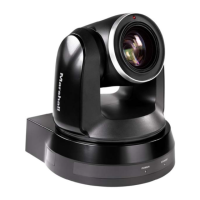
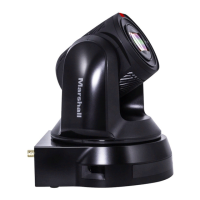
HD PTZ USB Camera
User Manual

Questions and Answers

  • A
    Andrew FernandezAug 12, 2025
    How to turn on Marshall Electronics CV610-U3-V2 if it's not powering on?
    • J
      Juan BrownAug 12, 2025
      If your Marshall Electronics Security Camera is not turning on, consider these potential causes: * Ensure the AC power adapter is firmly connected to the DC 12V connector. * Verify the AC power cord is securely inserted into both the AC power adapter and the AC outlet. * Try disconnecting the power cord from the AC outlet, waiting briefly, and then reconnecting it.
  • M
    Mackenzie HillAug 18, 2025
    Why can't I pan or tilt my Marshall Electronics Security Camera?
    • E
      Evan EdwardsAug 18, 2025
      If you are unable to pan or tilt your Marshall Electronics Security Camera, consider the following: * If a menu is displayed on the computer screen, press the MENU button on the included infrared remote to remove it. * If the panning or tilting range is limited, adjust the PAN/TILT LIMIT setting in the PAN TILT ZOOM menu. * Check the ID setting on the bottom Dip switch and restart the camera. Then, press the correct ID button on the remote controller.
  • G
    grahamjustinAug 25, 2025
    What to do if the infrared remote commander for my Marshall Electronics CV610-U3-V2 Security Camera is not working?
    • K
      Kimberly WheelerAug 25, 2025
      If the infrared remote commander for your Marshall Electronics Security Camera isn't working, ensure that the CAMERA SELECT button you press on the remote matches the number set with the IR SELECT switch on the camera. Press the CAMERA SELECT button that corresponds to the IR SELECT switch setting on the camera.
  • C
    Christine MillerAug 30, 2025
    How to set the EXPOSURE menu on Marshall Electronics CV610-U3-V2 Security Camera if it's locked on FULL AUTO?
    • D
      Donna JimenezAug 30, 2025
      If the EXPOSURE menu on your Marshall Electronics Security Camera is locked on FULL AUTO, it may be because WDR (VIEW-DR) is enabled. Set the WDR (VIEW-DR) to OFF first, and then select the desired MODE in the EXPOSURE menu.
  • C
    Chelsea TaylorNov 5, 2025
    What to do if images are not displayed on Marshall Electronics CV610-U3-V2 Security Camera?
    • K
      Kristen VillaNov 5, 2025
      If images from your Marshall Electronics Security Camera are not displaying on the connected computer screen, there might be several reasons: * Ensure the USB3.0 cable is correctly connected between the camera and the computer. * Verify that you are using a USB3.0 cable. * Try disconnecting and reconnecting the USB cable. * Check the exposure settings in the EXPOSURE menu. * Update the USB3.0 driver, especially for Windows 7 users, download the latest driver from the chipset manufacturer's website. * Try pulling out the plug of the power cord from the AC outlet, then reinserting it after a short wait. * Confirm that the video device setting in your video client software is set to “USB3.0 video camera”. * Restart the video client software to ensure it recognizes the new vid...

Summary

Important Information and Safety

Safety Information

Provides essential safety guidelines and warnings for the installation and operation of the camera.

Whats In The Box

Product Features

Camera Diagrams and Components

Camera Diagram

Detailed diagram and labels for the camera's physical components and ports.

Remote Controller Diagram

Diagram and explanation of the infrared remote controller buttons and functions.

Extension Module Diagram

Diagram and description of the optional extension module and its ports.

System Configuration and Connection

Connection Methods

Illustrates connection methods for the camera, extension module, and control devices.

Obtaining Video Signal

Detailed steps and system requirements for capturing video signal via USB.

Obtaining Audio Signal

Instructions for obtaining audio signal from the built-in microphone or external input.

Camera Control Methods

Explains different methods for controlling the camera and system configurations.

Bottom Dip Switch Settings

Setting of the BOTTOM DIP Switches

Procedure for configuring camera settings using the bottom DIP switches.

DIP Switch Settings Breakdown

Detailed breakdown of DIP switch functions and their corresponding settings.

Adjusting and Setting with Menus

On-Screen Menu Navigation

Guide to navigating and interacting with the camera's on-screen menu system.

Exposure Menu Settings

Detailed settings for controlling camera exposure parameters like mode, gain, and shutter.

White Balance Menu

Configuration options for adjusting white balance to achieve accurate color representation.

Picture Menu Settings

Controls for image quality adjustments including sharpness, noise reduction, and WDR.

Pan;Tilt;Zoom Menu Settings

Settings for controlling camera movement, zoom speed, and adaptive pan/tilt.

System Menu Settings

System-level configurations such as camera ID, IR receive, display info, and preset management.

Operation Using the Infrared Remote Controller

Pan;Tilt and Zoom Operation

Instructions for using the remote controller to pan, tilt, and zoom the camera.

Operating Multiple Cameras

Steps to operate multiple cameras using the CAMERA SELECT button on the remote.

Adjusting Camera Focus and Backlight

Methods for adjusting camera focus and handling backlight conditions using the remote.

Storing and Recalling Camera Presets

How to store and recall camera settings using the preset function on the remote controller.

Troubleshooting

Marshall Electronics CV610-U3-V2 Specifications

General IconGeneral
Camera TypeBox Camera
Frame Rate30 fps
Lens TypeVarifocal
Video OutputUSB 3.0
Image Sensor1/2.8" CMOS
Resolution1920 x 1080
Lens MountCS
ApertureF1.6
Day/NightYes
Power SupplyDC 5V
Operating Temperature-10°C to 50°C

Related product manuals