Additional Functions
VIEWING FIRMWARE VERSION - SMOG CHECK / I/M PROGRAM LOCATION
41
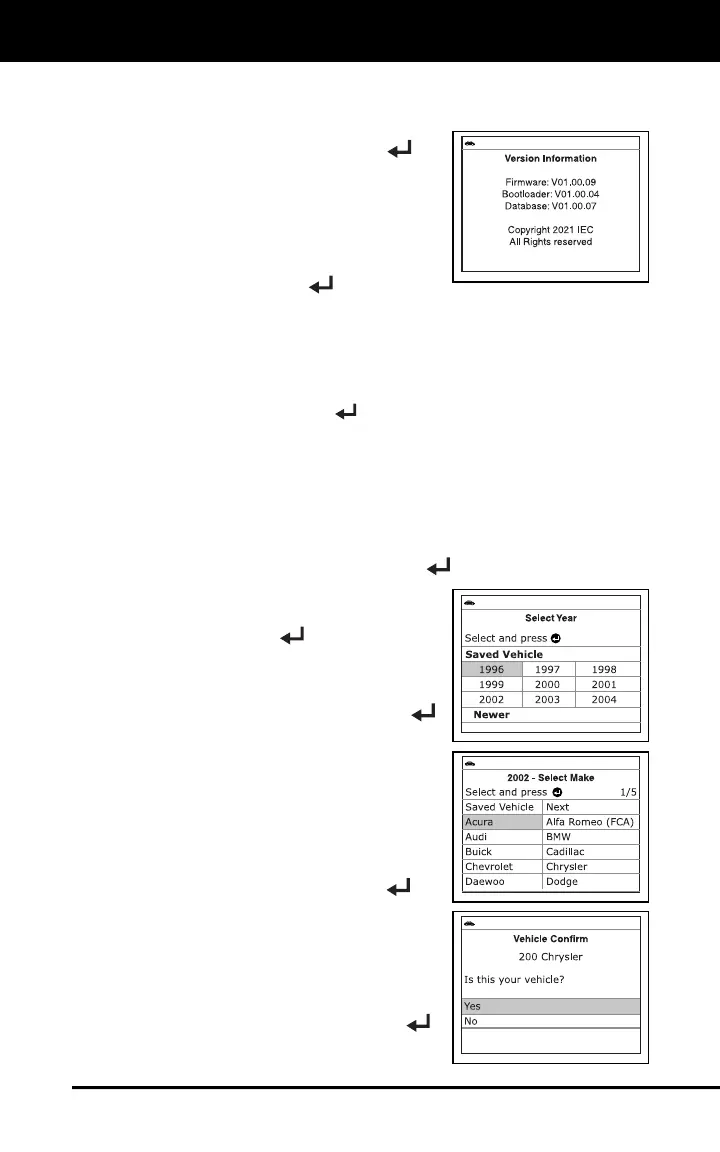
VIEWING THE FIRMWARE VERSION
1. Select Firmware Version in the Main
Menu, then press MENU/ENTER
.
The Firmware Version screen
displays.
The screen shows the Scan Tool’s
current firmware version, bootloader
version and database version.
2. Press MENU/ENTER
to return to
the Main Menu.
SELECTING THE SMOG CHECK OR I/M PROGRAM
LOCATION
1. Select Smog Check or I/M Program Location in the Main Menu,
then press MENU/ENTER
.
In cases where the Scan Tool has not determined the vehicle
make and model year (either by decoding the VIN or through
manual selection during code retrieval), the Select Vehicle
screen displays. The Select Vehicle screen shows the three
most recently tested vehicles.
To select a previously tested vehicle, highlight the desired
vehicle, then press MENU/ENTER
. Proceed to step 2.
To select a new vehicle, highlight
Select New Vehicle, then press
MENU/ENTER
.
- The Select Year screen displays.
Select the desired vehicle model
year, then press MENU/ENTER
to continue, or, select Saved
Vehicle to return to the Select
Vehicle screen and select a
previously tested vehicle.
- The Select Make screen
displays.
Select the desired vehicle make,
then press MENU/ENTER
to
continue.
- The Confirm Vehicle screen
displays.
If the information shown is correct
for the vehicle under test, select
Yes, then press MENU/ENTER
.
Proceed to step 3.


 To Next Page