Live Data Mode
VIEWING LIVE DATA
31
The Scan Tool is a special tool that communicates with the vehicle's
computer. The Scan Tool lets you view and/or "capture" (record) "real-time"
Live Data. This information includes values (volts, rpm, temperature, speed
etc.) and system status information (open loop, closed loop, fuel system sta-
tus, etc.) generated by the various vehicle sensors, switches and actuators.
In effect the Scan Tool lets you view, in "real time", the same signal
values generated by the sensors, actuators, switches and/or vehicle
system status information used by the vehicle's computer when
calculating and conducting system adjustments and corrections.
The real time (Live Data) vehicle operating information (values/status)
that the computer supplies to the Scan Tool for each sensor, actuator,
switch, etc. is called Parameter Identification (PID) Data.
Each PID (sensor, actuator switch, status, etc.) has a set of operating
characteristics and features (parameters) that serve to identify it. The
Scan Tool displays this information for each sensor, actuator, switch or
status that is supported by the vehicle under test.
WARNING: If the vehicle must be driven in order to perform a
troubleshooting procedure, ALWAYS have a second person
help you. One person should drive the vehicle while the other
person observes the Scan Tool data. Trying to drive and
operate the Scan Tool at the same time is dangerous, and
could cause a serious traffic accident.
VIEWING LIVE DATA
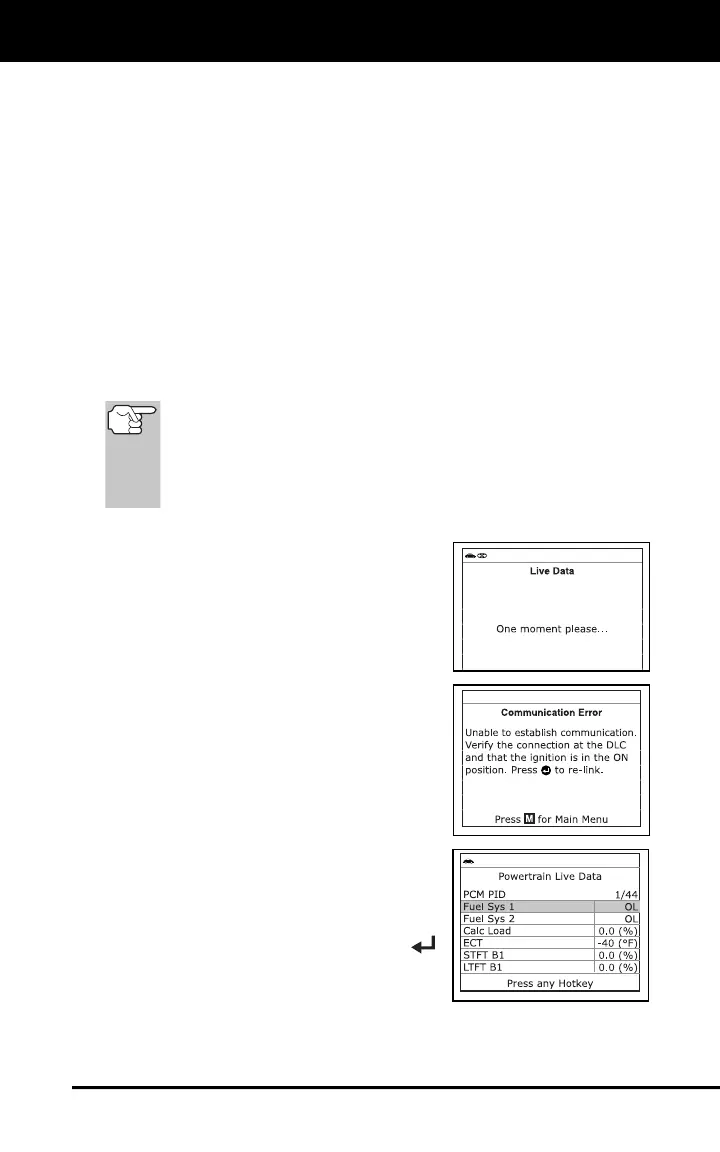
1. While linked to the vehicle, start the
engine, then press and release the LD
button.
2. A “One moment please . . .” message
displays while the Scan Tool
establishes communication with the
vehicle.
If the Scan Tool fails to establish
communication with the vehicle, a
“Communication Error” message is
shown on the Scan Tool’s display.
- Ensure your vehicle is OBD2
compliant.
- Verify the connection at the DLC,
and verify the ignition is ON.
- Turn the ignition OFF, wait 5
seconds, then back ON to reset
the computer.
- Press the MENU/ENTER
button to continue.
3. Real-time Live Data (PID) information
supported by the vehicle under test
displays.


 To Next Page