Using the FixAdvisor
™
VIEWING OEM ENHANCED DTCs
50 MD70
4. When the last retrieved DTC has been displayed and the DTC/FF
button is pressed, the FixAdvisor returns to the Honda/Acura
Enhanced menu.
To view additional enhanced DTCs, repeat steps 1 through 4, above.
To exit the enhanced mode, press the SYSTEM MENU
button. The Scan Tool returns to the System Menu.
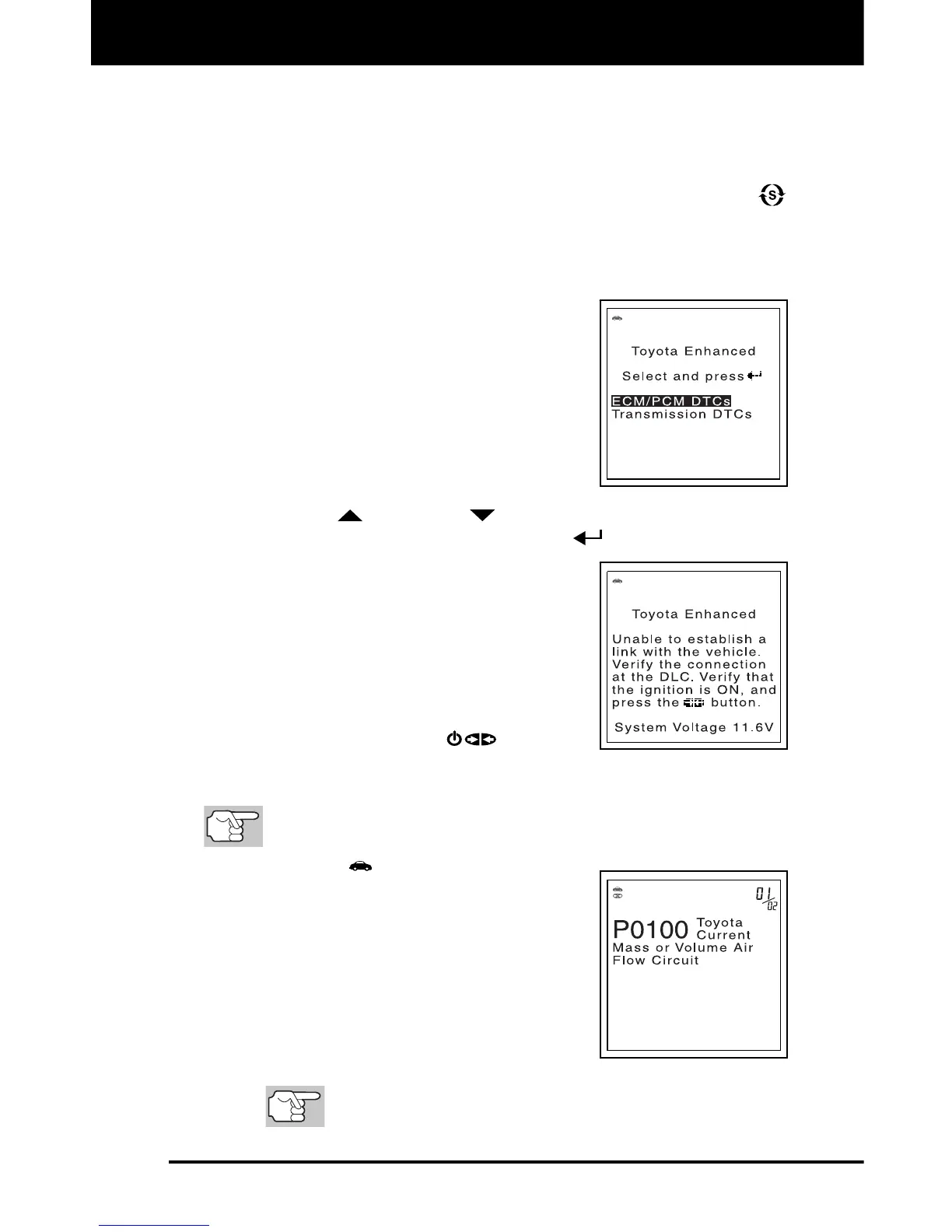
Toyota/Lexus OEM Enhanced DTCs
When OEM Enhanced is selected from the
System Menu (and the manufacturer selected
during the code retrieval procedure was
Toyota or Lexus), the Toyota/Lexus Enhanced
menu displays. You may view either
“ECM/PCM DTCs” or “Transmission DTCs.”
Current DTCs, History DTCs or Pending
DTCs
Current DTCs, Historical DTCs or
Readiness DTCs
1. Use the UP
and DOWN buttons, as necessary, to highlight
the desired option, then press the ENTER
button.
A “One moment please” message
displays, while the FixAdvisor retrieves
the selected DTCs.
If the FixAdvisor fails to link to the
vehicle’s computer, a “Linking Failed”
message shows on the FixAdvisor’s
Display.
- Verify the ignition is ON, then press
the POWER/LINK
button to
continue.
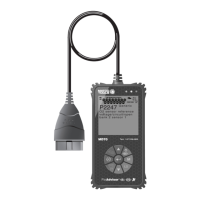
2. To read the display:
Refer to DISPLAY FUNCTIONS on page 11 for a description
of LCD display elements.
A visible icon indicates that the
FixAdvisor is being powered through
the vehicle’s DLC connector.
The upper right hand corner of the
display shows the number of the code
currently being displayed, the total
number of codes retrieved.
The Diagnostic Trouble Code (DTC) and
related code definition are shown in the
lower section of the LCD display.
I/M MONITOR STATUS icons are not displayed when
viewing enhanced DTCs.


 To Next Page