Additional Tests
USING THE DLC LOCATOR
78 MD70
- If the correct manufacturer is shown, use the UP and
DOWN
buttons, as necessary, to highlight Yes then press
the ENTER
button to continue.
- If the correct manufacturer is not shown, use the UP
and
DOWN
buttons, as necessary, to highlight No then press
the ENTER
button to return to the Enter DTC screen.
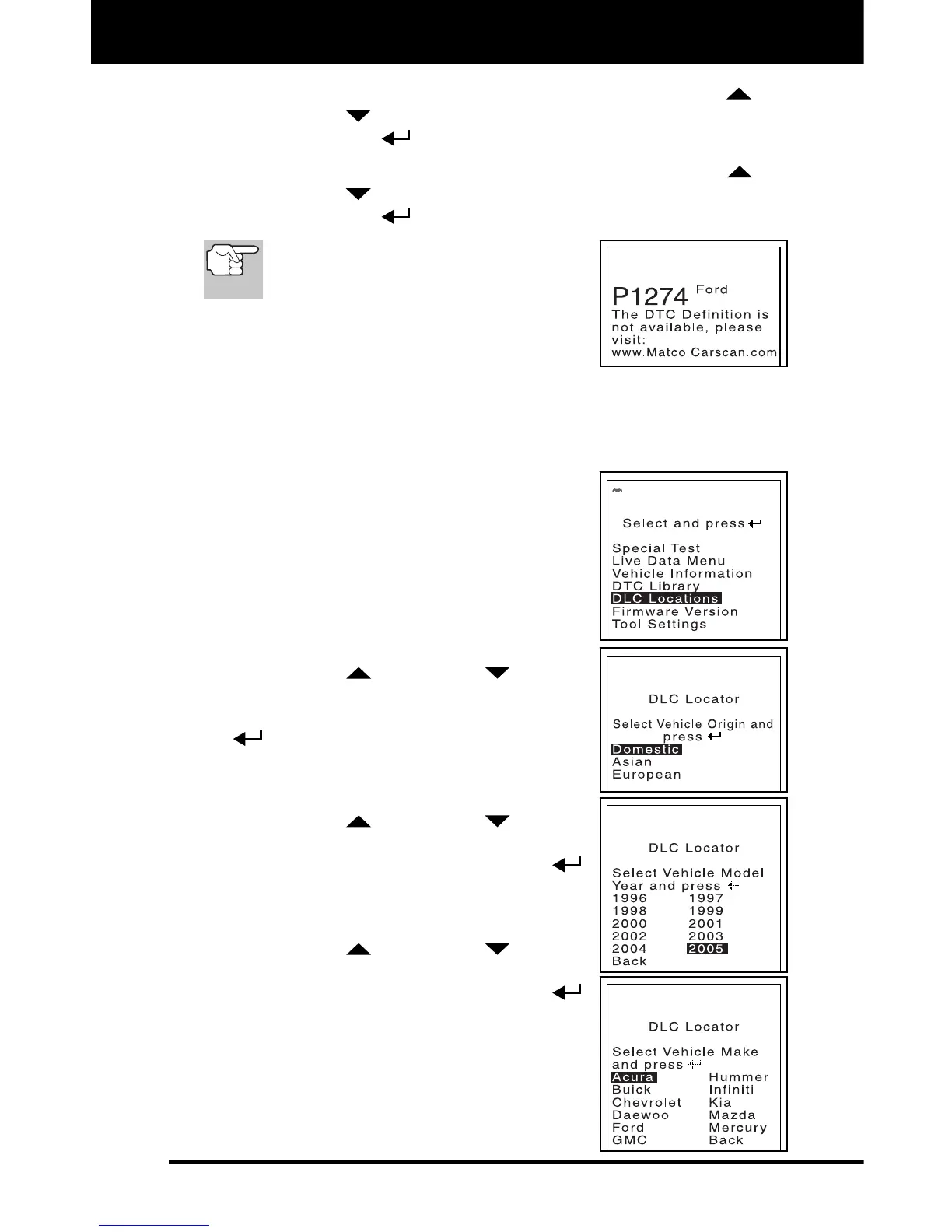
If a definition for the DTC you entered
is not available, an advisory message
shows on the Scan Tool’s display.
5. If you wish to view definitions for additional
DTCs, press the M button to return to the
Enter DTC screen, and repeat steps 4 and
5.
6. When all desired DTCs have been viewed, press the M button to
return to the Enter DTC screen (if necessary), then press the M
button to exit the DTC Library.
USING THE DLC LOCATOR
You can find the DLC locations for a specified
vehicle.
1. With the FixAdvisor in OBD2 mode, press
and release the M button.
The Main Menu displays.
2. Use the UP
and DOWN buttons,
as necessary, to highlight DLC Locations
in the Main Menu, then press the ENTER
button.
The Select Vehicle Origin screen
displays.
3. Use the UP
and DOWN buttons,
as necessary, to highlight the desired
vehicle origin, then press the ENTER
button.
The Select Model Year screen displays.
4. Use the UP
and DOWN buttons,
as necessary, to highlight the desired
Model Year, then press the ENTER
button.
The Select Vehicle Make screen
displays.


 To Next Page