Additional Tests
USING THE DTC LIBRARY
MD70 77
USING THE DTC LIBRARY
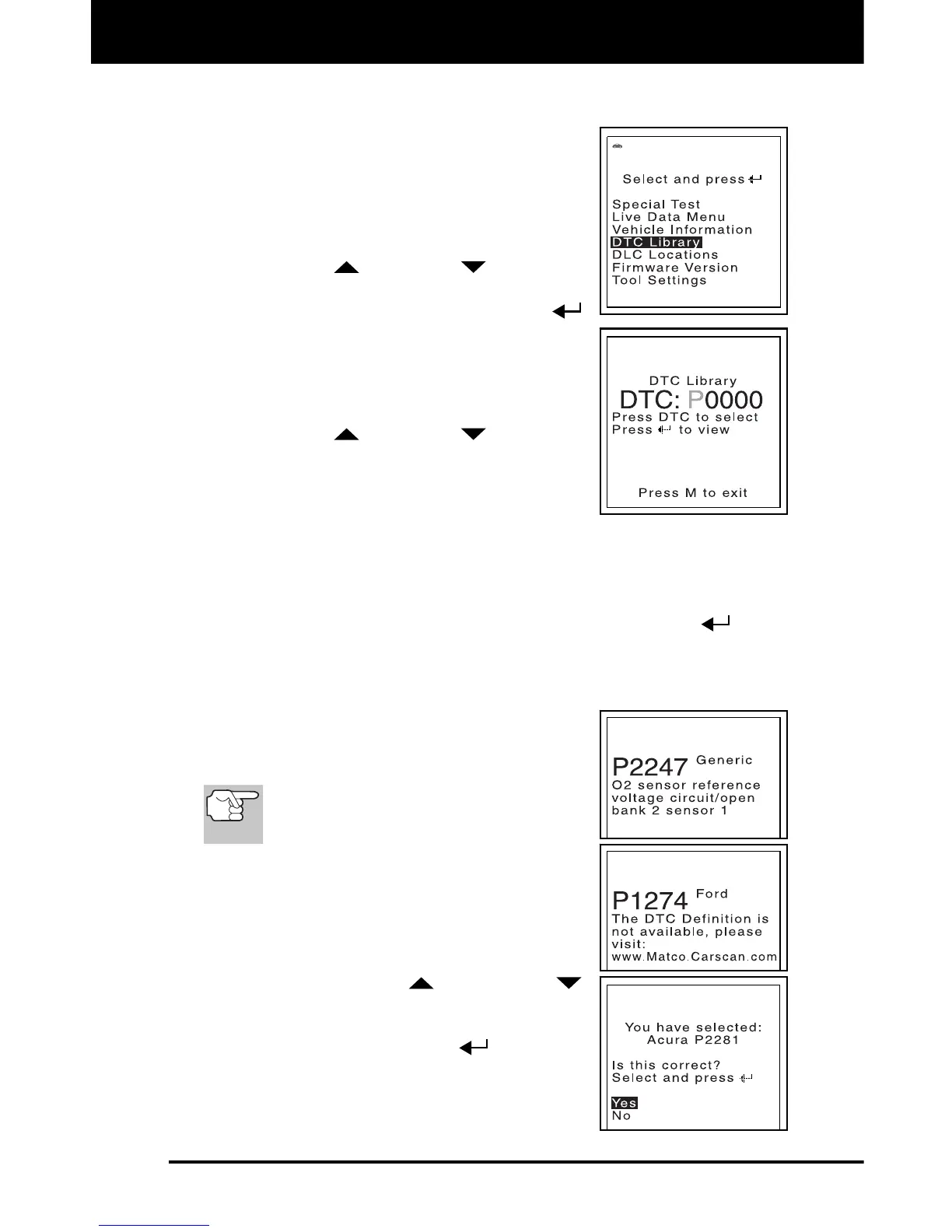
You can use the FixAdvisor to locate the
definition for a specified OBD2 DTC.
1. With the FixAdvisor in OBD2 mode, press
and release the M button.
The Main Menu displays.
2. Use the UP
and DOWN buttons, as
necessary, to highlight DTC Library in the
Main Menu, then press the ENTER
button.
The Enter DTC screen displays. The
screen shows the code “P0001”, with
the “P” highlighted.
3. Use the UP
and DOWN buttons, as
necessary, to scroll to the desired DTC
type (P=Powertrain, U=Network, B=Body,
C=Chassis), then press the DTC/FF button.
The selected character displays “solid”, and the next character is
highlighted.
4. Select the remaining characters in the DTC in the same way,
pressing the DTC/FF button to confirm each character. When you
have selected all the DTC characters, press the ENTER
button
to view the DTC definition.
If you entered a “Generic” DTC (DTCs that start with “P0”, “P2”
and some “P3”):
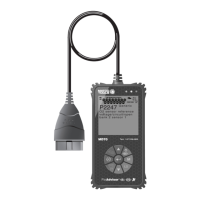
- The selected DTC and DTC
definition (if available) show on the
FixAdvisor’s display.
If a definition for the DTC you entered
is not available, an advisory message
shows on the Scan Tool’s display.
If you entered a “Manufacturer-
Specific” DTC (DTCs that start with
“P1” and some “P3”):
- The “Select Manufacturer” screen
displays.
- Use the UP
and DOWN
buttons, as necessary, to highlight
the appropriate manufacturer, then
press the ENTER
button to
display the correct DTC for your
vehicle. A confirmation message
shows on the LCD display.


 To Next Page