Live Data Mode
CUSTOMIZING LIVE DATA (PIDs)
MD70 63
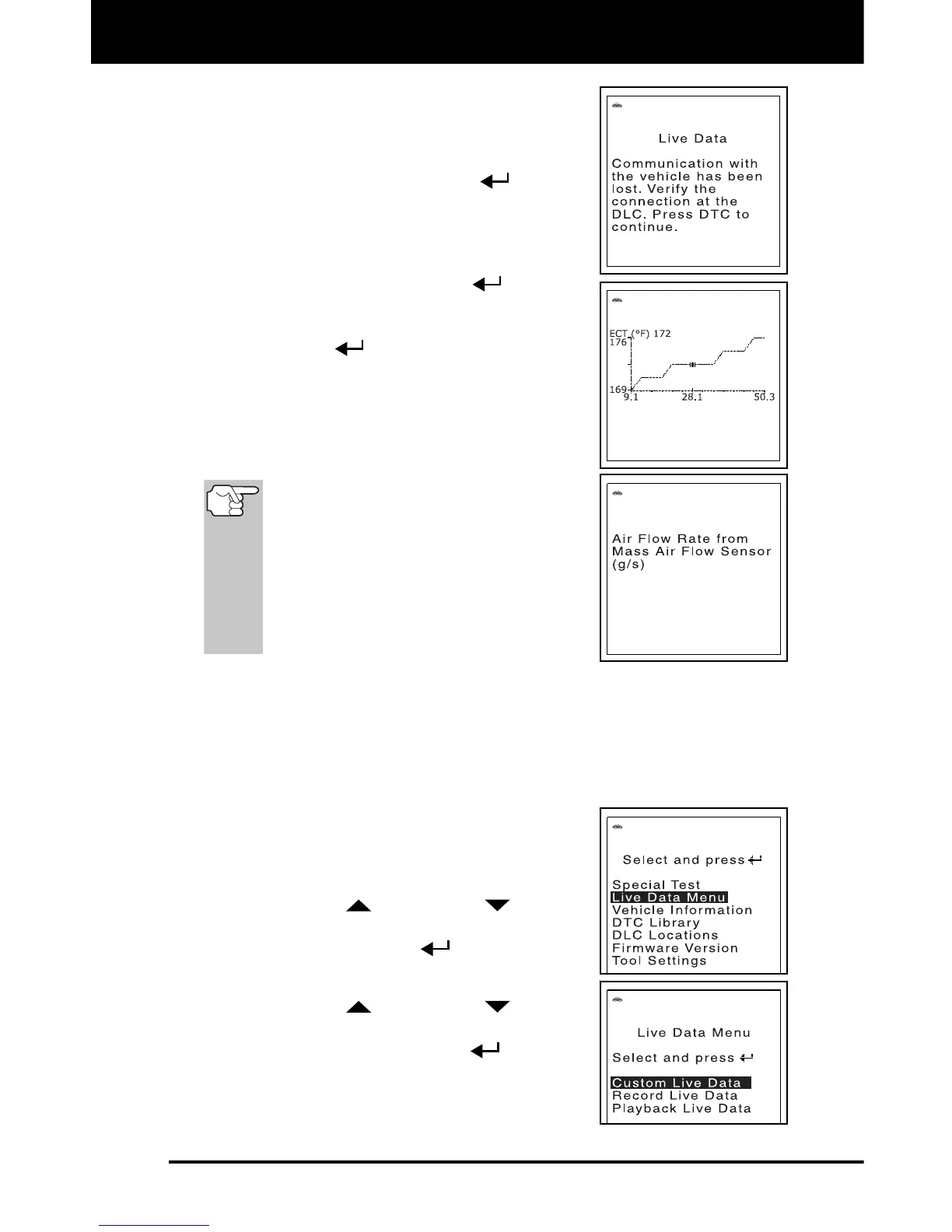
If communication with the vehicle is
lost while viewing Live Data, a
Communication Lost" message shows
on the FixAdvisor’s display.
4. Press and release the ENTER
button to
view the currently selected PID in “graph”
mode. Press and release the LD button
again to return to the PID list.
5. Press and hold the ENTER
button to
view the “expanded” definition for the
currently selected PID. Press and release
the ENTER
button again to return to
the PID list.
6. If you experience vehicle problems, view
and/or compare the Live Data (PID) informa-
tion displayed on the FixAdvisor to
specifications in the vehicle's repair manual.
If desired, you can "customize" the
Live Data display to show only those
PIDs you are interested in viewing.
See Customizing Live Data (PIDs)
below for details. You may also
choose to "capture" (record) Live
Data for later viewing. See
RECORDING (CAPTURING) LIVE
DATA on page 64 for details.
CUSTOMIZING LIVE DATA (PIDs)
This feature lets you customize the FixAdvisor display to show only
those PIDs that are of interest at the current time. You can customize
the Live Data display by placing the FixAdvisor in "Custom Live Data"
mode and selecting only the PIDs that you wish to display. To customize
the Live Data display, proceed as follows:
1. While linked to the vehicle, start the engine,
then press and release the M button.
The Main Menu displays.
2. Use the UP
and DOWN buttons,
as necessary, to highlight Live Data Menu,
then press the ENTER
button.
The Live Data Menu displays.
3. Use the UP
and DOWN buttons,
as necessary, to highlight Custom Live
Data, then press the ENTER
button.


 To Next Page