Live Data Mode
LIVE DATA PLAYBACK
70 MD70
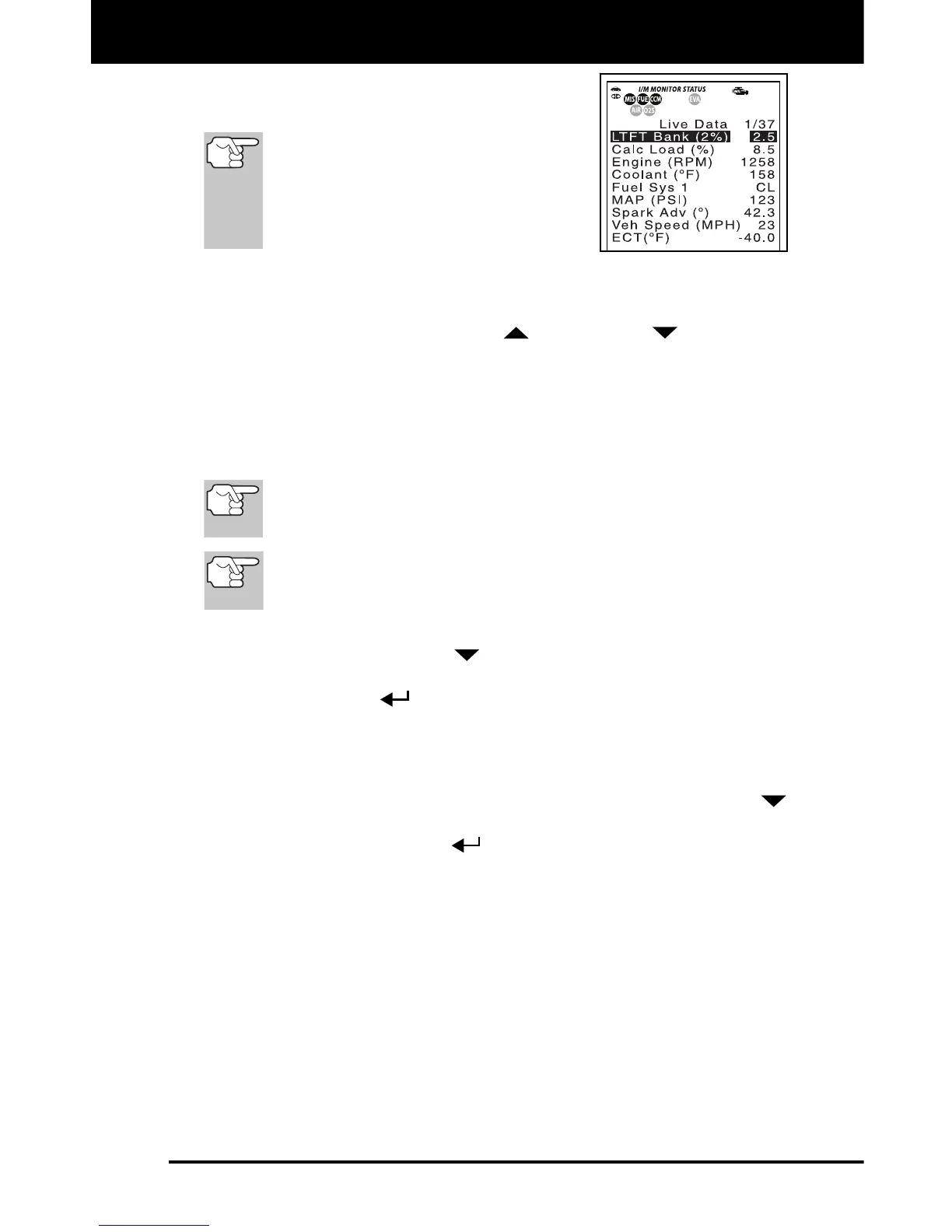
The display shows the recorded Live
Data, beginning with the "trigger" frame.
When you select Yes from the
Record Live Data confirmation
screen, the Scan Tool enters the
"Live Data Playback" mode, and the
display shows the recorded Live Data,
beginning with the "trigger" frame.
A vehicle usually supports several PIDs, however, only a limited
amount of PID data can be displayed on the screen at one time.
If additional PID data is available, a small arrow will be shown on
the display. Use the UP
and DOWN buttons, as
necessary, to scroll up or down to view all available PID data.
When viewing recorded Live Data, look for any irregularities in any
of the PID values/signal information (LTFT %, RPM, MAP, TEMP,
etc.). If any PIDs are not within specification, or irregularities are
detected, follow the procedures in the vehicle's service repair
manual to perform additional troubleshooting and repair.
When recorded Live Data is played back, all available PIDs
are shown, even if you have customized the Live Data
selections.
If there is no Live Data currently stored in the Scan Tool’s
memory, an advisory message shows on the display. Press
the M button to exit the "Live Data Playback" mode.
4. When you have viewed all PID information for the current frame of
Live Data, use the DOWN
button to scroll to the end of the PID
list. Highlight Next Frame or Previous Frame, as desired, then
press the ENTER
button.
5. When you have finished viewing the recorded Live Data, exit the
“Live Data Playback” mode using the appropriate procedure shown
below:
If the Scan Tool is connected to a vehicle, use the DOWN
button to scroll to the end of the PID list, highlight Exit Playback,
then press the ENTER
button.
If the Scan Tool is not connected to a vehicle, press the M
button.


 To Next Page