Additional Tests
VEHICLE INFORMATION
MD70 75
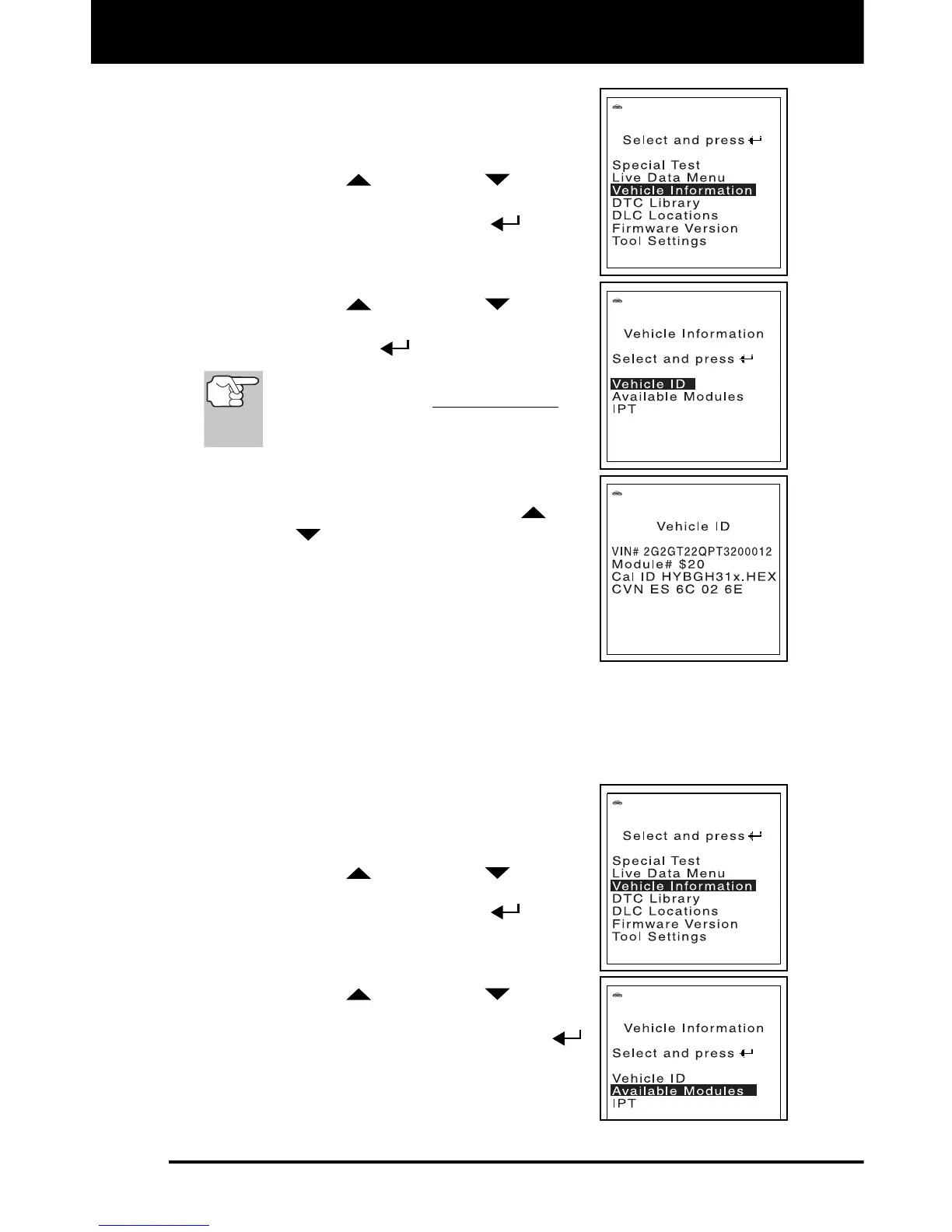
1. While linked to the vehicle, press and
release the M button.
The “Main Menu” displays.
2. Use the UP
and DOWN buttons,
as necessary, to highlight Vehicle Infor-
mation, then press the ENTER
button.
The “Vehicle Information Menu”
displays.
3. Use the UP
and DOWN buttons,
as necessary, to highlight Vehicle ID, then
press the ENTER
button.
The first time the Vehicle ID function is
used, it may take several minutes
to
retrieve the information from the
vehicle's computer.
4. When the retrieval process is completed, the
vehicle ID information is shown on the
FixAdvisor’s display. Use the UP
and
DOWN
buttons, as necessary, to view
the entire list.
5. When you have finished viewing the re-
trieved vehicle ID information, press the M
button to return to the “Vehicle Information
Menu.”
Viewing Available Modules
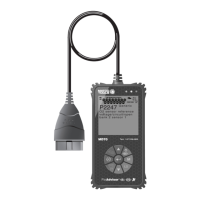
The FixAdvisor can retrieve a list of modules supported by the vehicle
under test.
1. While linked to the vehicle, press and
release the M button.
The “Main Menu” displays.
2. Use the UP
and DOWN buttons,
as necessary, to highlight Vehicle Infor-
mation, then press the ENTER
button.
The “Vehicle Information Menu” dis-
plays.
3. Use the UP
and DOWN buttons,
as necessary, to highlight Available
Modules, then press the ENTER
button.


 To Next Page