___________________________________________________________________________________
MBT1015 rev-C
User’s Manual Versio18.08
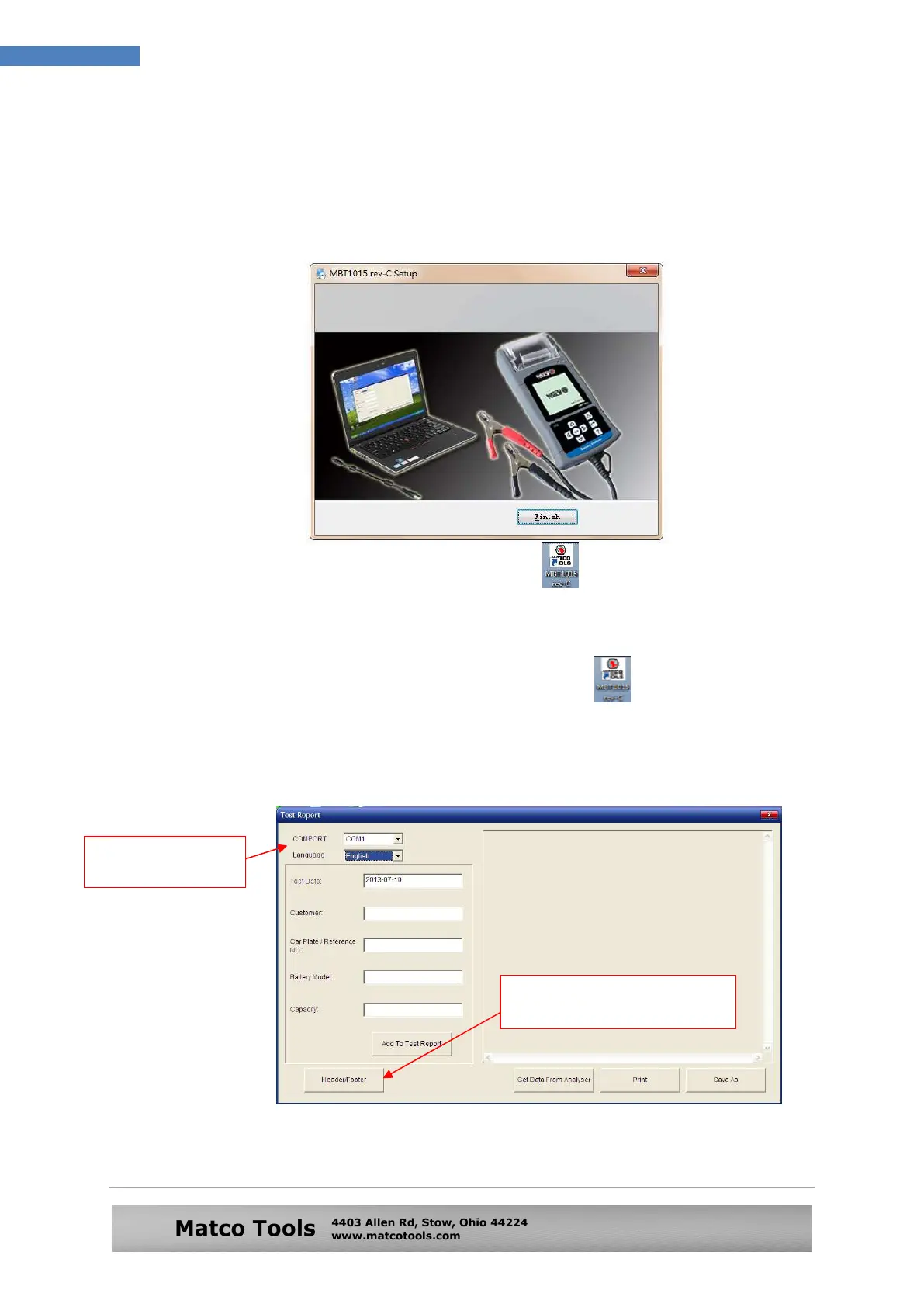
Click “Install >” tab to continue the installation and the software will start to
install.
A few seconds later, the display will show as below that the installation has
been completed and click “Finish” tab to exit.
Once the software has been installed, the icon will appear on the desktop.
Step 4. Now plug the Analyzer into any one of the PC USB port.
Step 5. On the PC, go to desktop display and look for icon.
Left click on the icon to open the program and the display page will show
as below:
Click here to put your
Company name and address.
It will automatically
detect COM Port.


 To Next Page