3. Checking and changing the Printer Properties
M1100 – M1200 User Manual Rev. 1.3 Page 32/40
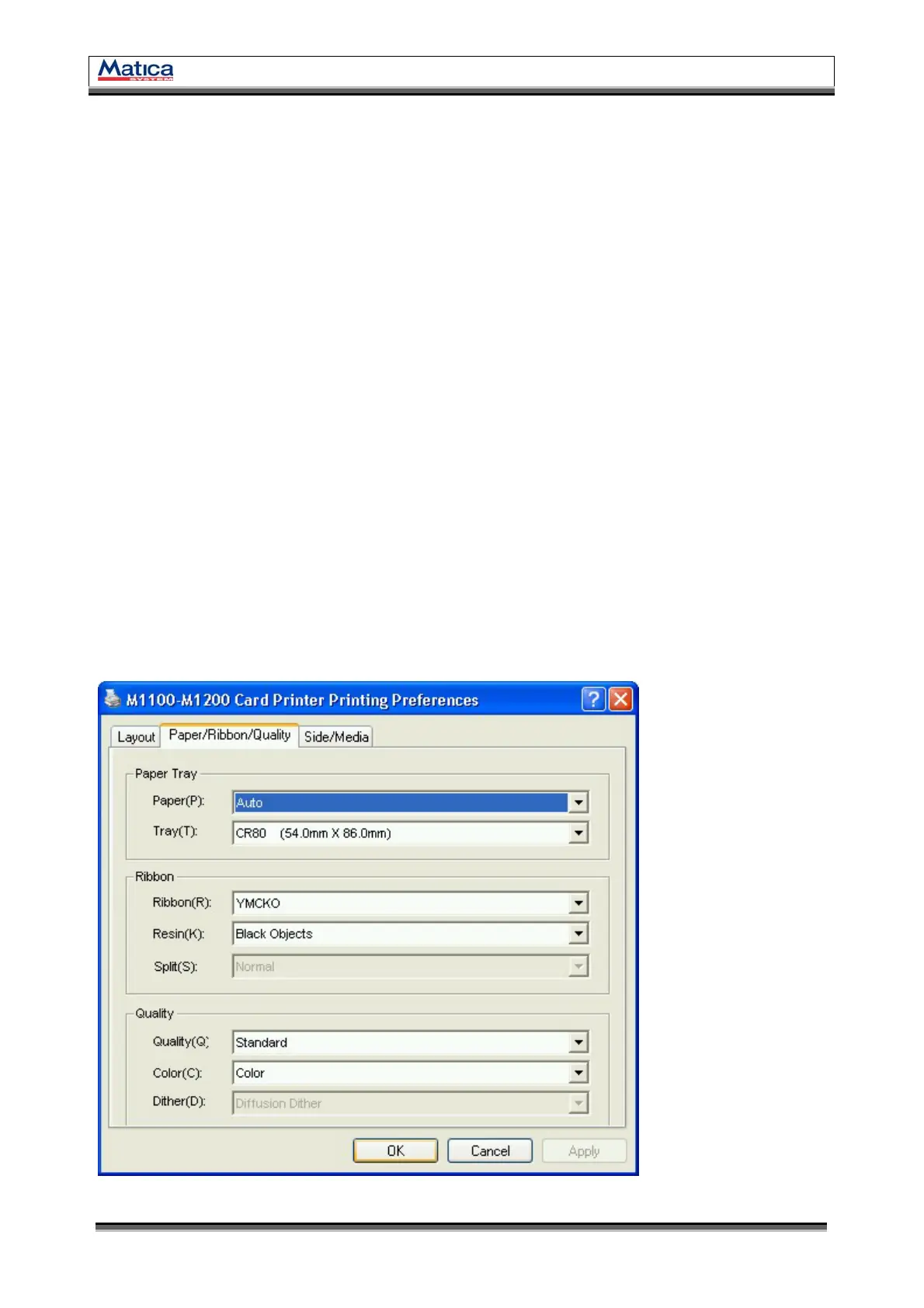
3.2.1.2 Paper / Ribbon / Quality tab
You can set the type of paper, ribbon, and quality.
Paper Tray
Select tray and card type option. M1100 – M1200 has only one hopper and supports
only CR-80 type card. You need not to change default value in this option.
Ribbon
You can see the type of ribbon. M1100 – M1200 identifies ribbon type automatically
with RF Tag. You do not need select the ribbon type.
Resin
You can set the method to extract resin black when the printing is executed by other
design programs.
Quality
Print quality setting - There are 2 modes, Standard and High.
High: Printing speed will be slow down.
Color: You can select color or black & white print.
Caution! “Color” option is available only with color ribbon.
Dither: There are 3 possible selections, Threshold, Random, and Diffusion Dither.
(Select “Diffusion Dither” for high quality.)
<Figure 51> Paper/Ribbon/Quality.


 To Next Page