Matrox Millennium Installation Guide 7
Matrox Millennium. After installing Windows 95, follow the instructions in the next
section.
Installing MGA PowerDesk software for Windows 95
This section assumes you’ve followed the instructions in the preceding section.
1
Insert the Matrox CD-ROM in your CD-ROM drive.
(Windows 95’s autorun feature will start the
mgasetup
program.)
2
Click on
MGA PowerDesk for Windows 95
Æ
Install
to launch the PowerDesk
setup
program.
(The other install options are covered later in this manual and in the CD-ROM booklet.)
3
Select the language version of MGA PowerDesk you want to install and click on
Next
.
4
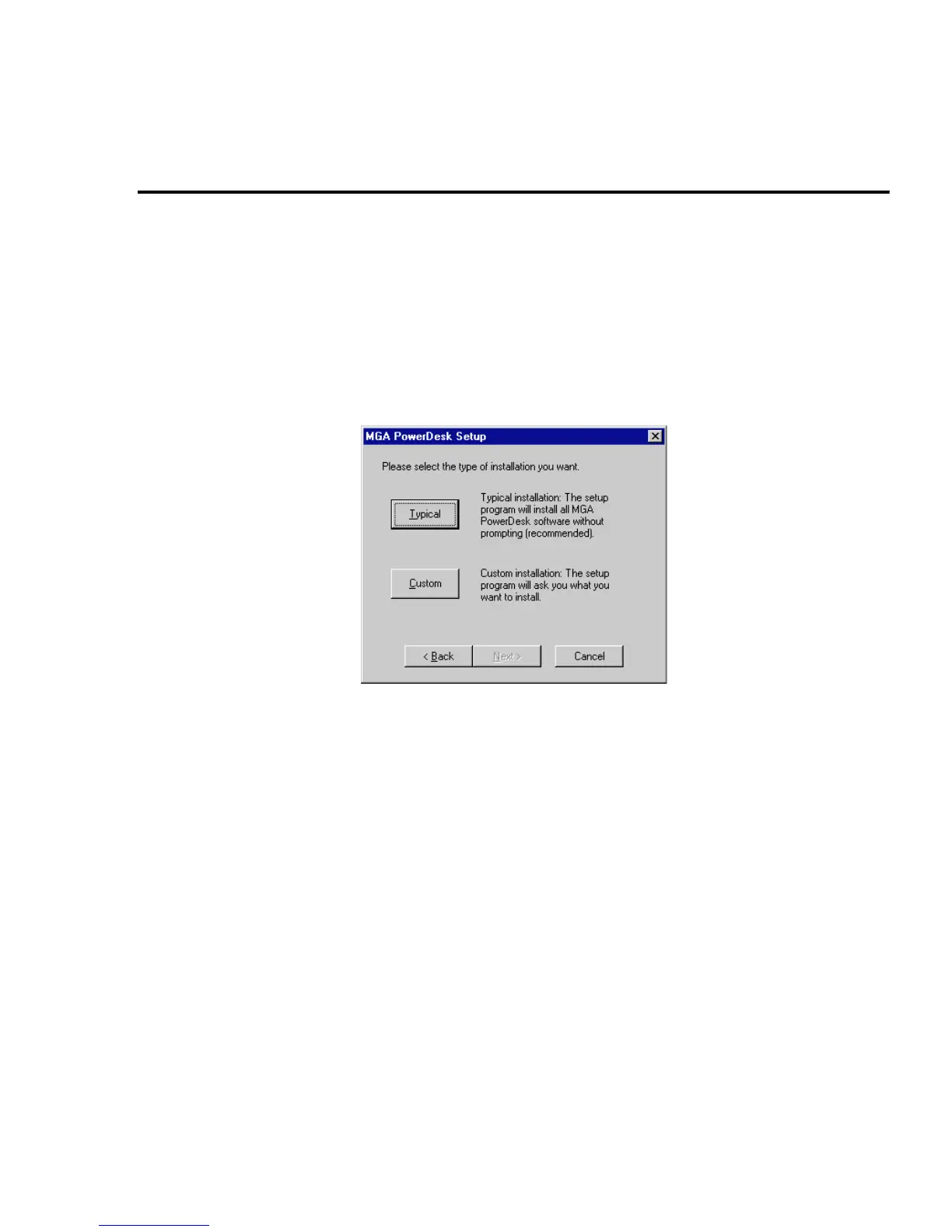
Click
Typical
to install the complete MGA PowerDesk (recommended), or click
Custom
to
customize the installation.
If you click
Custom
, you’ll be prompted for a destination directory and what options you
want to install.
5
After the
setup
program copies files to your hard disk, it will automatically change the
display adapter type to MGA mode. This is done through the Windows 95
Display
Properties
dialog box. (This does not apply if you’re upgrading from an earlier version of
our Windows 95 drivers.) After installation, restart your computer for all changes to take
effect.
After restarting your computer, your display will be at 640 × 480 resolution with 256 colors (unless
you were upgrading from an older MGA PowerDesk for Windows 95).











 To Next Page