Matrox Millennium Installation Guide 3
Quick hardware installation
1
Switch to the standard VGA driver
If you’re running Windows 95 on your computer, this is not necessary. If you’re running
Windows 3.1, Windows NT or OS/2, refer to your operating system’s documentation for how
to switch to VGA mode.
2
Open your computer and remove your existing graphics card
Turn off your computer and all peripherals such as the monitor or printer. Once open, remove
your existing graphics card. (If you have a display adapter built into your computer’s
motherboard, it should automatically disable itself after your Millennium card is installed.)
3
Choose a PCI expansion slot
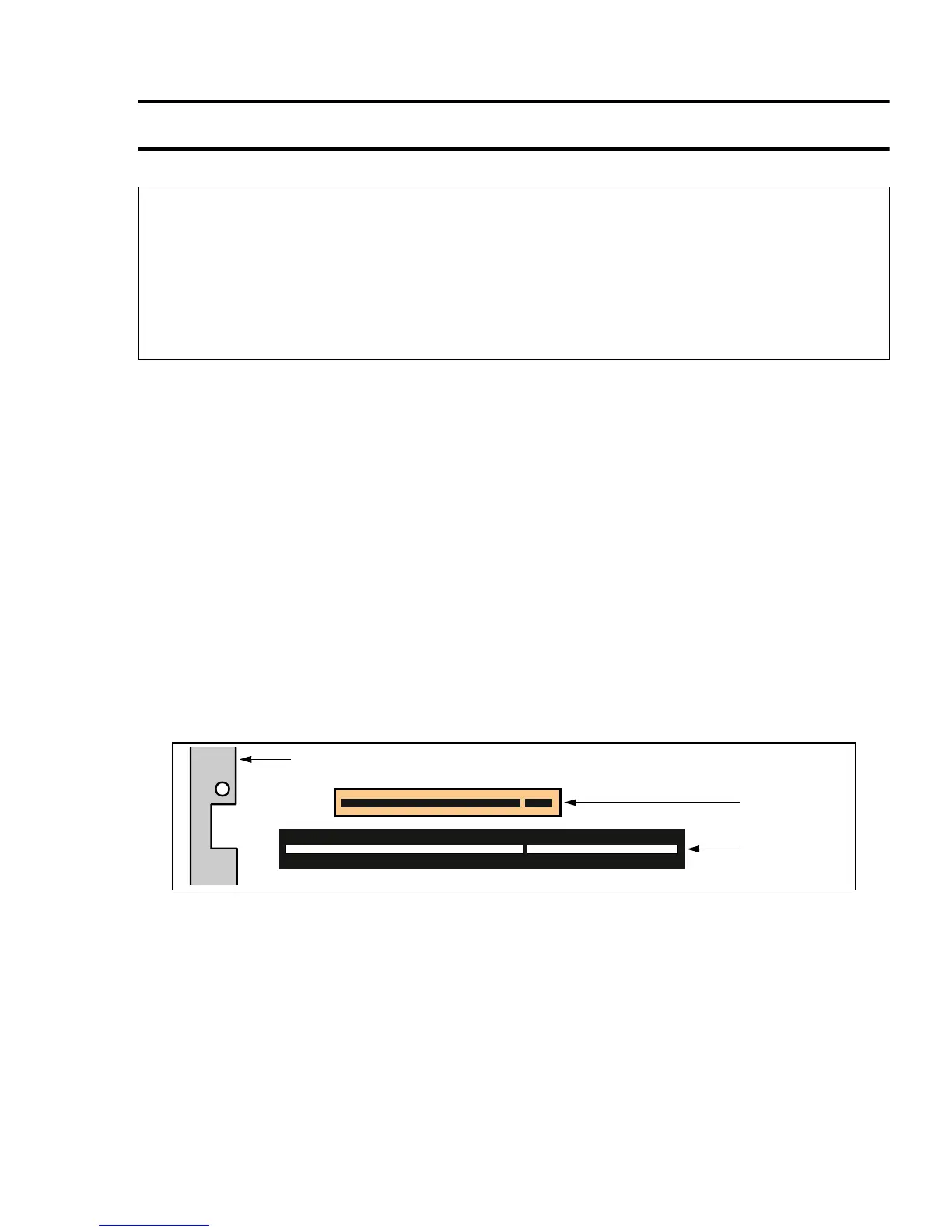
Most PCI bus computers contain a combination of PCI and ISA expansion slots. PCI slots are
usually made with plastic of a contrasting beige color, and are shorter than other slots in your
computer. Your system manual should identify the PCI slots. Plugging your Millennium card
into a non-PCI slot could damage the card, your computer, or both.
Warning!
Static electricity can severely damage electronic components. To be safe, take the following
precautions to ground yourself before touching your Millennium card:
1
Turn off the power to all equipment, leaving it plugged in.
2
Touch the metal chassis of your computer to drain the static electricity from your body
before you touch the card. Don’t let your clothes touch any of the components.
PCI vs. ISA expansion slots
ISA slot
PCI slot
Back of computer











 To Next Page