Firmware Update
-30- Maverick MK2 Spot User Manual Rev. 4
View the Home Screen on the Maverick MK1
5.
Hybrid. (see Home Screen)
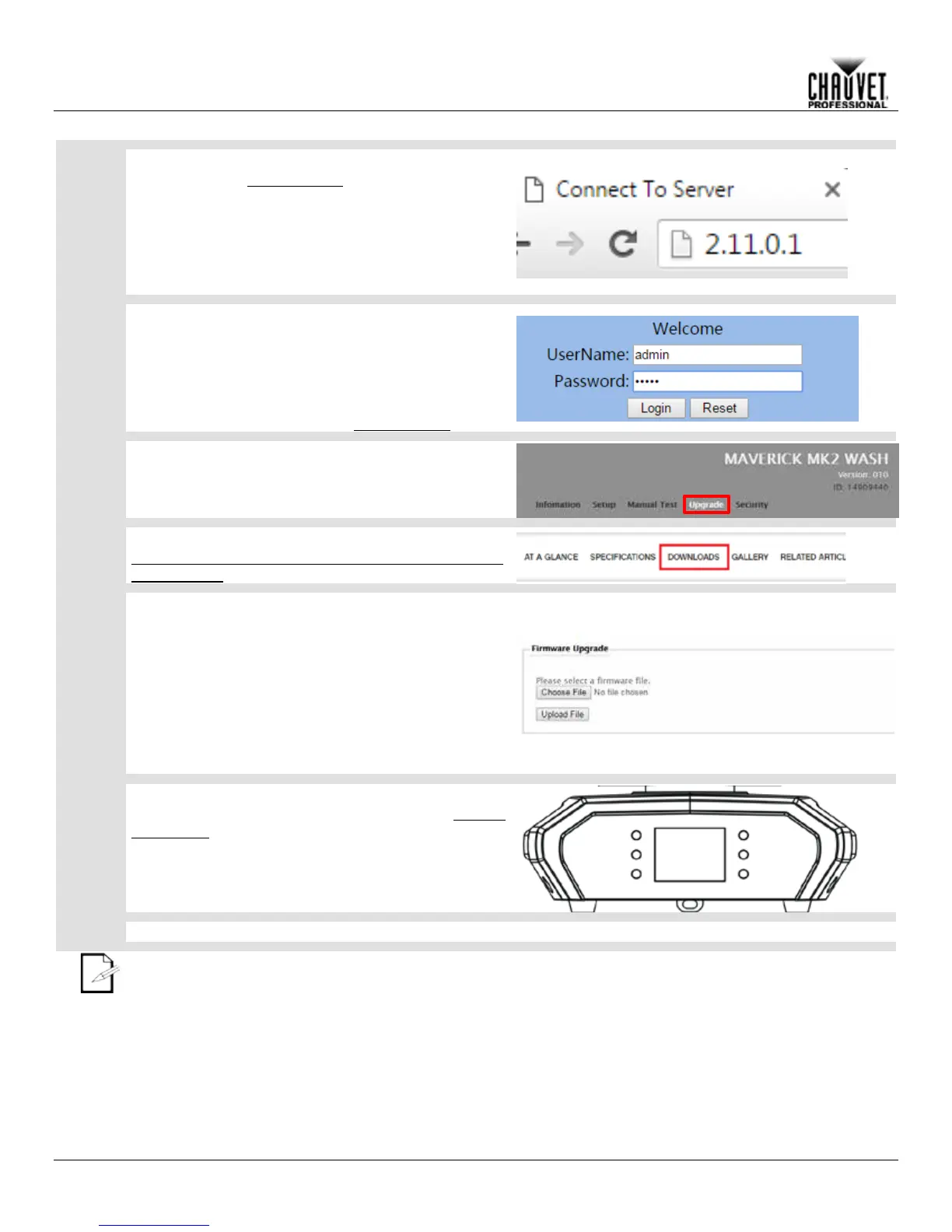
Open the internet browser on the computer. 6.
Enter the IP address from the Maverick MK1 7.
Hybrid display into the URL bar of the internet
browser. (For example, if the display of the
product reads 2.11.0.1, enter 2.11.0.1 into the
URL bar of the internet browser.)
Enter admin as both the User Name and 8.
Password. No capital letters.
Press Log In on the screen, or <Enter> on the 9.
keyboard.
If the user name and password do not work, reset the
product to factory defaults. (see Factory Reset)
On the page that appears, click Upgrade.
Find the latest Firmware Upgrade on the website at
https://www.chauvetprofessional.com/products/maveri
ck-mk2-wash under DOWNLOADS.
Click Choose File on the Maverick MK1 Hybrid
10.
Upgrade page.
In the File Explorer window that pops up, select 11.
the Firmware Upgrade file from the website and
click Open.
Click Upload File. 12.
A Downloading message will appear on the product’s
display. Once the product
firmware, it will reset.
Do NOT turn the product off during this process.
On the Maverick MK1 Hybrid, verify the firmware has
been updated by navigating to Sys Info (System
Information
) and checking that the version number
matches the name of the file on the computer.
Disconnect the Maverick MK1 Hybrid from the computer. The firmware update is complete.
The examples shown are for illustrative purposes.



 To Next Page