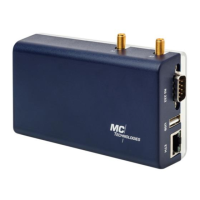
MC100
Mobile programmable gateway
MC Technologies GmbH, Kabelkamp 2, 30179 Hannover, Germany
Tel: +49511 67 69 99-0, Fax: +49511 67 69 99-150, Website & Shop: www.mc-technologies.net, Email: info@mc-technologies.net
53
16.2 For v1.0.5 (future release)
OWFS 1-Wire file system is an easy way to use the powerful 1-wire system. It is factory
installed option in MC100 with version v1.0.5 or later.
Using OWFS file system 16.2.1
The user functions are located in the following folder:
/mnt/owfs/
1. To enter the folder using Command prompt, use the following command and press
print:
root@MC100: ~# ls /mnt/owfs/
10.0702A3030800/ alarm/ settings/ statistics/ system/
10.5B94A3030800/ bus.0/ simultaneous/ structure/ uncached/
2. Choose the wanted sensor and use the following command.
(In this example temperature sensor is used)
root@MC100:~# ls /mnt/owfs/10.0702A3030800/
address crc8 family latesttemp power r_id scratchpad temphigh type
alias errata id locator r_address r_locator temperature templow
3. To read the contents, type:
root@MC100:~# ls /mnt/owfs/10.0702A3030800/temperature
24.5625
OWhttpd 16.2.2
OWFS provides a small webserver that shows the Dallas/Maxim 1-Wire bus attached
to a serial port. The main page shows the devices found; you can then navigate to
individual devices, and view/change their properties.
This can be enabled using the following steps:
1. Type the following command and press print:
root@MC100:~# vi /etc/config/owfs
2. Press “i” to enter the input mode, and change "option enabled" to 1.
3. Then press Escape to save the file, and type :wq and press Enter.
4. Then, type the following command and press print:
root@MC100:~# vi /etc/config/owserver
5. Change "option enabled" to 1.
6. Then press Escape to save the file, and type :wq and press Enter.
7. Then, type the following command and press print:
root@MC100:~# vi /etc/config/owhttpd
8. Change "option enabled" to 1.
9. Then press Escape to save the file, and type :wq and press Enter.
You can reach the owhttpd web interface with the same IP address as the standard web
interface and the specification of the port (e.g. 3001)
Example with default address: http://192.168.2.1:3001
More information and tutorials can be found on:
(https://owfs.org/index_php_page_quickstart-guide.html)


 To Next Page