RX8000 Integrated Receiver/Decoders
1553-FGB 101 759 Uen K
www.mediakind.com
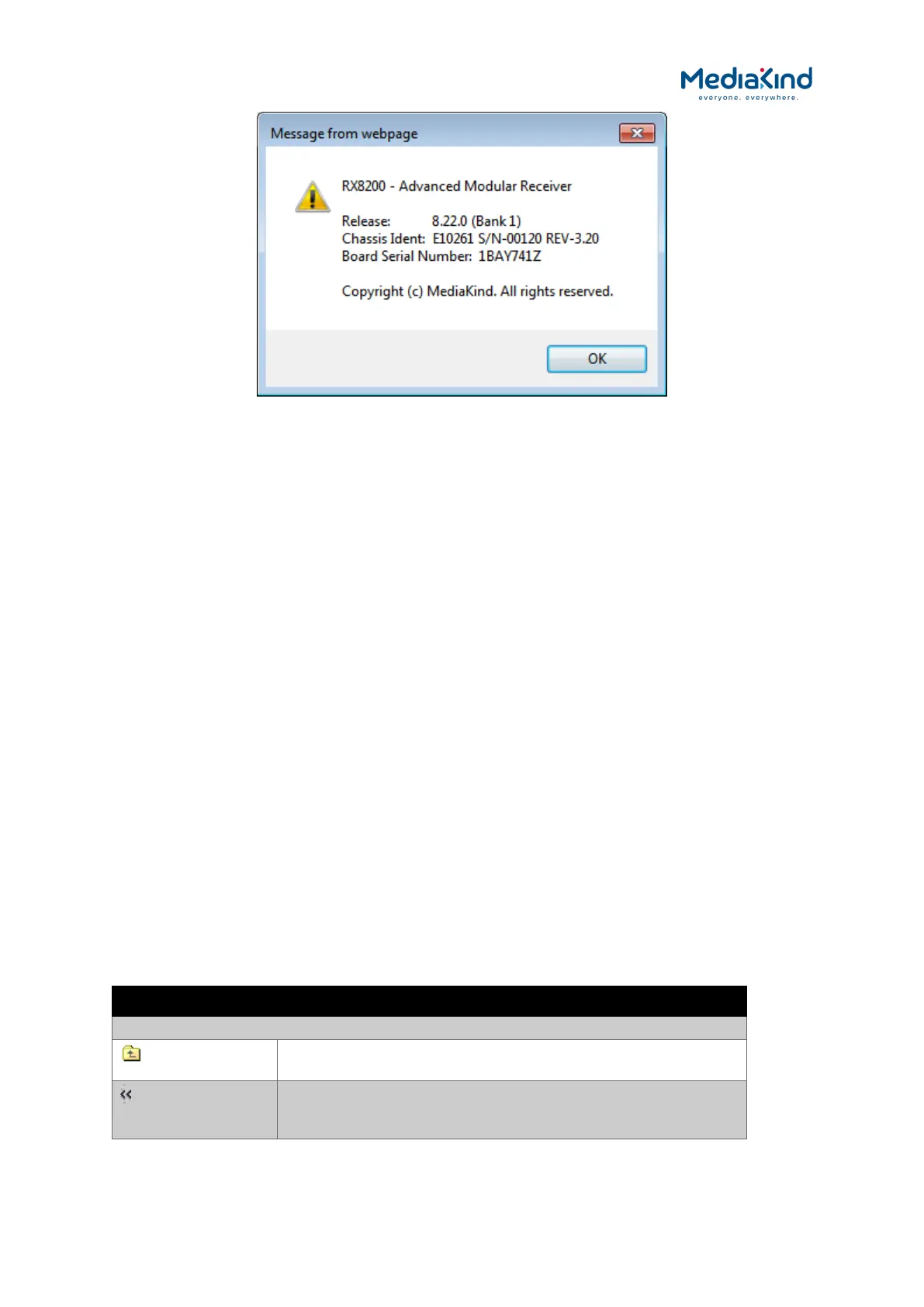
Figure 3-14 About Dialog
• Function Tabs – The web pages for control and monitoring of
specific functions are accessed by selecting the appropriate
function tab along the top of the web page. When you switch
between tabs, the browser remembers the path within each
tab.
• Navigation Path – The web pages are organized into a tree-
like structure, like the directory on a computer. The current
navigation path is always displayed at the top of the web page
showing the route taken to the current page. To return to a
higher level (parent) web page (folder), simply click on the
relevant name link in the Navigation Path or click the Top Level
Folder icon in the toolbar.
• Toolbar – The toolbar provides various tools/buttons
depending on the web page selected.
• Main Web Page – The main content of the web page displays
parameters and their current values. Some parameters can be
modified by overtyping, selecting an option from a drop-down
menu or by placing a tick in a checkbox as required. Any
changes made will not be applied to the unit until the Apply
Changes button is clicked in the Toolbar.
• Result Frame – The Result Frame at the bottom of the screen
will feedback results of any command actions. SUCCESS,
SUCCESS with warnings or ERROR may be displayed, with
further details as appropriate for more complex actions.
The following table lists the various icons, buttons and other symbols used in these web pages.
Table 3-2 Web Page Icons, Buttons and Symbols
Item Description
Navigation
Click on this icon to navigate one step up (to the parent folder)
in the folder structure.
Click on this icon to navigate back to the previous view. This
icon typically appears when you are editing a single record in a
table or a sub-table.


 To Next Page