MVR/MVRPRO-UG01-EN-200727
<11>
MVR / MVR Pro User Guide - English
Monitor User Interface
Please note:
The position of the icons in live view can be arranged to your preferred location. Simply
swipe the icons to the left or the right for position change.
If you do not wish to see the icons on your monitor, you can easily swipe them out of the
visible monitor area.
Swipe the icons with one nger, when using a touchscreen monitor.
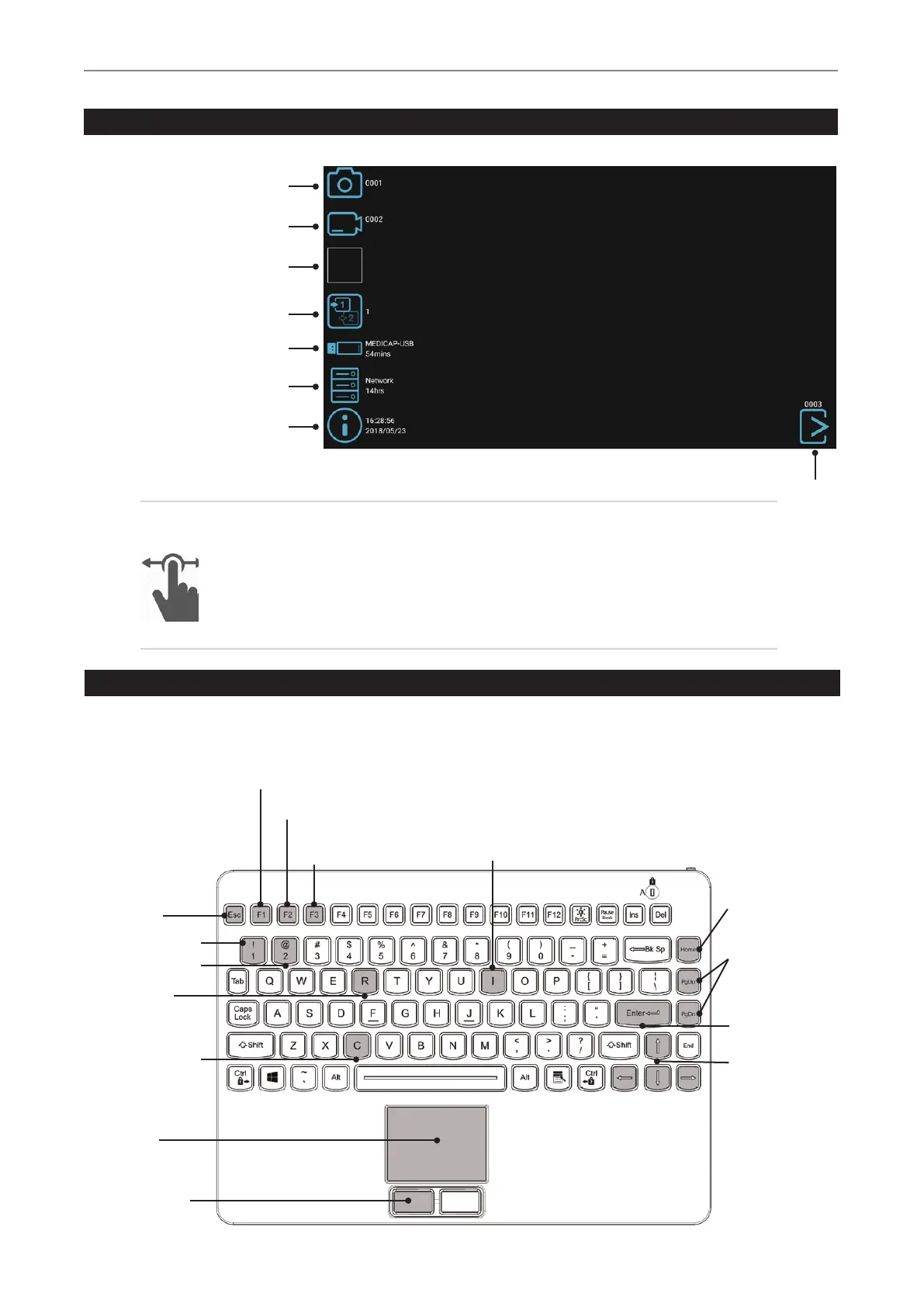
Capture Photo
Record Video Start/Stop
Control Icon and
Review last study
Change Input Signal
Remaining recording time on
USB storage or internal device
Network Storage active
Information page
MVR / MVR Pro displays easy-to-use icons. Icons can be tapped directly on the touchscreen.
MVR / MVR Pro live view screen. This is the icon size, displayed on a Full-HD monitor.
On a 4K monitor, the icons will appear smaller.
End of study
USB keyboard with integrated trackpad
A USB keyboard with integrated trackpad can serve as an alternative to a touchscreen monitor. The integrated trackpad works like a
mouse with double-click function.
Please note the short cut key functions to operate the user interface of MVR:
F1 = Take picture
F2 = Start / Stop video recording
- Hold for 3 sec = Pause
F3 =
New study / End of study
i = Information screen
Esc = Back
(in Settings)
1 = Input 1 (select)
2 = Input 2 (select)
r = Review in
live mode
c = Change input
(toggle input 1 / 2)
Trackpad works
like a mouse to
control the cursor.
Double-click =
Enter / selection
Enter / selecion
Home =
Change input
(toggle input 1 / 2)
PgUp or PgDn =
Information screen
in open study
Enter = Select,
Video Pause on/off
Arrow keys
to control the
cursor or to move
between elds
in Settings


 To Next Page