MVR/MVRPRO-UG01-EN-200727
<15>
MVR / MVR Pro User Guide - English
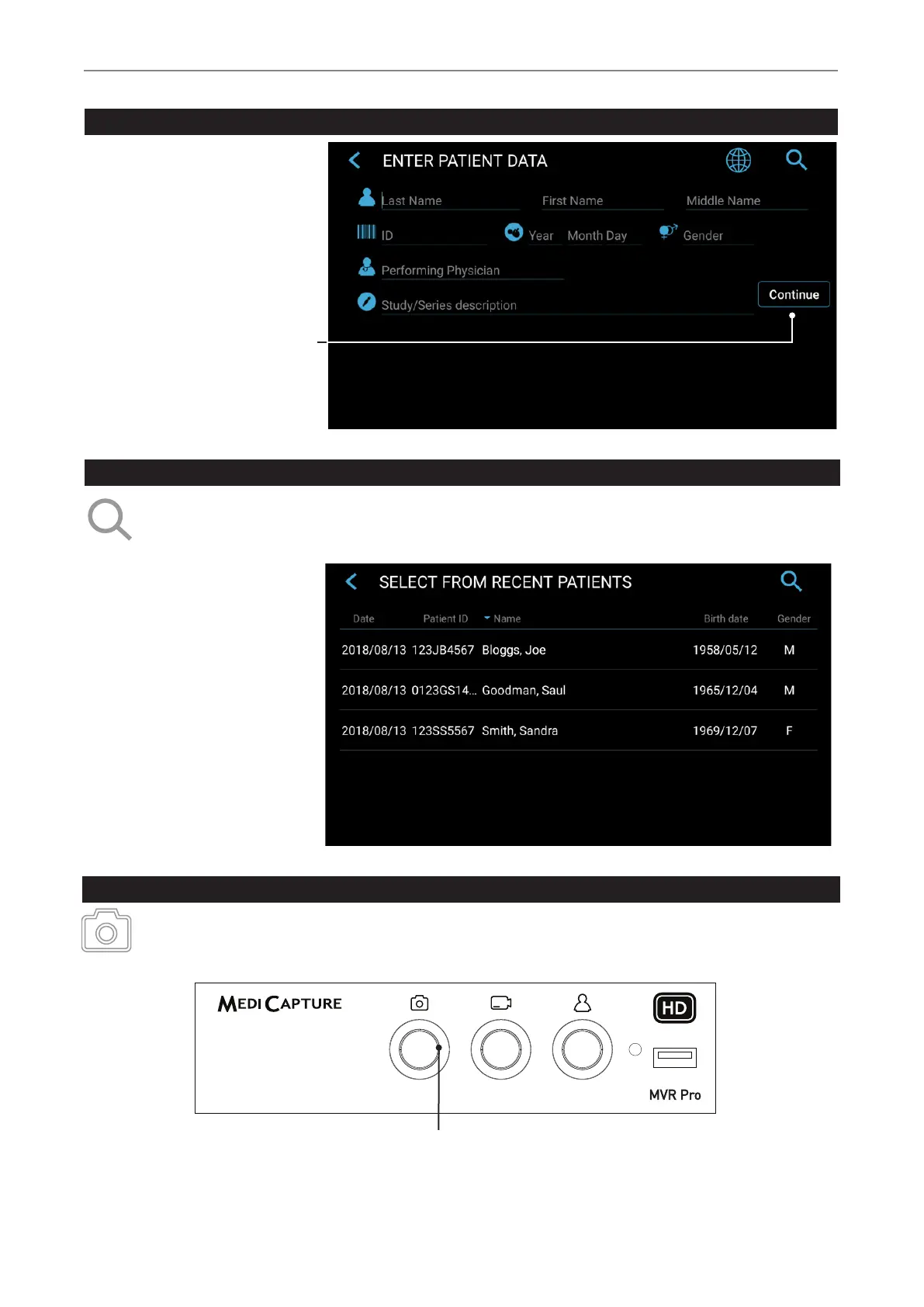
Manual Patient Data Input
You can type in patient information
to assign images and videos to a
patient. Patient info settings must be
set to Manual.
➤ Settings ➤ System ➤ Patient Info
Tap on Continue
to start your
new study.
Search Recent Patient on Storage
Instead of typing patient data manually, you can also list all recent patients which are located on your MVR / MVR Pro
storage media (those which are enabled and connected). Tap on the “search” icon in the screen “ENTER PATIENT
DATA” to retrieve the list.
Select existing patient data and
tap again to copy the patient data
to your new study. You can still
change these data.
Tap on Start to start your
new study.
Capturing Images
To capture an image, tap on the Capture Photo icon on the touchscreen.
Front panel: Press the Capture Photo button on the front panel. [USB keyboard: Function key
“F1” has the same function.]
Light Ring
Is illuminated blue when the device is ready for capturing
images. Goes out briey when capturing images.


 To Next Page