MVR/MVRPRO-UG01-EN-200727
<14>
MVR / MVR Pro User Guide - English
Creating Patient Data
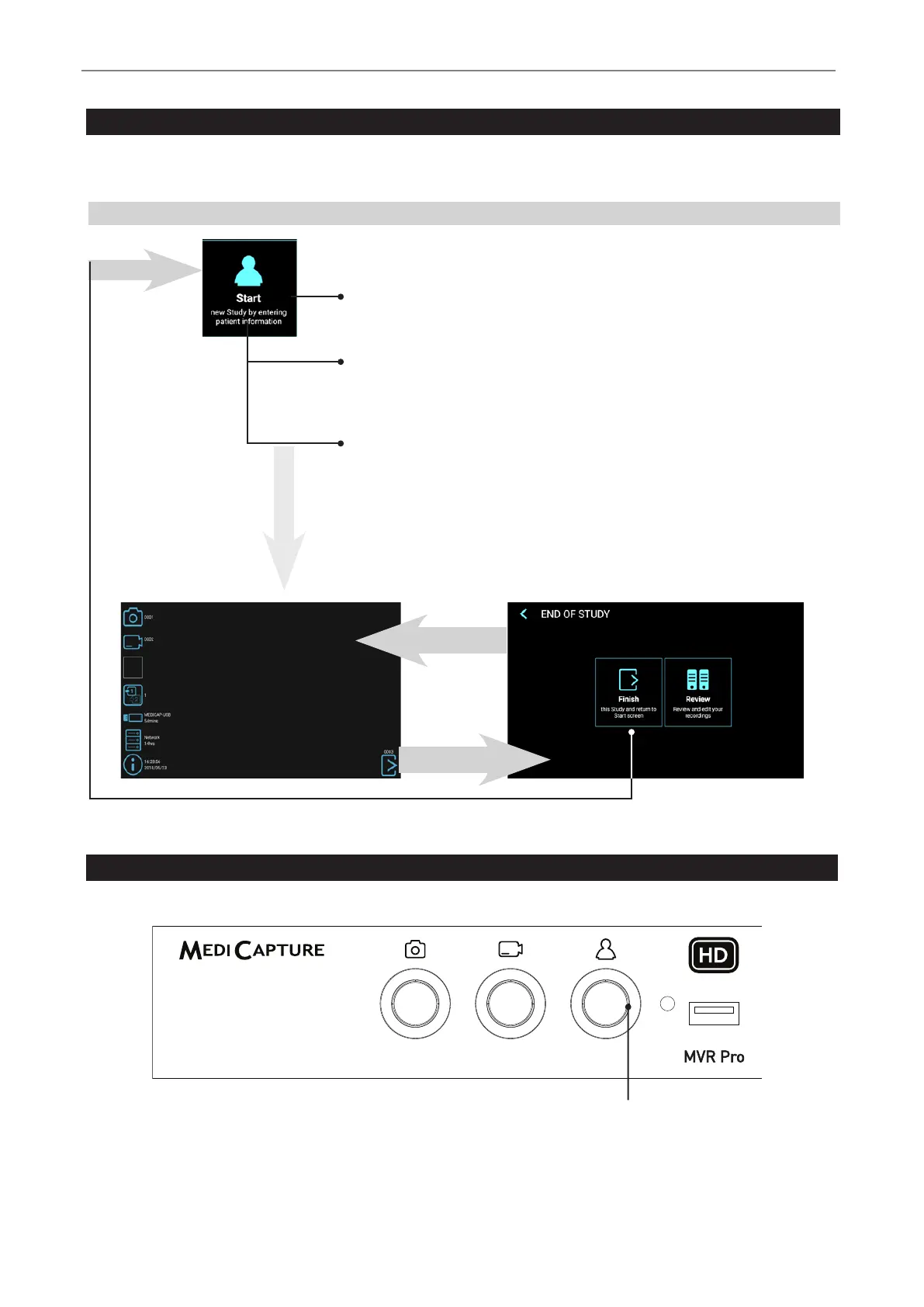
The workow for patient data input depends on the settings for Patient Info. ➤ Settings ➤ System ➤ Patient Info
MVR / MVR Pro starts with a dened home screen after switching-on or after a study was nished.
START
Back to study
(live screen)
End of study
Live screen for recording
Using Patient Button to End Recording Study
You can use the Patient button on the front to nish a study.
Light Ring
Is illuminated blue when a recording
study can be closed (END OF STUDY)
Workow after MVR / MVR Pro was switched on:
No Patient Info
MVR / MVR Pro creates a folder to store images and
videos recorded in that study
Manual Patient Info
You can type in patient information to assign images
and videos to a patient. To input patient information,
please use the intergrated touch monitor, an external
touch monitor or a USB keyboard
Patient Info settings must be set to Manual.
➤ Settings ➤ System ➤ Patient Info
Tap on Start, press the Patient button on the front [or
use “F3” key on your keyboard] to start a new study.


 To Next Page