MEITRACK T711L GPS Vehicle Tracker User Guide
Copyright © Meitrack Group 2021. All rights reserved. - 9 -
GPS LED Indicator (Blue)
Blink fast (once every 0.1 seconds) The device is being initialized, or the battery power is low.
Blink fast (0.1 seconds on and 2.9 seconds off) A GPS signal is received.
Blink slowly (1 second on and 2 seconds off) No GPS signal is received.
GSM LED Indicator (Green)
Steady on There is an incoming call.
Blink fast (once every 0.1 seconds) The device is being initialized.
Blink fast (0.1 seconds on and 2.9 seconds off) A signal is received from a base station.
Blink slowly (1 second on and 2 seconds off) No signal is received from a base station.
6.3 Device Configuration
6.3.1 Installing the USB Driver
1. Decompress the stsw-stm32102.zip file provided by Meitrack, locate the following file, and install the USB driver on
a computer with the 64-bit Windows system.
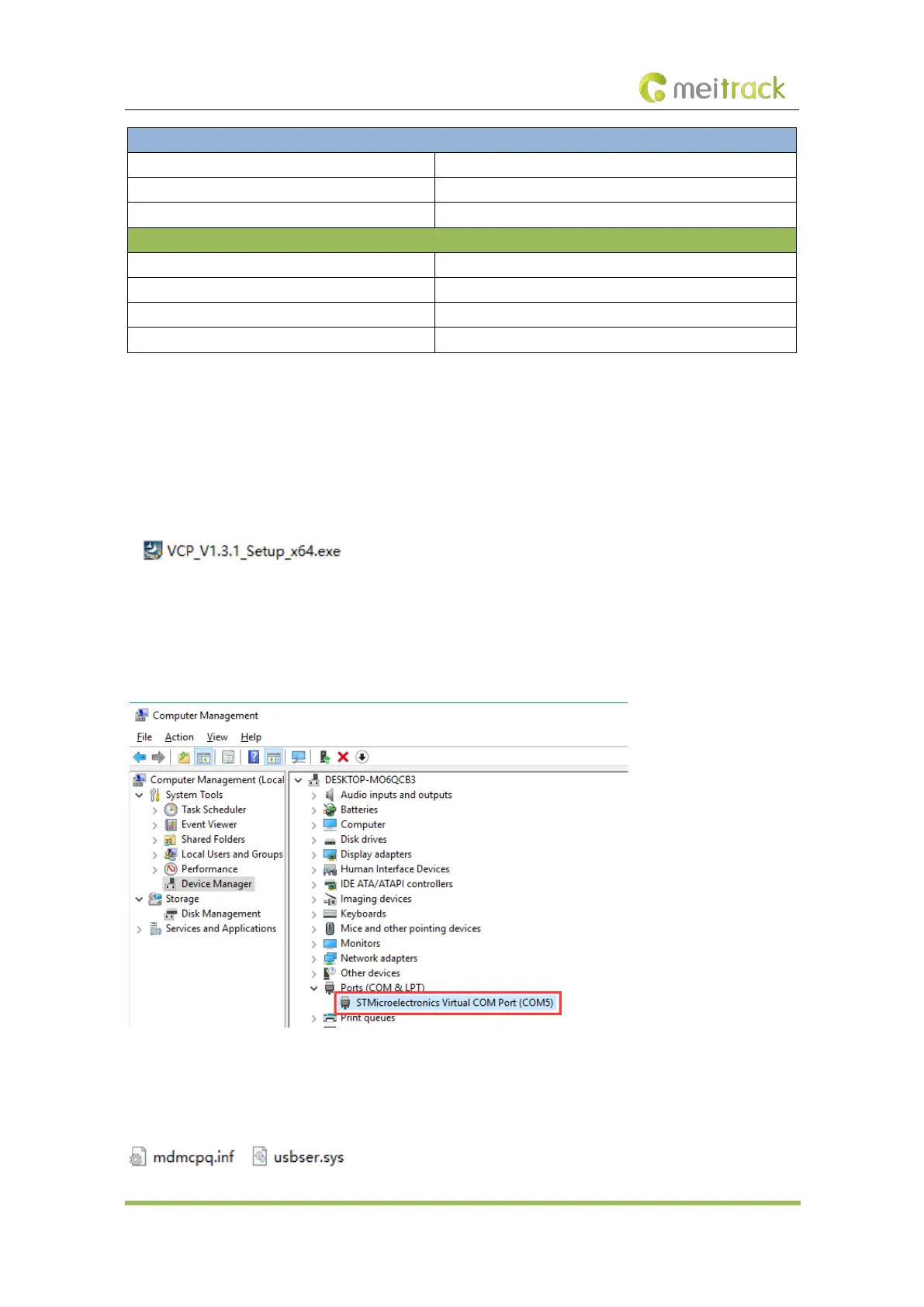
2. After the installation is finished, connect the device to the computer through the USB cable. If STMicroelectronics
Virtual COM Port (COM5) is displayed on the Device Manager page, the driver is installed successfully.
Caution: Before connecting the device to the computer through the USB cable, turn on the device first. Otherwise, the
device cannot be detected by Meitrack Manager.
Note: After the driver installation is finished, if the preceding figure is not displayed, copy the mdmcpq.inf file to the
C:/windows/inf/ directory and usbser.sys file to the C:/windows/system32/drivers/ directory, and then restart the
computer.


 To Next Page