- 9 -
W000000,002,030
The tracker will send location data back to your mobile phone every 30 minutes.
7.4 Google Earth and Google Maps
Download Google Earth from http://earth.google.com/.
Start Google Earth (For more information about Google Earth please refer to http://earth.google.com/ or go
to http://maps.google.com).
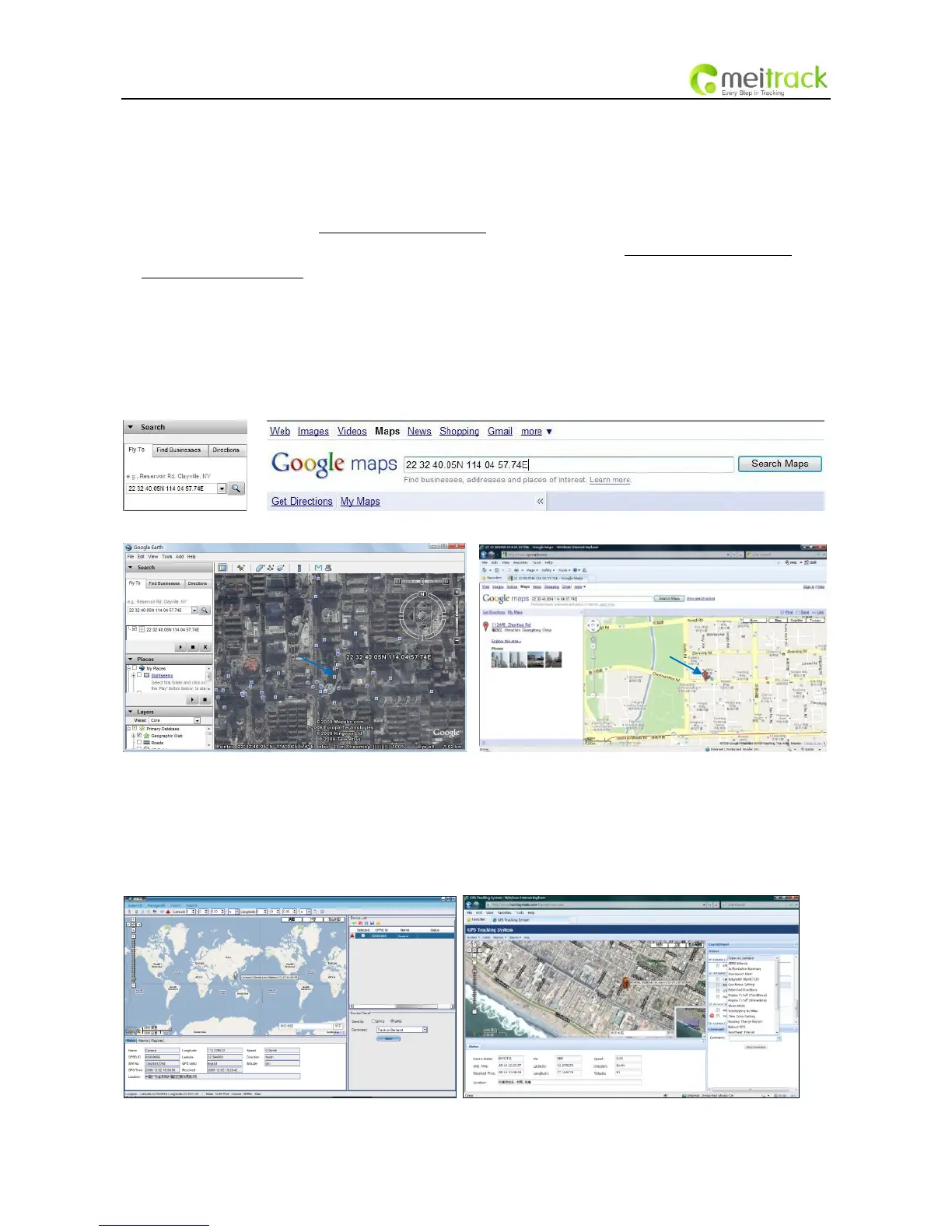
Input the latitude and longitude that you received from the tracker by SMS and click the search button.
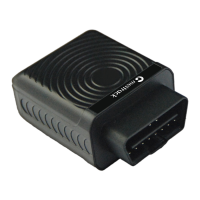
Google Earth or Google Maps will display the location for you.
Example:
When you receive: Latitude = 22 32 40.05N Longitude = 114 04 57.74E
Type as the following picture shows:
(Note: you should input the latitude and longitude as: 22 32 40.05N 114 04 57.74E)
And then you can find the location of your tracker:
You can also use local map software on PDAs or car navigation device to input the coordinates.
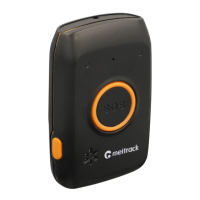
7.5 Track by MS01/MS02
You can also see a physical location on a map with our GPS Tracking Software MS01 or MS02.
This software is available for purchase and can be used for tracking after proper configuration
Please refer to MS01/MS02 User Guide for more information.


 To Next Page