33
Digital Music Library
Network Audio Player
Streaming Imported Music Files
The Digital Music Library supports streaming of files with the extensions below.
Supported File Types for Streaming
Extensions
mp3, wma, wav, lpcm, pcm, ogg, m4a, mp4, 3gp, flac, m3u, mpa, aac, apl,
ac3, aif, aiff, mp2, mp1, dsf, dff
Streaming Music Files from USB Drives
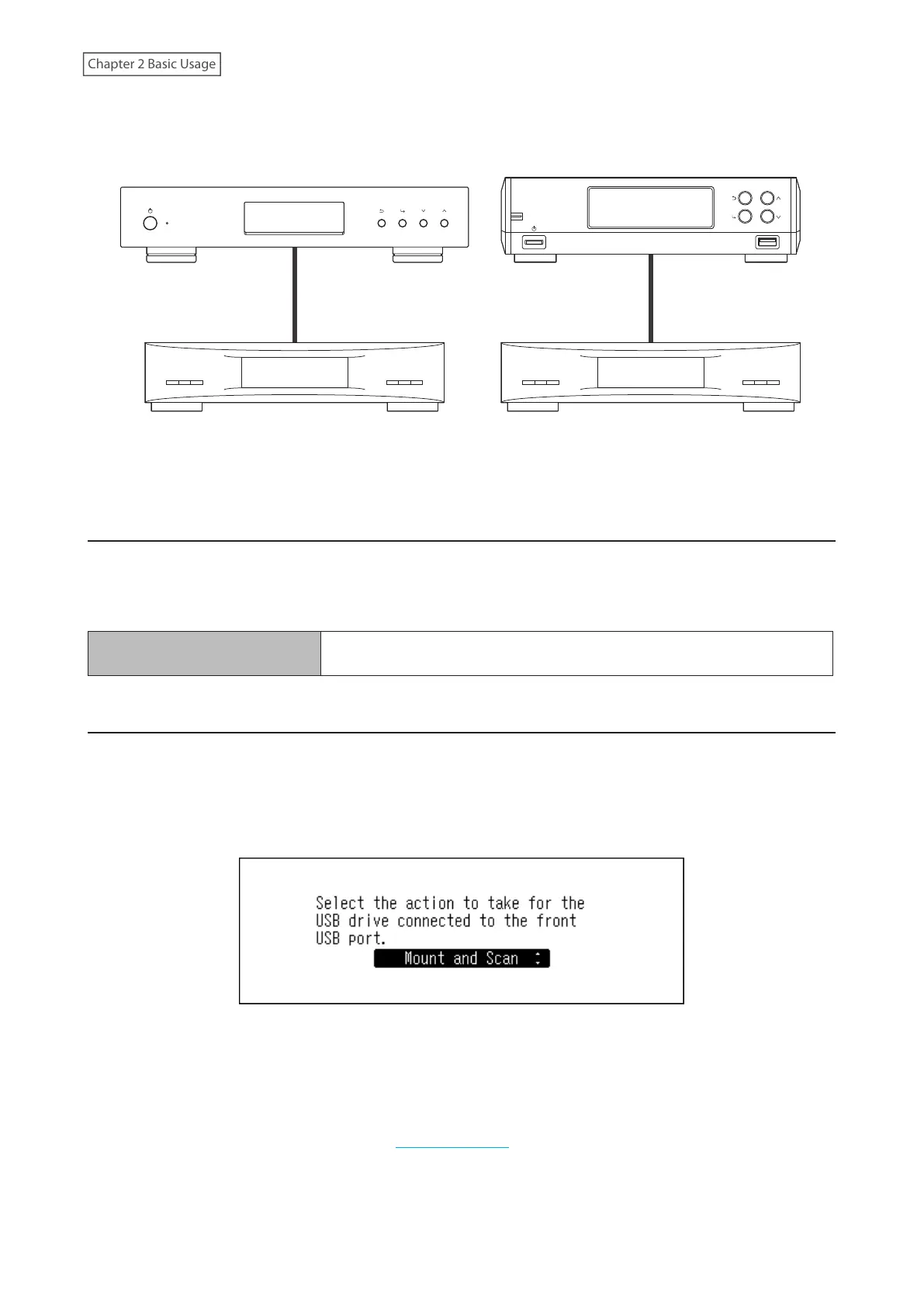
Even if music files are not imported from the expansion drive, your Network Audio Player can play music files from
the USB drive that is connected to the Expansion port on the N1 EX, or the USB 2.0 port on the N10/N100.
When a USB drive is connected to the front USB port on the N1A EX model, or the USB 2.0 port on the N10/N100, the
following screen will be displayed. Press the Up/Down buttons and select “Mount and Scan”, then press the Menu/
Enter button.
On the controller app for the Network Audio Player, select folder view from the index tree, and open the “Expansion”
folder of the Digital Music Library. You can select music files in the “Expansion” folder for playback. If the “Expansion”
folder cannot be found, rescan the music database by navigating to Settings > Music Database > Rescan Songs and
Playlists on the Digital Music Library.
Notes:
• Use only the compatible USB drives listed on melco-audio.com.
• If you want to disconnect the USB drive while the Digital Music Library is on, press the Menu/Enter button on the
home screen and select “Dismount USB Drive” to dismount the USB drive. The menu name will vary depending on
which USB port you have inserted the USB drive into.



 To Next Page