Check and Configure Upstream Firewall Settings
If an upstream firewall is already in place, it must allow outgoing connections on particular ports to particular IP
addresses. The most current list of outbound ports and IP addresses for your particular organization can be found on the
firewall configuration page in your dashboard.
Installation Instructions
Mounting Recommendations
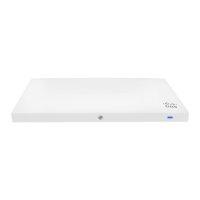
You can mount the appliance on a drywall surface, either vertically or horizontally. The distance between the holes you
drill should be 5-1/8 inches (13 cm). The fan grills for the MX75 are located at the bottom of the chassis.
Note: Please make sure there are no blockages or obstructions within one inch of the top of the chassis or within 0.5
inches of the sides so that nothing interferes with cooling.
Connecting to WAN
All Meraki MX devices must have an IP address. This section describes how to configure your local area network before
you deploy it. A local management web service, running on the appliance, is accessed through a browser running on a
client PC. This web service is used for configuring and monitoring basic ISP/WAN connectivity.
Setting up a Static IP Address
To ensure that the client PC is redirected to the local web service in the following step, you must disable all other
network services (ex: wi-fi) on your client machine.
Do the following to configure basic connectivity and other networking parameters:
1. Using a client machine such as a laptop, connect to one of the LAN ports of the MX.
2. Using a browser on the client machine, access the appliance's built-in web service by browsing to
http://setup.meraki.com. (You do not have to be connected to the Internet to reach this address)
3. Click Uplink configuration under the Local status tab. The default credentials use the device serial number as
the username, with a blank password field.
4. Choose Static for the IP Assignment option.
5. Enter the IP address, subnet mask, default gateway IP and DNS server information.
Setting up a DHCP IP Address
By default all MX devices are configured to DHCP from upstream WAN / ISP servers. Simply plug the MX's WAN /
Internet port to your upstream circuit and wait a few minutes for the unit to negotiate a DHCP address.
8


 To Next Page