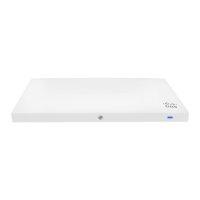
When the WAN connection is fully enabled, Internet LED 1 will turn green.
Additional Settings
Please note that all these settings below are accessible only via the local management console.
Setting VLANs
If your WAN uplink is on a trunk port, choose VLAN tagging > Use VLAN tagging and enter the appropriate value for
VLAN ID for your network.
Setting up a Secondary WAN Interface on the MX75
MX75 comes with three dedicated Internet ports, which are both configured under Security & SD-WAN > Monitor >
Appliance Status in the Uplink tab.
Setting PPPoE
PPPoE authentication may be required if you are connecting MX device to a DSL circuit. You need to know your
authentication option and credentials (supplied by your ISP) in order to complete these steps.
• Choose Connection Type > PPPoE.
• Select your Authentication option.
• If you select Use authentication, enter appropriate values for Username and Password.
Web Proxy Settings
These settings take effect if the MX device has to fall back to using HTTP to contact the Cloud Controller. By default,
web proxy is disabled. To enable web proxy, do the following:
• Choose Web proxy > Yes.
• Enter values as appropriate for Hostname or IP and Port.
• If you require authentication, choose Authentication > Use authentication, and enter appropriate values for
Username and Password.
To apply all configuration settings to the appliance, be sure to click Save Settings at the bottom of the page.
Configuring Physical Link Settings
To configure physical link settings on the Ethernet ports, click Local status > Ethernet configuration. You can enable
half duplex, full duplex, and autonegotiation, as well as set 10/100/1000-Mbps data rates.
Basic Troubleshooting
The following steps can be used for troubleshooting basic connectivity issues with your MX.
9


 To Next Page