Selecting the source via the front panel
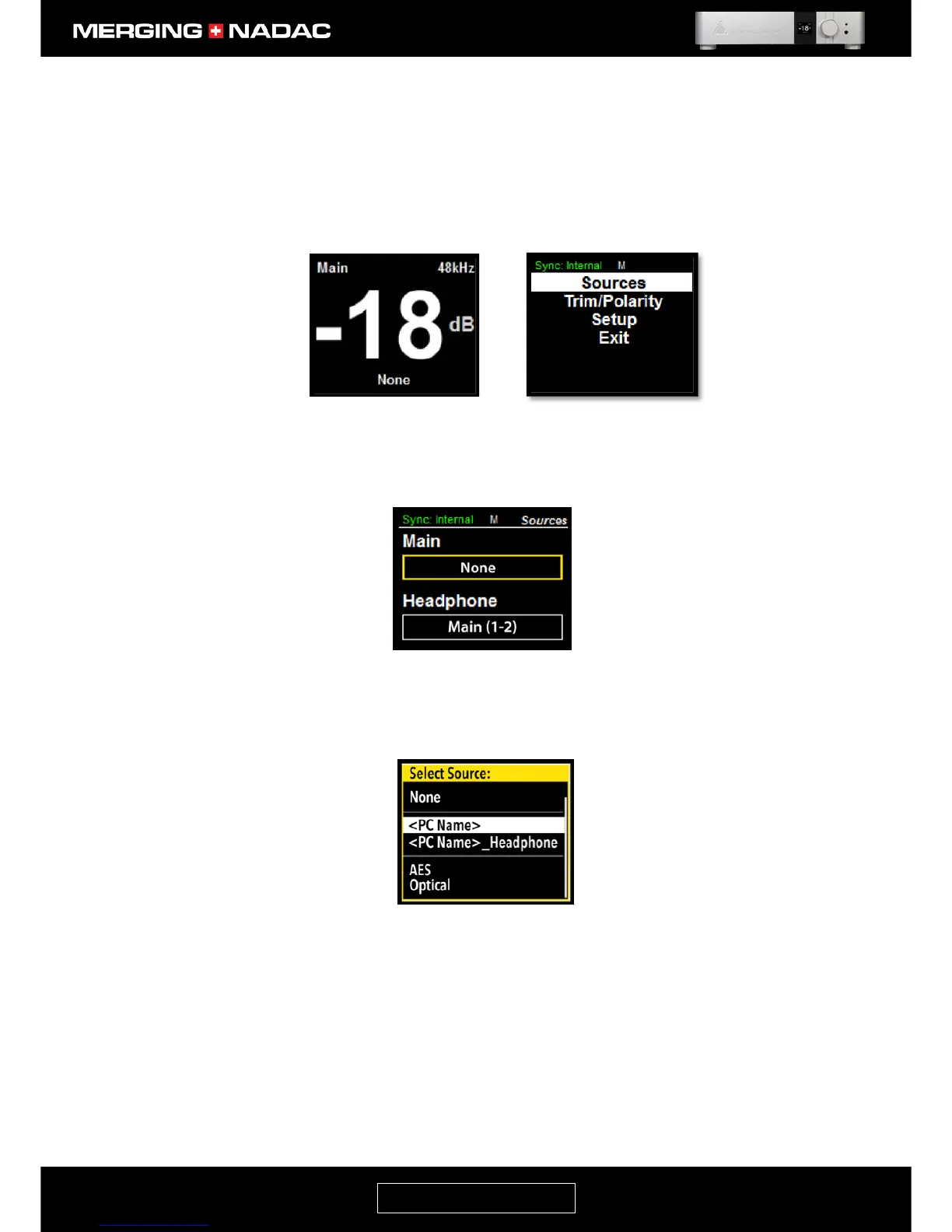
For the purpose of this illustration we will assume that the user wishes to listen to the Main output, that no
source has been selected for the Main output and that the headphone output is in its default setting of
following whatever is connected to the main output.
1. With the home screen displayed - an example is shown in Figure 42 - press and hold down the Rotary
Control until the main menu top screen appears – Figure 43.
2. With the Sources item highlighted, briefly press the Rotary Control to open the Sources menu –
Figure 44. Use the Rotary Control to outline the Main source option box as shown.
3. Briefly press the Rotary Control. The source options menu will appear – Figure 45. The example shown
here is with the Zone menu in the MERGING+NADAC Settings panel set to Main + Headphone.
Note: The name of your network source may appear twice in the Source options menu. Once in the form <PC
Name> and also as <PC Name>_Headphone. In this case choose the first version.
Use the Rotary Control to highlight the network source, then briefly press the Rotary Control to select it.
If you start your music server playing you should have music from the main output and also from the
Headphone output.


 To Next Page