Advanced Network Configuration
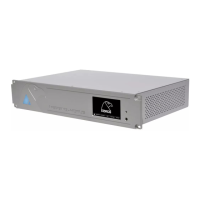
To configure the MERGING+NADAC on your home network (PC or MAC) to play back audio files from the
computer’s hard drive or network attached drive(s) and to control the system via a WiFi link using an iPad or
iPhone.
Software and hardware requirements
Install the Merging Technologies NADAC Core Audio Driver (MAC, page 53) or the Merging Technologies
NADAC ASIO Driver (Windows, page 49) on the computer that will be used as the network audio source.
Install the NADAC App on the iPad or iPhone that you will use as your remote control. You can download this
free of charge from the Apple Store. See page 59 for the link.
You will also need a Gigabit capable router and two CAT5E or CAT6 Ethernet cables. One cable should be
supplied with MERGING+NADAC.
Merging Technologies guarantees that the unit will meet its published specifications if Ethernet
cables meeting at least CAT5E or CAT6 standards are used. Using a lower quality cable may
compromise the system’s performance.
For the best quality results when streaming, we strongly advise that a wired network is used and this
must be Gigabit capable. We advise against the use Powerline Networks as they cannot be
guaranteed to provide the level of performance required.
1. Find the Ethernet cable that was supplied with your MERGING+NADAC.
2. Connect the Ethernet cable to the network input socket on the rear of the unit – Figure 6. If you are
unfamiliar with connecting and removing network connectors, please refer to the section on
Connecting the RAVENNA Ethernet cable on page 17 of this manual, as this may save you a broken
connector later.
3. Connect the other end of the Ethernet cable directly to your Network Gigabit router or Network
Gigabit switch.
4. Connect one end of the second Ethernet cable to the Ethernet socket on your computer and the
other end to your Network Gigabit router or Network Gigabit switch, switch it on and allow it time to
settle down.
5. Boot up the computer and start the music server software that you are using
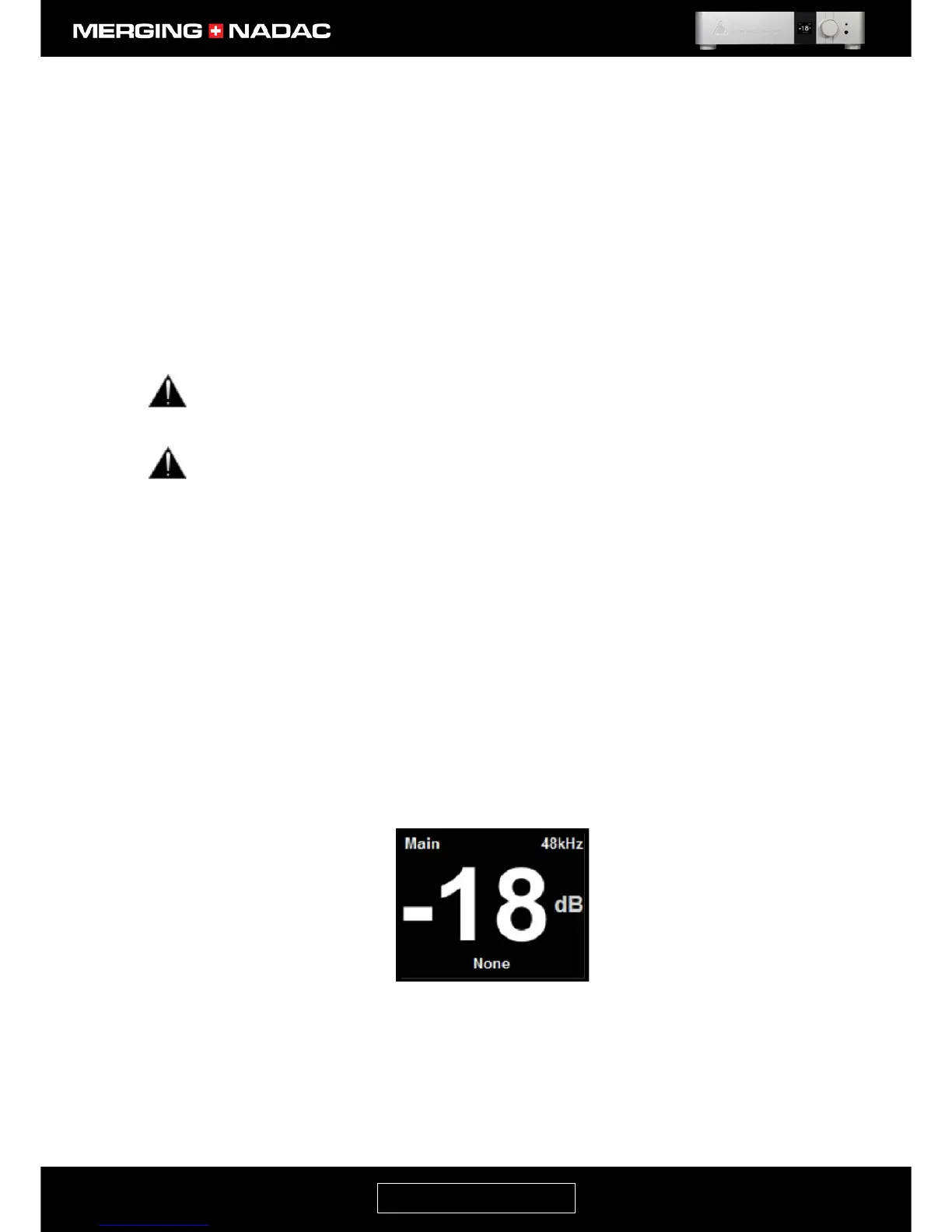
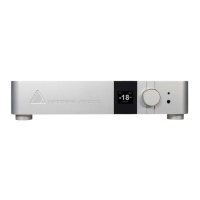
5. Start the MERGING+NADAC and wait until it has fully booted up and the Main home screen is
displayed. An example of this is shown below in Figure 47.
6. Confirm that the iPhone or iPad you are using is connected to the router wi-fi signal.
7. Start the NADAC App by tapping the App icon on your device screen. After a few seconds during which
you may see a spinning gearwheel, the NADAC App Devices page will open – Figure 48. Detailed
instructions for operating the NADAC App may be found on page 62.


 To Next Page