To launch the MERGING+NADAC App from Mac OS X
1. Connect the NADAC to a computer in a basic network configuration as shown on page 41.
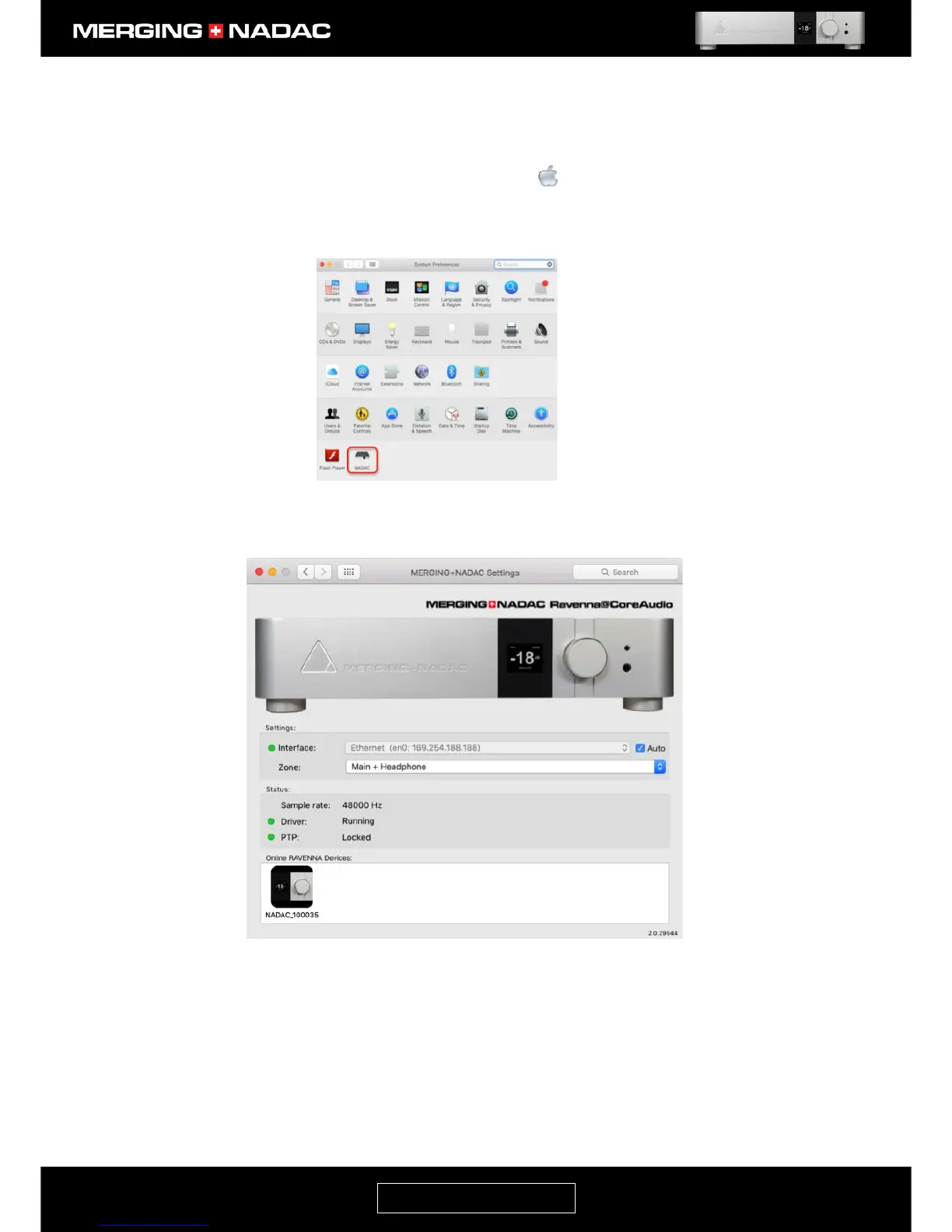
2. Open the System Preferences by clicking on the Apple icon on the top left corner of the screen, and
click on System Preferences. This will open the System Preferences panel – Figure 77. Click on the
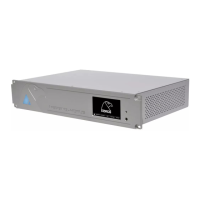
NADAC icon, which has been outlined in red in the illustration. This will open the MERGING+NADAC
RAVENNA Core Audio panel – Figure 78.
3. There will be a NADAC icon shown in the Online RAVENNA Devices area at the bottom of the window for
every unit on the network. Click on the icon corresponding to the unit that you wish to control and the
NADAC App Home page should open in a new window – Figure 80. Now proceed from step 4.


 To Next Page