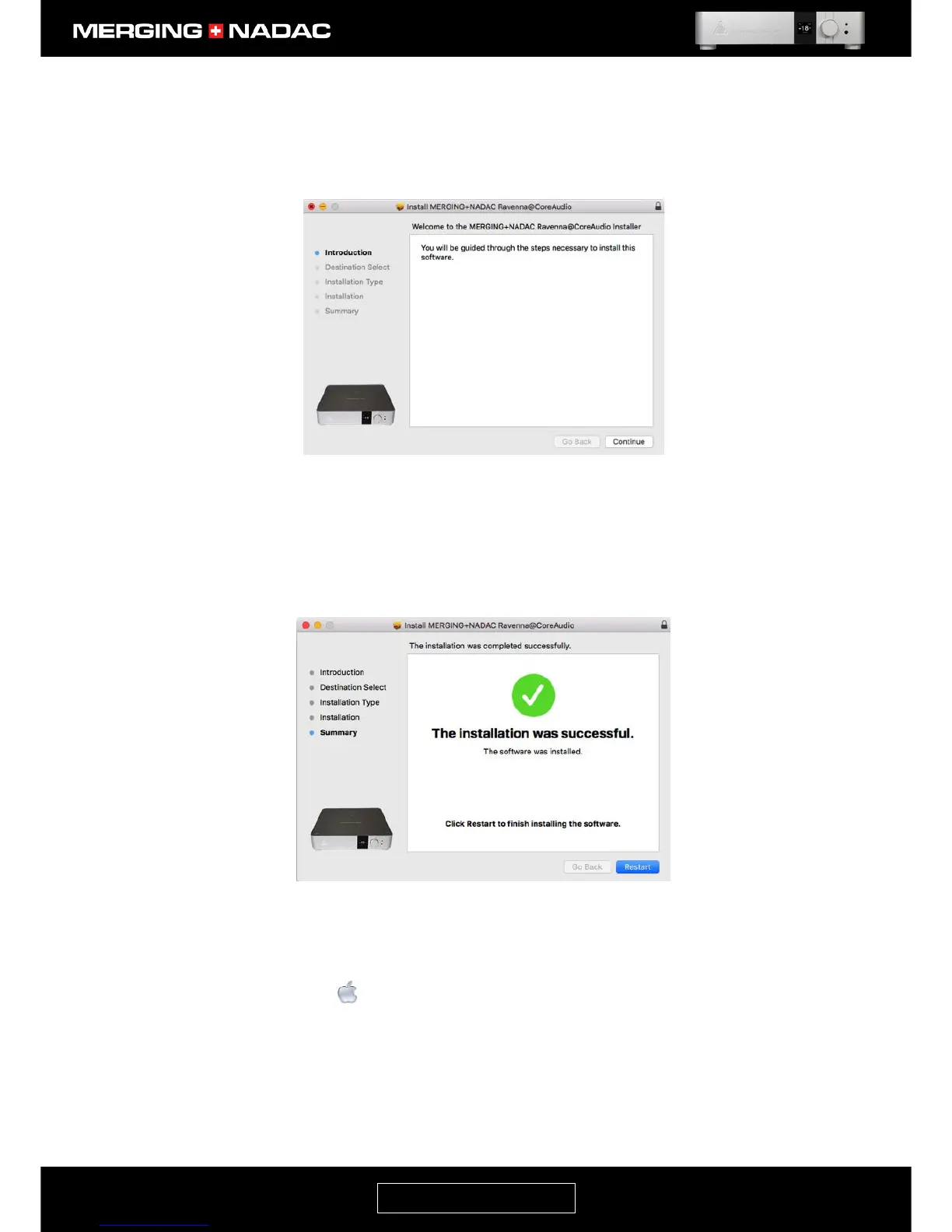
4. The installation guide screen will open – Figure 63. Click on the Continue button to proceed.
5. Follow the installer instructions and enter the Administrator password when prompted.
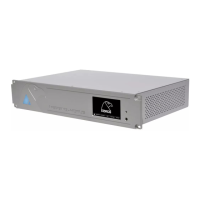
6. When the installation is complete the screen shown in Figure 64 will be displayed. Click the Restart
button in the bottom right hand corner and allow the computer to shut down and restart.
7. Once the computer has restarted and completed the boot-up process, open the System Preferences by
clicking on the Apple icon on the top left corner of the screen, and click on System Preferences.
This will open the System Preferences panel – Figure 65. Click on the NADAC icon, which has been
outlined in red in the illustration. This will open the MERGING+NADAC RAVENNA Core Audio Settings
panel – Figure 66.


 To Next Page