Quickstart Guide : First launch
Page 16
First launch
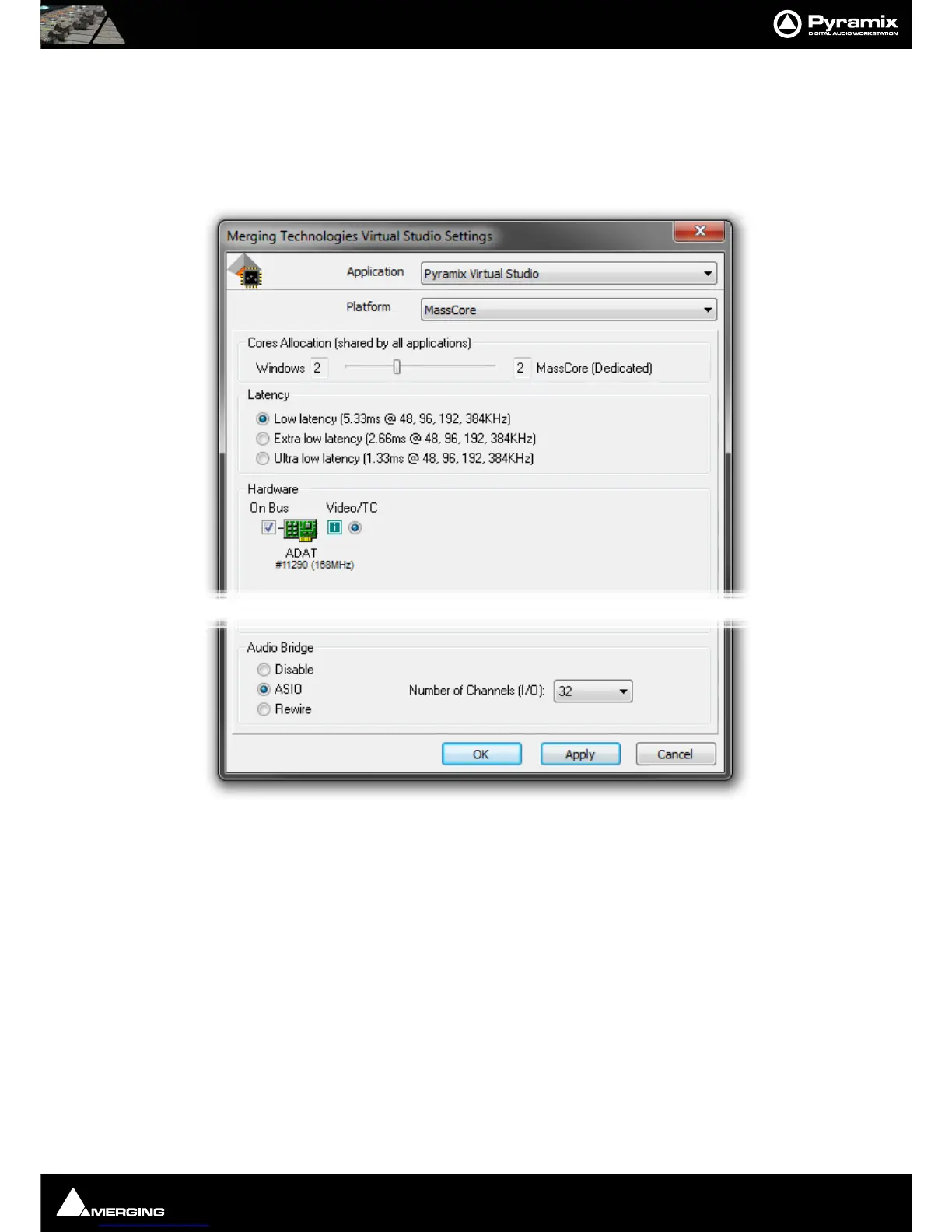
Important! After installation has been completed, please reboot the PC before attempting to launch
Pyramix Virtual Studio. Then open the VS3 control panel application.
Start > Programs > Pyramix > VS3 control panel
For Pyramix systems with a single Mykerinos board:
Leave all default selections as they are for now, making sure the On Bus checkbox for your Mykerinos card is
indeed checked then save and exit the VS3 control panel application.
For Pyramix systems with a multiboard configuration:
• Make sure there is a check mark in the On Bus boxes for each board installed.
• Check that the Application combo box is showing Pyramix. If not, select Pyramix from the list.
• Select XDTDM from the Buses Mode combo box
• Select which board is to provide an external Video/TC reference with the radio buttons next to the board
icons.
• For now, leave the default DSP Allocation settings as they are.
• When the VS3 Control Panel Do you want to save this board selection? dialog box appears, click on OK
• the VS3 Control Panel will close
VS3 Control Panel



 To Next Page