Quickstart Guide : Markers or User Flags
Page 50
The Overview
The Project Management Panel Overview Tab offers a powerful and simple means of navigation around the
Project Editing Panel.
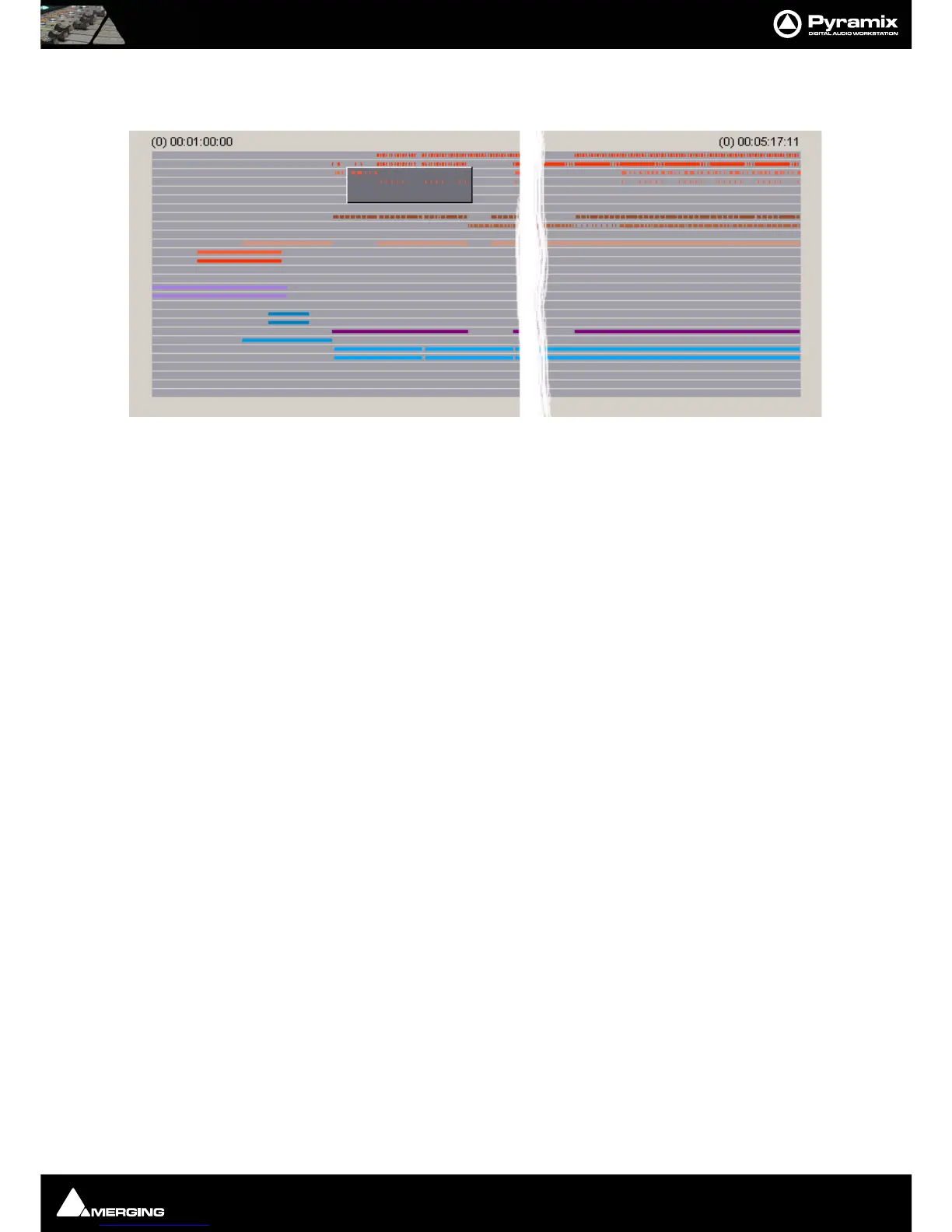
Overview displays a graphic representation of the entire current Composition, showing the location of all clips. A
shaded gray box indicates the location and zoom range of the part of the Composition which is currently dis-
played in the Project Editing Panel. clips are shown as rectangles in the same color as their background on the
Timeline.
Click anywhere in the Overview to center the Project Editing Panel display on that point. Click and drag on the
shaded gray box to move the section of the Composition shown in the Project Editing Panel without changing
the current horizontal zoom. The zoom range of the Project Editing Panel can be adjusted by dragging the edges
of the shaded gray box in the Overview. An alternative method for adjusting horizontal zoom is to press the Alt
key while clicking and dragging across the desired range for the zoom, just as you can do directly in the Project
Editing Panel itself.
Markers or User Flags
Pyramix Virtual Studio allows for setting named and numbered User Flags or Markers at user defined points in
a Composition. Markers can be used as convenient reference points for notes or other text, or as locations for
Paste operations.
To Set a Marker, press Ctrl-Shift and click anywhere along the Time Scale bar. The Marker will appear as a small
blue flag with a number in it. Markers are numbered consecutively in the order in which they are added. You can
also add a Marker at the current Play Head Cursor position by choosing Cursors & Marks > Add Marker to Play-
head from the Tool ba r.
Markers can be selected by clicking on them. The Marker flag turns red to indicate it is selected. Shift-Enter
moves the Playhead Cursor to the selected Marker
Use the Markers Tab in the Project Management Panel to view, name, GoTo and otherwise manage previously
created Markers.
Right-clicking on a marker pops-up a menu with Delete Marker and Rename Marker options.
Overview Tab Display



 To Next Page