Quickstart Guide : A First Simple Project
Page 26
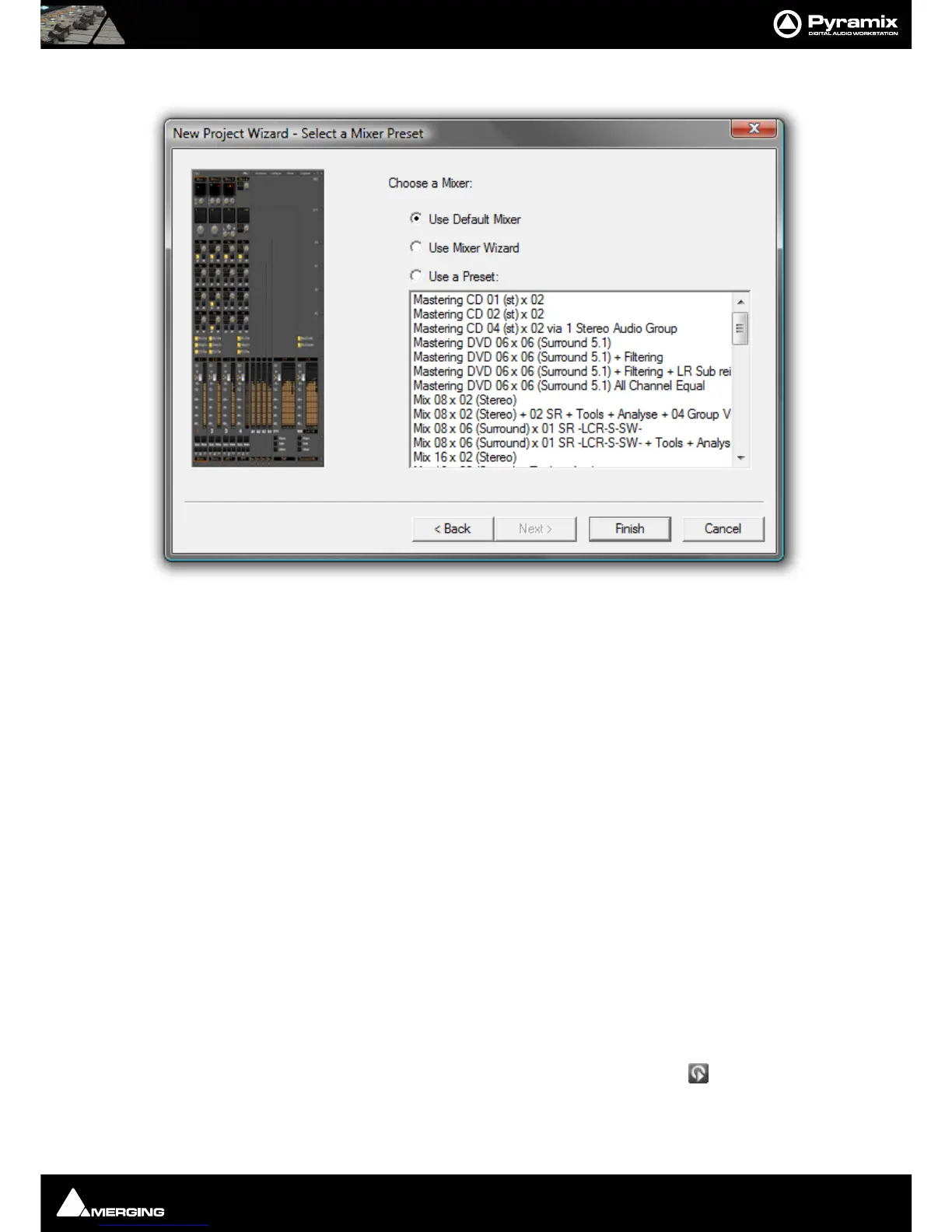
10. Click Next. The New Project Wizard - Select a Mixer Preset dialog will open.
11. Choose the Mix 08 X 02 (Stereo) preset in the drop-down list by clicking on the name. Note that the Use a
Preset radio button is automatically checked.
12. Click Finish to activate your new Project. It will open with a Project Window and Mixer Window. There will
be 8 empty tracks in the Project Editing Panel corresponding with the 8 Mixer Input channels.
Configure the Mixer
Note: The information given here assumes a simple, single board system with a daugh-
terboard in a single format. The exact settings of Input and Output numbers will depend
on your specific circumstances.
Connect your monitoring amplifier to outputs 1 & 2 of the first card in your system. If this is not possible and you
wish to use a different pair of output for monitoring:
1. Click on the L XLR icon at the bottom of the Stereo Bus output strip.
2. Select the Physical Output the Left-hand channel of your monitoring is connected to.
3. Repeat with the R XLR icon for the Right-hand channel.
4. Similarly, in the Strips you wish to use for record inputs click on the Input XLR icon and select the physical
input from the pop-up menu. Notice the numbers adjacent to the XLR icons and the numbers in the pale red
boxes in the Track Header change to reflect the updated routing.
Note: The inputs go directly to the tracks, the strip takes the monitor output from the
track.
By default, and when the track monitoring switch (in the Track Header) is set to auto, Pyramix follows the
‘European’ monitoring convention. I.e. All tracks switch to Input on Stop. If this would cause feedback in your
setup choose US Monitoring in the Settings > All Settings > Application > Playback/Record page. (Or you can
New Project Wizard - Select a Mixer Preset dialog



 To Next Page