Quickstart Guide : CD Mastering
Page 70
Burn the CD
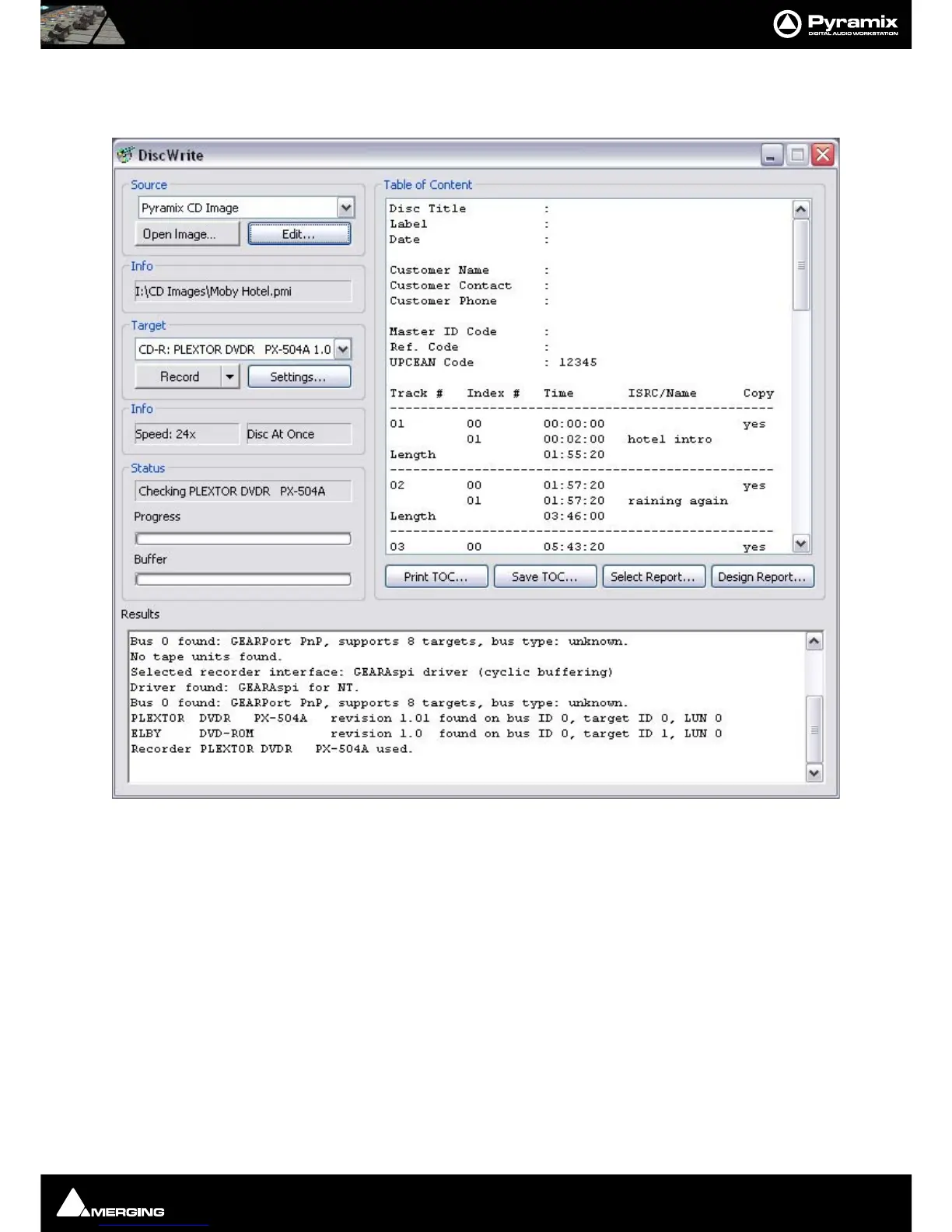
18. Open the DiscWrite application. Start > All Programs > Pyramix > DiscWrite
19. Click Open Image and open the Image file you've just created.
20. Select the CD-Writer from the Target list.
21. If the Info box does not show Disk At Once, click on Target : Settings….
22. Change the CD Write Method entry to Disk At Once
23. Click on the OK button to close the Settings window.
24. Place a blank CD-R in the drive.
25. Click on Record to burn the CD
CD Markers
CD Markers are much like other User Flags or Markers. To set a CD Start Marker (which indicates the beginning of
a CD track), place the Play Head at an appropriate CD track Start location and choose Cursors & Marks/Add CD
Start Marker to Play Head; similarly, to set a CD Stop Marker (which indicates the ending of a CD track), place
the Play Head at the appropriate CD track End location and choose Cursors & Marks/Add CD Stop Marker to
Play Head. A named CD Index Marker can also be added using Cursors & Marks/Add CD Index Marker to Play
DiscWrite Application Window



 To Next Page