Quickstart Guide : Starting a New Project
Page 30
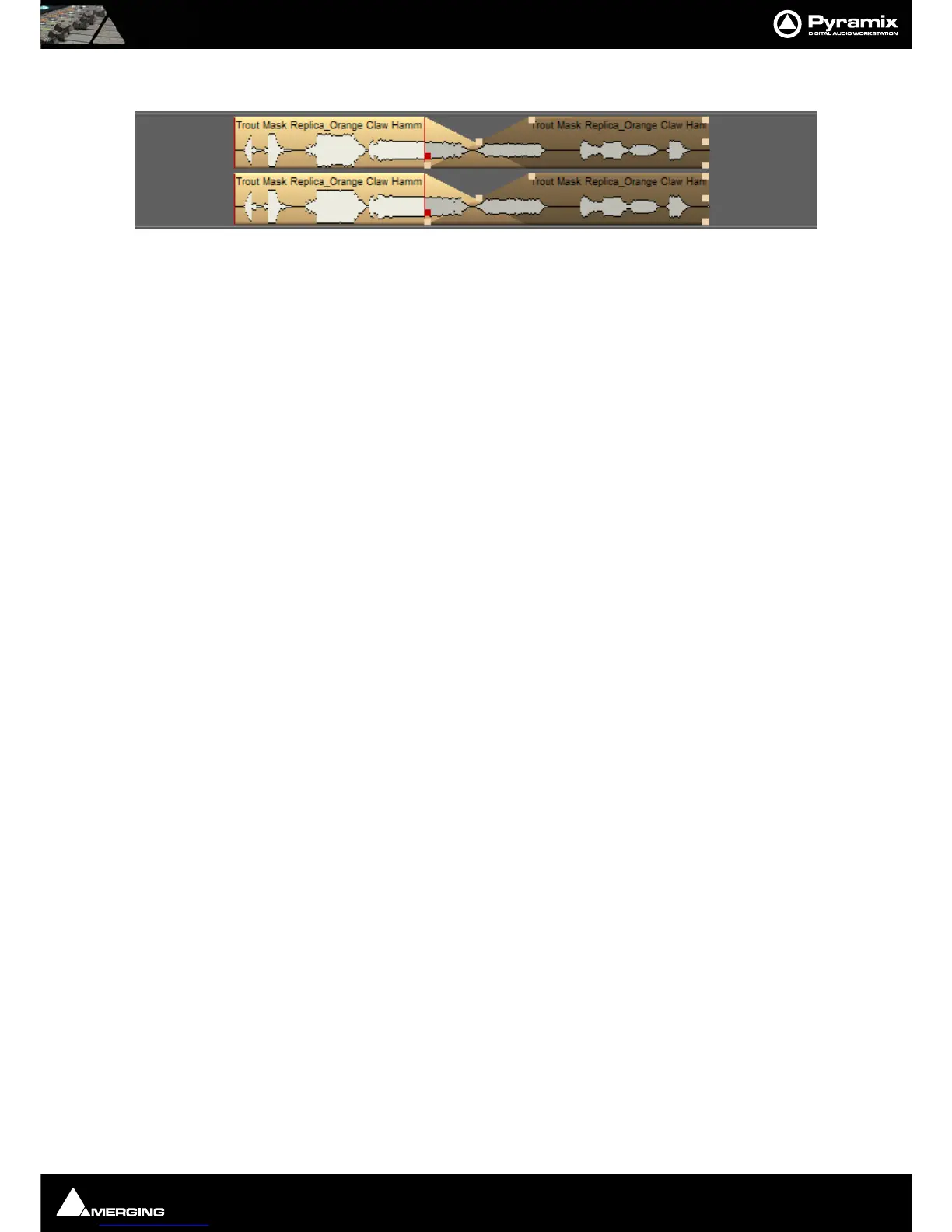
11. Hold down the CTRL key, click and drag the right hand clip over the other to create a cross-fade.
The mouse cursor changes to a hand with a X over it, indicating Auto-Crossfade mode is engaged. If this is
not the case look at Edit > Auto-Crossfade. If it has a tick next to it, Auto-Crossfade mode is engaged by
default. Click on the menu entry to change mode.
Descriptions of the multitude of other editing tools and functions are to be found in the Pyramix User Manual.
Editing can be as simple as we have just described or you can make use of the many ‘power user’ tools Pyramix has
to offer.
Starting a New Project
Project Templates
Pyramix provides a selection of Te mpl ate s for various applications. A Template is a complete Pyramix Project,
without any associated audio, specially configured to suit a particular type of activity. Apart from configuring the
appearance of Pyramix, the track layout and mixer design, templates also include important optimizations to suit
the activity.
Templates also offer a good starting point for creating your own customized templates. To begin a new project
using a template choose Project > New from Template which opens the Select a Template file window.
When a template is opened a dialogue box appears requesting the user to choose a Media Folder for the new
project. Unless the project is saved using the Save As option, the first time it is saved the Save As dialogue will
appear.
To save a new Template choose File > Save as Template, name and save.
New Project from scratch
To start a new Project from scratch, choose Project > New. This launches the New Project wizard, which will lead
you through the steps to create a new project.
Step 1: Choose the project type
Choose Editing Project, select the required sampling rate and resolution (number of bits) or accept the defaults
(44.1kHz, 16 bits), then click the Next button which will lead you to step 2.
Note that a Digitizing Session, DXD Mixing Project or DSD Project, the other possible choices available in the
New window, are special kinds of Project described elsewhere.
Step 2: Setup a new project workspace
Checking the box labeled: Setup a new Project Workspace, allows you to name the new project and choose a
location for the Project and Media Files. Type in a name for the Project and either type in a valid path or use the
Browse button to browse to a suitable folder. When you have entered the information, click the Next button to
get to the next step.
If you uncheck the Setup a new Project Workspace box, when the new project is created it will be given the
working name Project 1 (or the next available number if Project 1 already exists) and the save path will be the
default.
Step 3: Choose a Mixer
A new Project needs a properly configured Mixer. The Mixer, also called the Virtual Studio, is used to route all sig-
nals into and out of Pyramix; it also determines the sample rate and synchronization source for the Project.



 To Next Page