Quickstart Guide : CD Mastering
Page 72
Burning a CD-R
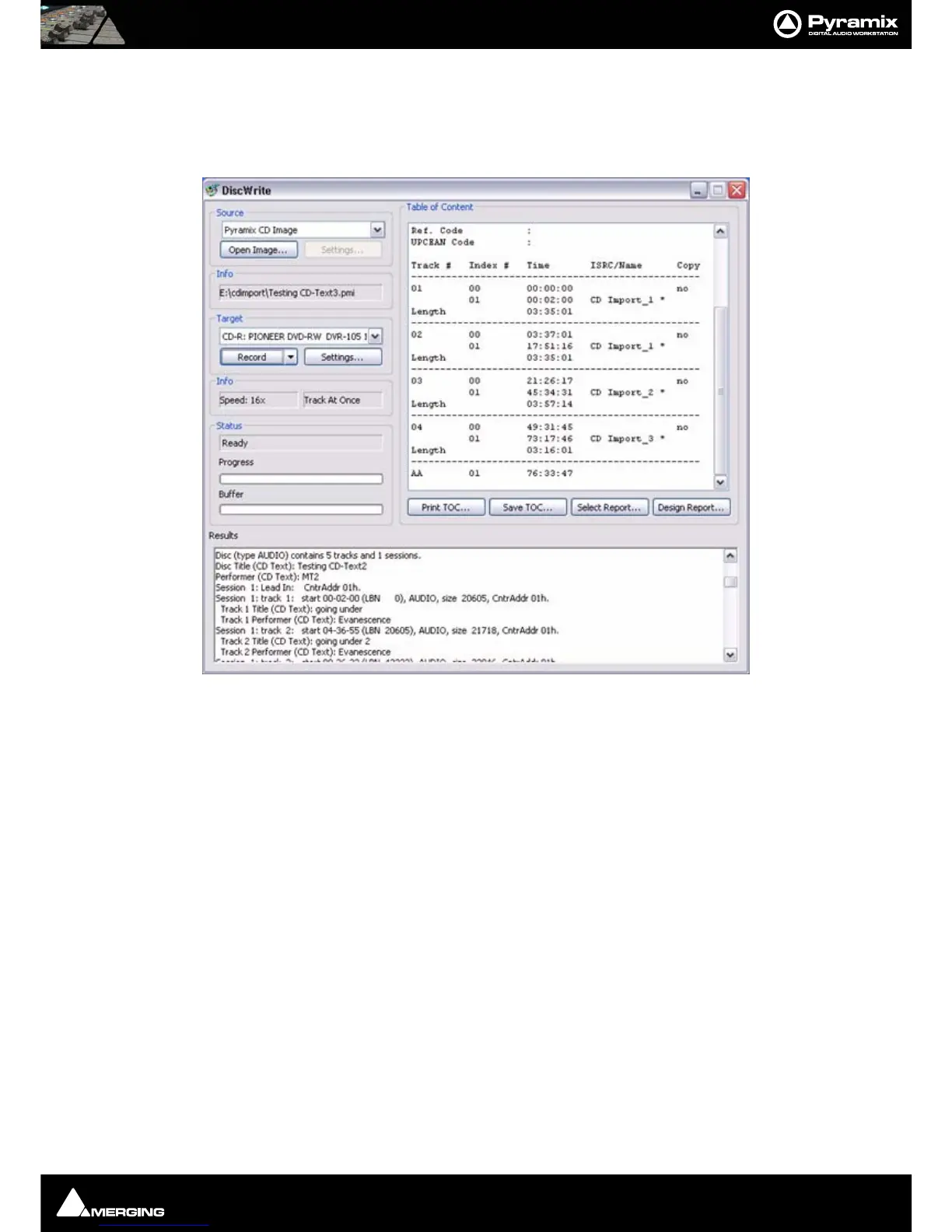
DiscWrite is a separate application bundled with Pyramix Virtual Studio that is used to write the CD-R (or DDP)
image file out to a CD-R disc (or DDP tape) unit. To burn a CD-R from a CD image file created above:
1. Launch DiscWrite. A normal Pyramix Virtual Studio installation will put a DiscWrite icon on the Desktop.
2. In the Image section, click the Open Image... button, then navigate to and select a previously created CD
Image file (an .img file).
3. In the Device section, click in the pop-up register to select a CD-R device. DiscWrite should recognize a previ-
ously configured CD-R device which is also recognized by the OS itself.
4. Also in the Device section, click on the Settings... button to open the CD-R Settings window. Set these as
desired for the CD-R burning session. Please see the Pyramix Reference Guide for complete explanations of
all these settings.
5. When all CD-R settings are adjusted as needed, click the Burn button in the Image section to actually burn
the CD-R.
Red Book Compatible Masters
If the CD-R is to be used as a “Red Book” compatible master "Disc at Once" MUST be selected.
CD Copy
Where suitable hardware is available, a CD may be directly copied by selecting a CD-ROM drive as the source and a
CD-R/RW drive as the destination.
TOCs
Print TOC... prints the current TOC in the currently selected report format.
Save TOC... opens a file save dialog to save the current TOC as a text (.txt) file.
Select Report... opens a file open dialog. Any previously designed TOC report format (*.lst) may be loaded.
DiscWrite application window



 To Next Page