© Microhard Systems Inc. 16
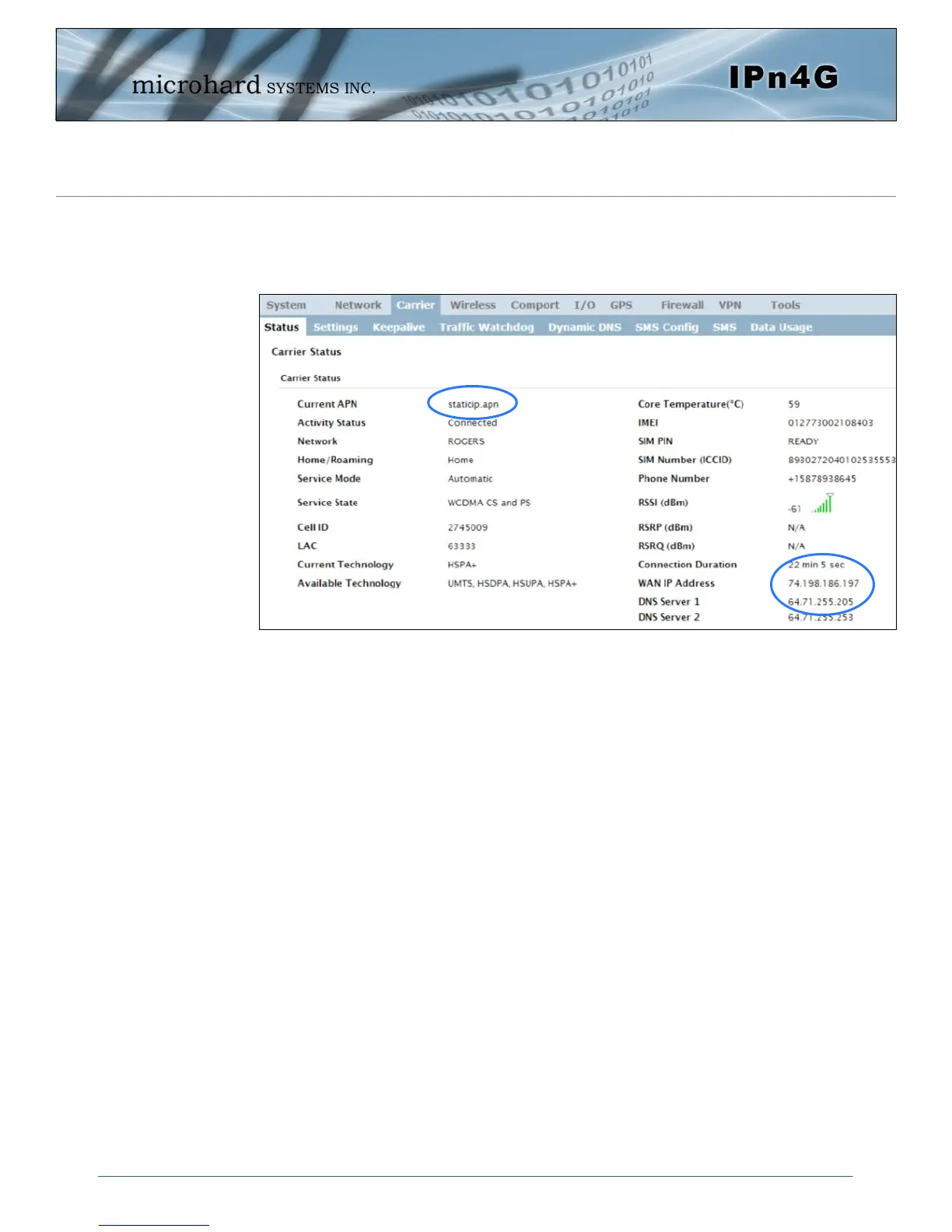
On the Carrier > Status Tab, verify that a WAN IP Address has been assigned by
your carrier. It may take a few minutes, so try refreshing the page if the WAN
IP Address doesn’t show up right away. The Activity Status should also show
“Connected”.
If you have set a static IP on your PC, you may need to add the DNS Servers
shown in the Carrier Status Menu to you PC to enable internet access.
Congratulations! Your IPn4G is successfully connected to your Cellular Carrier.
The next section gives a overview on enabling and setting up the WiFi Wireless
features of the modem giving 802.11 devices network access.
To access devices connected to IPn4G remotely, one or more of the following
must be configured: IP-Passthrough, Port Forwarding, DMZ. Another option
would be to set up a VPN.
2.0 Quick Start



 To Next Page