3.5 Milesight D2D Settings
Milesight D2D protocol is developed by Milesight and used for setting up transmission among
Milesight devices without gateway. When the Milesight D2D setting is enabled, WS202 can work
as a Milesight D2D controller to send control commands to trigger Milesight D2D agent devices.
1. Configure RX2 datarate and RX2 frequency in LoRaWAN
®
settings, it is suggested to change
the default value if there are many LoRaWAN
®
devices around.
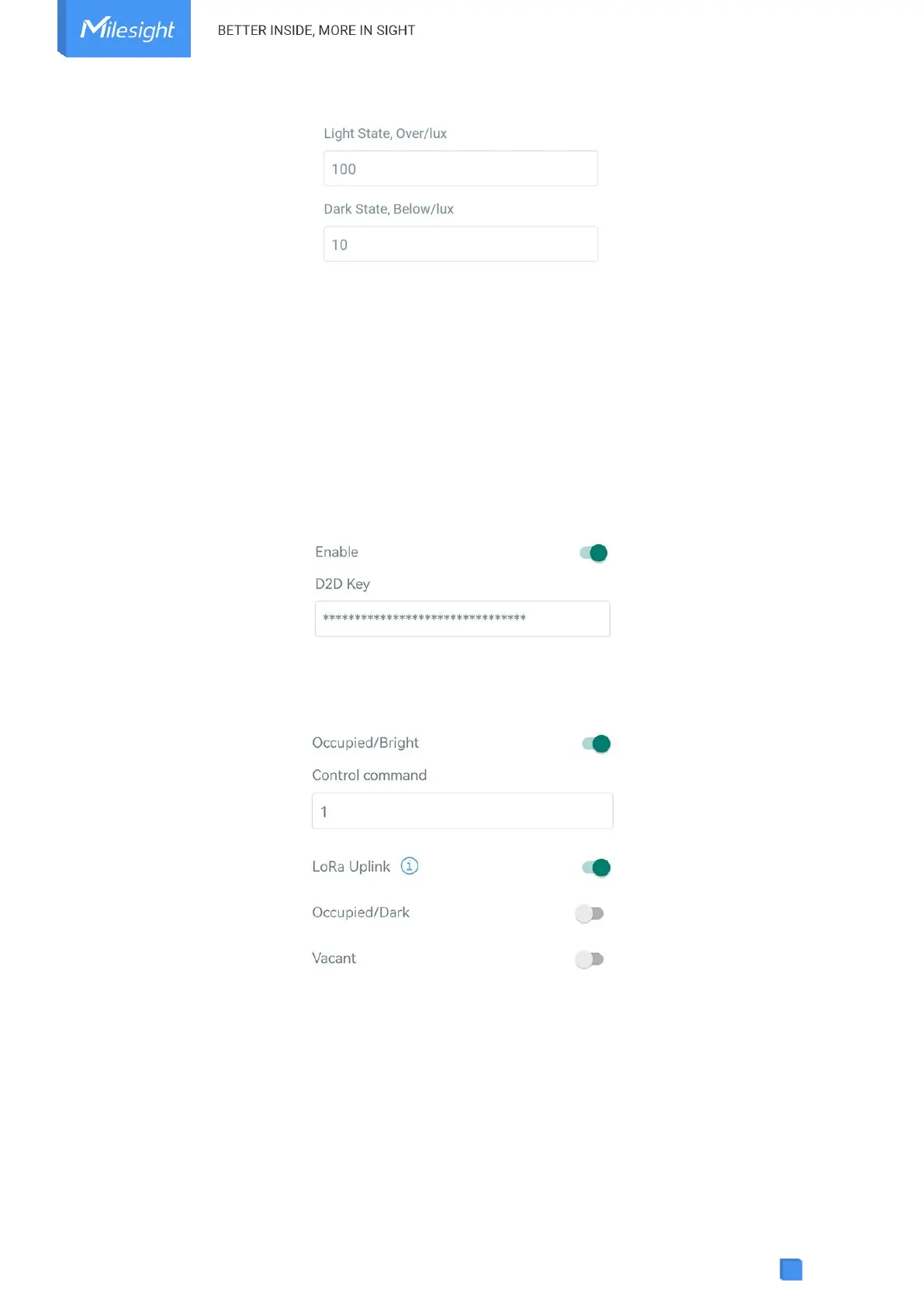
2. Go to Device > Settings > D2D Settings to enable D2D function, and define an unique
Milesight D2D key which is the same as Milesight D2D agent devices, then select the frequency
and spreading factor. (Default Milesight D2D Key: 5572404C696E6B4C6F52613230313823)
3. Enable one of WS202 status and configure a 2-byte hexadecimal command (This command
is pre-defined in Milesight D2D agent device). When WS202 detects this status, it will send the
control command to corresponding Milesight D2D agent devices.
Note: If you enabled LoRa Uplink feature, LoRaWAN
®
uplink that contains the PIR status and
light status will be sent to gateway after Milesight D2D control command is sent.
3.6 Maintenance
3.6.1 Upgrade
1. Download firmware from Milesight website to your smartphone.
2. Open ToolBox App and click “Browse” to import firmware and upgrade the device.


 To Next Page