EasyManua.ls Logo

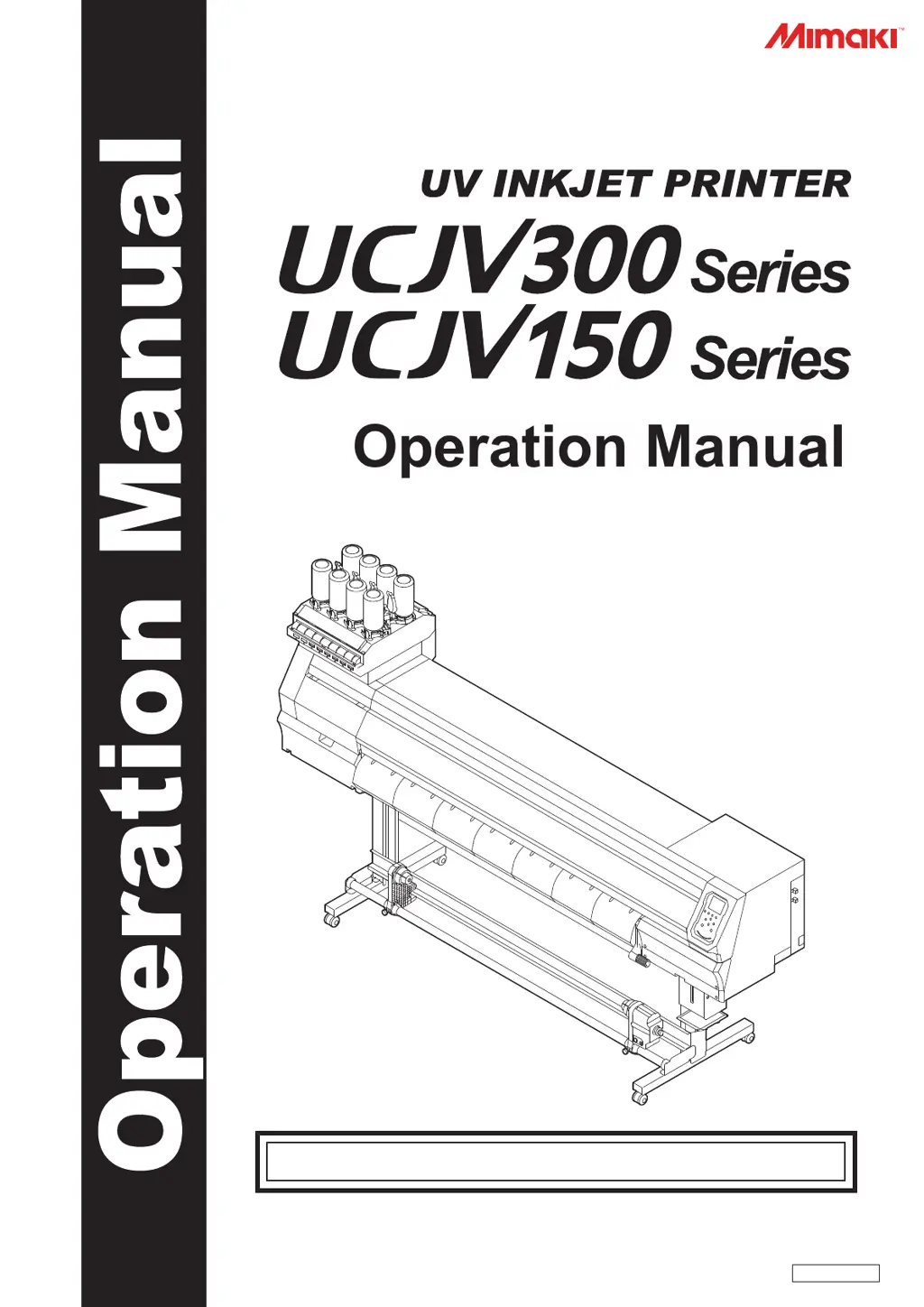
MIMAKI UCJV300-130 - User Manual

MIMAKI UCJV300-130
194 pages
Print Icon
To Next Page IconTo Next Page
Loading...
You can also download the latest manual from official website.
MIMAKI ENGINEERING CO., LTD.
https://mimaki.com/
D203176-25
Original instructions

Table of Contents

Questions and Answers

  • K
    Kevin HudsonAug 16, 2025
    How to clear clogged nozzles on my MIMAKI UCJV300-130?
    • T
      Travis RobertsAug 17, 2025
      To clear clogged nozzles, you can try the following: * Perform head cleaning. * Perform print head nozzle washing. * Perform [MENU] > [Maintenance] > [INK FILL].
  • L
    lowekyleAug 19, 2025
    What to do if the ink has leaked from my MIMAKI Printer?
    • J
      Juan AndersonSep 12, 2025
      If an ink leak occurs, immediately turn off the main power and unplug the power cable. Then, contact your local dealer or our service office.
  • D
    dennisericAug 22, 2025
    What to do if the light-blocking cover comes off my MIMAKI Printer?
    • P
      Patrick OlsonAug 22, 2025
      If the light-blocking cover comes loose, reattach it by following these steps: 1. Insert the lug on one side of the light-blocking cover into the corresponding hole in the tank. 2. Insert the lug on the other side while pushing in toward the first hole.
  • P
    Patricia WolfeAug 25, 2025
    Why does the media jam or get dirty in my MIMAKI Printer?
    • A
      Amber DiazAug 25, 2025
      To address media jams or dirty media, consider the following: * Ensure you are using the recommended media. * Avoid using curled media or media with folded ends. * Use the take-up unit to adjust or reload the media.
  • A
    Andrew ChristensenAug 27, 2025
    How to fix image defects occurring on my MIMAKI Printer?
    • M
      Megan MccartyAug 27, 2025
      To address image defects, try the following: * Remove any paper scraps or debris from areas the head passes over, such as media holders. * Perform head cleaning. * Perform feed correction. * Clean the wiper. * Clean the cap rubber. * Clean the carriage underside.
  • J
    Janet SandersAug 30, 2025
    How to correct misaligned print and cut positions on my MIMAKI UCJV300-130 Printer?
    • J
      Joseph LeonAug 30, 2025
      If the print and cut positions are misaligned, use the MIMAKI RIP software (RasterLink) to print a correction pattern. Then, check the pattern and manually input correction values.
  • T
    Travis MartinezSep 2, 2025
    Why does the cut position shift on my MIMAKI UCJV300-130?
    • D
      David WalshSep 2, 2025
      If the cut position shifts, it may indicate a problem with the register mark sensor. Perform the operation used to check the responsiveness of the register mark sensor. Note that you cannot check the responsiveness manually.
  • S
    Shawn HarmonSep 4, 2025
    How to troubleshoot a MIMAKI UCJV300-130 Printer when the power does not turn on?
    • M
      Martin VaughnSep 5, 2025
      To resolve the issue of the power not turning on, ensure the power plug is securely inserted into the power outlet, use the power cable provided, and turn on the main power.
  • D
    Daniel RaySep 7, 2025
    What to do if the MIMAKI UCJV300-130 power does not turn on?
    • R
      Randy RamirezSep 7, 2025
      If the MIMAKI Printer does not turn on, ensure the power plug is securely connected to the power outlet. Also, make sure you are using the power cable provided with the printer and that the main power is turned on.
  • A
    Andrew SmithSep 10, 2025
    How to fix image defects on MIMAKI Printer?
    • M
      Michael FloresSep 10, 2025
      To fix image defects on your MIMAKI Printer, remove any paper scraps or debris from areas where the head passes, such as media holders. You may also need to perform head cleaning, feed correction, wiper cleaning, cap cleaning, and carriage underside cleaning. Additionally, consider performing an ink fill, replacing the wiper, or registering nozzle recovery.

Summary

For Safe Use

Usage Precautions

Details precautions for safe operation, including handling abnormal conditions and power supply.

Installation Precautions

Chapter 1: Before Using This Product

Part Names and Functions

Identifies and describes the main parts of the printer, including front, rear, and side views.

Operating Panel Overview

Explains the functions of the display, keys, and status lamp on the operating panel.

Connecting the Power Cable and PC

Details power connection, turning the machine on/off, and PC connectivity via USB/LAN.

System Configuration

Guides on driver setup, RIP software installation, and color profile acquisition.

Ink Replacement Method

Provides instructions for replacing ink bottles and managing ink levels.

Chapter 2: Printing

Print Process Overview

Step-by-step guide to the printing process, from powering on to cutting media.

Chapter 3: Cutting

Chapter 4: Try Cutting Data with Registration Marks

Chapter 5: Settings

Chapter 6: Maintenance

Consumable Item Replacement

Guides on replacing consumable parts like wipers, cap absorbers, filters, cutters, and waste ink tanks.

Chapter 7: Troubleshooting

Troubleshooting Error and Warning Messages

Explains warning, ink, and system error messages with their causes and corrective actions.

Chapter 8: Appendix

Printer Specifications

Detailed technical specifications for printing features, ink sets, media, and environment.

MIMAKI UCJV300-130 Specifications

General IconGeneral
Print Resolution1200 x 1200 dpi
Ink ColorsCMYK + White + Clear
ConnectivityUSB 2.0, Ethernet
Ink TypeUV curable ink
Media TypesVinyl, paper
Media ThicknessUp to 1 mm (0.04 in)
Roll WeightUp to 40 kg
Power RequirementsAC 200-240V, 50/60Hz
Print TechnologyUV-LED Inkjet

Related product manuals