EasyManua.ls Logo

MIMAKI UJF-7151 plusII - User Manual

MIMAKI UJF-7151 plusII
14 pages
Print Icon
To Next Page IconTo Next Page
Loading...
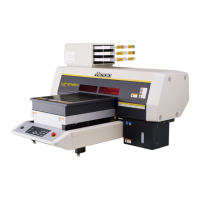
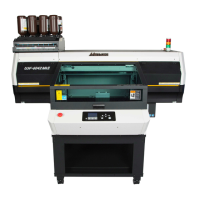
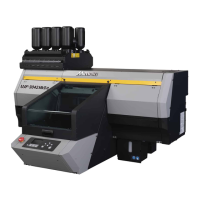
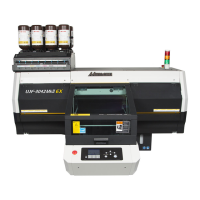
UJF-7151 plusII / UJF-3042MkII e / UJF-3042MkII EX e /
UJF-6042MkII e
High-speed Braille Print Guide
This guide shows you how to print braille with the UJF-7151 plusII / UJF-3042MkII e / UJF-3042MkII EX e /
UJF-6042MkII e.
Read this guide thoroughly before use.
Note
It is strictly prohibited to write or copy a part or whole of this document without our approval.
This document has been carefully prepared for your easy understanding, however, please do not hesitate to
contact a distributor in your district or our office if you have any inquiry.
Description contained in this document are subject to change without notice for improvement.
Copying the Mimaki Engineering Co. Ltd. software described in this guide to other disks (except for backup
purposes) or loading it to memory except for the purpose of running it, is strictly prohibited.
Due to improvement or change of software, the description of this document could be partially different in
specification, for which your understanding is requested.
With the exception of what is provided for in the warranty provisions of MIMAKI ENGINEERING CO., LTD., we
do not assume any liability against the damages (including but not limited to the loss of profit, indirect damage,
special damage or other monetary damages) arisen out of the use or failure to use of this product. The same
shall also apply to the case even if MIMAKI ENGINEERING CO., LTD. had been notified of the possibility of
arising damages in advance. As an example, we shall not be liable for any loss of the media made using this
product or indirect damages caused by the product made using this media.
You can also download the latest operation manual from our website.
Notations used in this document
Items and buttons displayed in menus and on screens are marked with square brackets ([ ]) as in [File].
Symbols
RasterLink is the trademarks or registered trademarks of MIMAKI ENGINEERING CO., LTD. in Japan and in
other countries.
Adobe, the Adobe logo, Acrobat, Illustrator, Photoshop, and PostScript are the trademarks or registered
trademarks of Adobe Systems Incorporated in the United States and other countries. CorelDRAW is a
trademark or registered trademark of Corel Corporation in Canada, the United States and other countries, and
its affiliates.
Microsoft and Windows are trademarks or registered trademarks of Microsoft Corporation of the United States
and other countries.
Apple and Macintosh are trademarks or registered trademarks of Apple Inc. of the United States and other
countries.
Other company and product names mentioned herein are the trademarks or registered trademarks of the
respective companies in Japan and in other countries.
This symbol indicates important information for using this product.
This symbol indicates useful information.
Question and Answer IconNeed help?

Do you have a question about the MIMAKI UJF-7151 plusII and is the answer not in the manual?

Summary

Document Notations

Notations Used in Document

Explains how menu items and buttons are marked in the document using square brackets.

Key Symbols

Defines symbols indicating important or useful information for product usage.

About Braille Printing

Braille Printing Modes

Details the available braille printing modes: Standard, High-speed, and Compliant.

Mode Explanations

Explains Standard and High-speed braille printing modes and their characteristics.

Mode Comparison

Compares Standard and High-speed braille printing modes, including visual representations.

Target Environment

UJF-3042 MKlle Support

Lists supported ink sets and modes for UJF-3042MKlle, including print conditions.

UJF-6042 MKlle Support

Lists supported ink sets and modes for UJF-6042MKlle, including print conditions.

Recommended Media for Each Ink

Printing in Standard;High-Speed Mode

Initial Preparation Steps

Steps for preparing RasterLink, including creating hot folders and installing profiles.

Creating Braille Data

Instructions on creating braille data in Illustrator using braille fonts or the ellipse tool.

Configure Braille Settings and Output

Guide to configuring braille settings in RasterLinkTools and outputting to RasterLink.

Check and Print Settings

Steps for checking job properties in RasterLink and initiating the print execution.

Summary

Document Notations

Notations Used in Document

Explains how menu items and buttons are marked in the document using square brackets.

Key Symbols

Defines symbols indicating important or useful information for product usage.

About Braille Printing

Braille Printing Modes

Details the available braille printing modes: Standard, High-speed, and Compliant.

Mode Explanations

Explains Standard and High-speed braille printing modes and their characteristics.

Mode Comparison

Compares Standard and High-speed braille printing modes, including visual representations.

Target Environment

UJF-3042 MKlle Support

Lists supported ink sets and modes for UJF-3042MKlle, including print conditions.

UJF-6042 MKlle Support

Lists supported ink sets and modes for UJF-6042MKlle, including print conditions.

Recommended Media for Each Ink

Printing in Standard;High-Speed Mode

Initial Preparation Steps

Steps for preparing RasterLink, including creating hot folders and installing profiles.

Creating Braille Data

Instructions on creating braille data in Illustrator using braille fonts or the ellipse tool.

Configure Braille Settings and Output

Guide to configuring braille settings in RasterLinkTools and outputting to RasterLink.

Check and Print Settings

Steps for checking job properties in RasterLink and initiating the print execution.

Overview

The Mimaki UJF-7151 plusII / UJF-3042MkII e / UJF-3042MkII EX e / UJF-6042MkII e series of printers are designed for high-speed braille printing, offering a versatile solution for creating tactile signage and other braille-enabled products. This guide focuses specifically on the braille printing capabilities of these models, outlining the various modes, supported ink sets, and operational procedures.

Function Description

These Mimaki UJF series printers are capable of producing braille using UV-curable inks. The core function is to create raised dots that conform to braille standards, allowing visually impaired individuals to read tactile information. The printers offer three distinct braille printing modes: Standard mode, High-speed mode, and Compliant mode. Each mode caters to different requirements in terms of speed, ink usage, and compliance with specific braille standards (JIS and ADA).

In Standard mode, braille is printed exclusively using clear ink. This mode provides flexibility in specifying parameters such as braille dot height and the overlay order with color images. This means users can decide whether the braille is printed over or under a color design, offering creative control over the final product's appearance and tactile quality.

The High-speed mode utilizes a mixture of multiple inks to create braille. For most models, this involves a combination of CMYK inks. However, for the UJF-7151plusII, braille in high-speed mode is printed by mixing special colors in addition to CMYK ink, potentially offering a wider color gamut or specific tactile properties. This mode is designed for faster production while still maintaining quality. An optional feature in high-speed mode allows for the printing of white ink over the braille, which can enhance visibility or provide a contrasting background for the tactile dots.

The Compliant mode is specifically designed for creating braille that adheres to JIS (Japanese Industrial Standards) and ADA (Americans with Disabilities Act) compliance. This mode ensures that the braille dots meet the required specifications for height, spacing, and other parameters, making it suitable for public signage and accessibility applications. More detailed information on this mode is available in a separate "Braille Printing Guide."

The printers facilitate the creation of braille data through integration with design software like Adobe Illustrator. Users can either employ a braille font or utilize the Ellipse Tool to precisely position dots according to braille grammar and syntax. This allows for accurate and customized braille designs.

Important Technical Specifications

The technical specifications for braille printing vary depending on the printer model and ink set. Key specifications include:

  • Resolution: For Standard mode, a resolution of 1200 x 1200 VD (Variable Dot) is typically used. In High-speed mode, the resolution is often 600 x 1200 VD.
  • Number of Passes: Both Standard and High-speed modes generally utilize 16 passes for UJF-3042MkII e / UJF-3042MkII EX e / UJF-6042MkII e models. For the UJF-7151plusII, the number of passes can be 16 for Standard mode and 12 for High-speed mode.
  • Braille Height (Level): The braille height can be varied across four levels:
    • Level 1: Approx. 0.3 mm
    • Level 2: Approx. 0.5 mm
    • Level 3: Approx. 0.7 mm
    • Level 4: Approx. 0.9 mm These levels allow for customization based on specific braille standards or user preferences.
  • Supported Ink Sets:
    • LH-100 CMYK: Supports WW, WCI, WP, CIP special color sets. Standard and High-speed modes are compatible with various combinations.
    • LUS-120 CMYK: Supports WW, WCI, WP, CIP special color sets. Standard and High-speed modes are compatible with various combinations.
    • LUS-150 CMYK & LUS-200 CMYK: Generally not supported for braille printing in these models.
    • LH-100 CMYKLcLm & LUS-120 CMYKLcLm (for 6 Color+SP configurations): Support WW, WCI, WP, CIP, CISI, WSi special color sets, with varying compatibility across Standard and High-speed modes.
    • LUS-350 CMYK & LUS-350 CMYKLcLm (for UJF-7151plusII): Not supported for braille printing.
  • Braille Ink Composition:
    • In UJF-7151plusII, braille in High-speed mode can be printed in CMYK + clear mixed colors or CMYK + white mixed colors, depending on the specific ink set and configuration.
  • Software Compatibility:
    • Mimaki Driver: Ver. 5.9.0 or later
    • RasterLink7: Ver. 3.2.0 or later
    • RasterLinkTools: Ver. 1.16.0 or later

Usage Features

The workflow for braille printing is structured to guide users through the process, from initial setup to final output:

  1. Initial Preparation (RasterLink): This involves creating a hot folder for image data and installing a dedicated profile. Hot folders are crucial for loading image data in Standard/High-speed modes, and dedicated profiles ensure correct printing parameters. Profiles can be installed via the profile manager download function or downloaded from the RasterLink7 download page.
  2. Image Creation (Illustrator): Users open a color image in Illustrator and then create the braille data. Braille can be generated using a braille font (inputting text, then creating an outline) or by using the Ellipse Tool to manually position dots according to braille grammar. The Ellipse Tool allows for precise control over dot shape (perfect circle) and diameter, which should comply with braille standards.
  3. Braille Settings and Output (RasterLinkTools): After creating the braille data in Illustrator, users select all braille data and click the [Braille] icon in RasterLinkTools. This opens the [Braille Function RL Output] window, where they can select "High-speed" or "Standard" mode. Key settings include:
    • [Level]: Adjusts the braille height (0.3 mm to 0.9 mm).
    • [Composite Order]: Specifies the printing order of the color image and braille (Color -> Braille or Braille -> Color). This affects how the braille appears in relation to the underlying color image.
    • [Cover up braille with white]: Enables printing white ink over the braille, particularly useful in High-speed mode to create contrast or a specific aesthetic. This setting is ignored for models without white ink and cannot be set if [Composite Order] is "Color -> Braille." Once settings are configured, the data is outputted to RasterLink, typically saved as a file in the hot folder.
  4. Check Settings (RasterLink): After loading the job (which creates two jobs: "Braille Texture" and "Color"), users select "Braille Texture" and access its properties. Here, they can verify or reconfigure the [Level] and [Cover up braille with white] settings.
  5. Print (RasterLink): Finally, users click the [Execution] icon, select [RIP and Print], and then click [Start] to begin the printing process.

Recommended Media: The manual provides a table of recommended substrates for different ink types (LH-100 and LUS-120). These include Polycarbonate, Polystyrene, ABS, and PET with Adhesive Coating (HK31WF and U292W). Using non-recommended media may lead to issues such as media warping, rubbing against print heads, or ink peeling. Users are advised to always confirm print quality and adhesion when using alternative media.

Maintenance Features

While the manual primarily focuses on operational procedures rather than explicit maintenance features, several points imply aspects of maintenance or best practices:

  • Dedicated Profiles: The requirement to install dedicated profiles for each ink set and mode suggests that these profiles are optimized for specific ink and media combinations, which helps in maintaining print quality and potentially extending the life of print heads by ensuring correct ink deposition.
  • Hot Folder Usage: The emphasis on using hot folders for loading image data into RasterLink7 streamlines the workflow and helps prevent errors that could arise from incorrect file handling, indirectly contributing to smoother operation and less wear on the system.
  • Software Updates: The specified minimum versions for Mimaki Driver, RasterLink7, and RasterLinkTools indicate that keeping the software updated is crucial for optimal performance and access to the latest features and bug fixes, which are essential for maintaining system stability and efficiency.
  • Media Selection: The warning against using non-recommended media highlights a critical maintenance aspect. Using unsuitable media can cause physical damage to the printer (e.g., print heads rubbing against warped media) and lead to poor print quality, necessitating more frequent cleaning or repairs. Adhering to media recommendations is a preventative maintenance measure.
  • Regular Checks: The instruction to "Always confirm that no problems are occurring if you use media other than the recommended one" implies a need for regular visual checks and quality control, which is a fundamental part of printer maintenance to identify and address issues early.
  • Online Manuals: The ability to "download the latest operation manual from our website" ensures users have access to up-to-date information, including any new maintenance guidelines or troubleshooting steps.

In summary, the Mimaki UJF series printers offer a robust and flexible platform for braille printing, with modes and settings designed to meet diverse application needs, from high-speed production to compliance with accessibility standards. The detailed workflow and software integration aim to provide a user-friendly experience, while adherence to recommended media and software updates contributes to the longevity and consistent performance of the device.

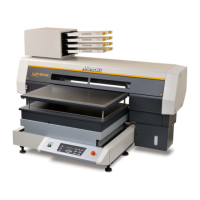
MIMAKI UJF-7151 plusII Specifications

General IconGeneral
BrandMIMAKI
ModelUJF-7151 plusII
CategoryPrinter
LanguageEnglish

Related product manuals