11
Send batch data - Data transmission is triggered by this menu command. Before undertaking this
operation, make sure a communication link (Bluetooth network or USB cable) is working.
Interfaces - There are three types of communication interfaces Bluetooth, USB HID keyboard and USB
virtual COM. A Bluetooth link is needed in the first case (See
3-4-1 Bluetooth
).
Auto Clear – By enable, the scanner will clear the stored barcode after finishing sending. The default
setting is disabled.
Inter-barcode delay – This delay is inserted after each barcode transmitted. Some Bluetooth
communication needs large delay to avoid data missing. This default delay is set to 0 milliseconds.
3-4-4-1 Configure Standard Batch communication
Note1: The following is configure Standard Batch communication and send data in Bluetooth-SPP.
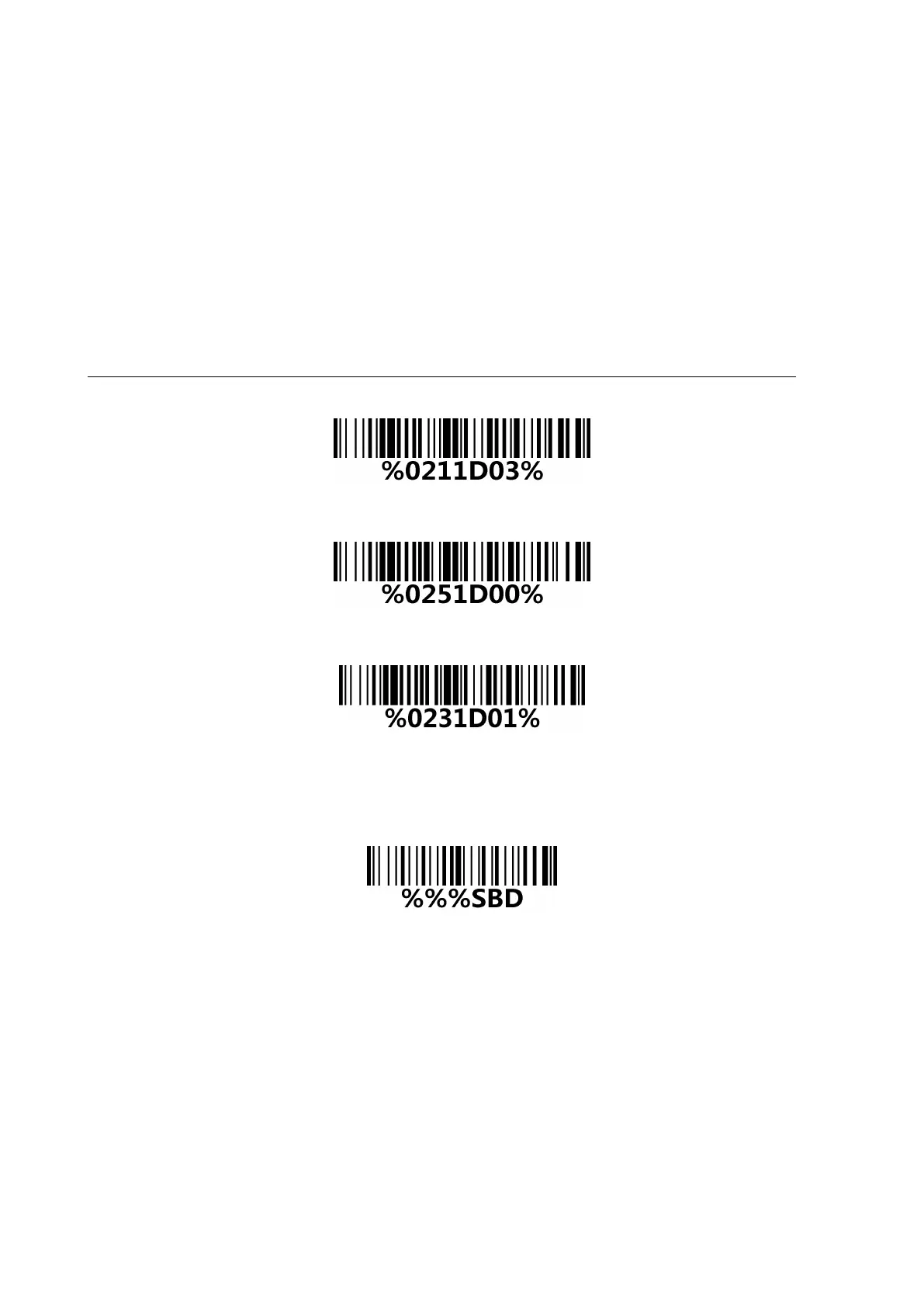
Step 1: Scan the barcode below to setting Standard Batch for data transfer.
Data Transfer - Standard Batch
Step 2:Scan the barcode below to setting bluetooth profile for Standard Batch.
Standard Batch - Bluetooth
Step 3: Scan the Bluetooth-SPP barcode below.
Bluetooth-SPP
Step 4: The scanner starts storing barcode.
Step 5: Scan the Send batch data barcode below ,the collected barcode can then be sent to a host via
Bluetooth-SPP.
Standard Batch - Send batch data
3-4-5 Communication Setting
See
4-2 Common settings of the scanner
.



 To Next Page