62
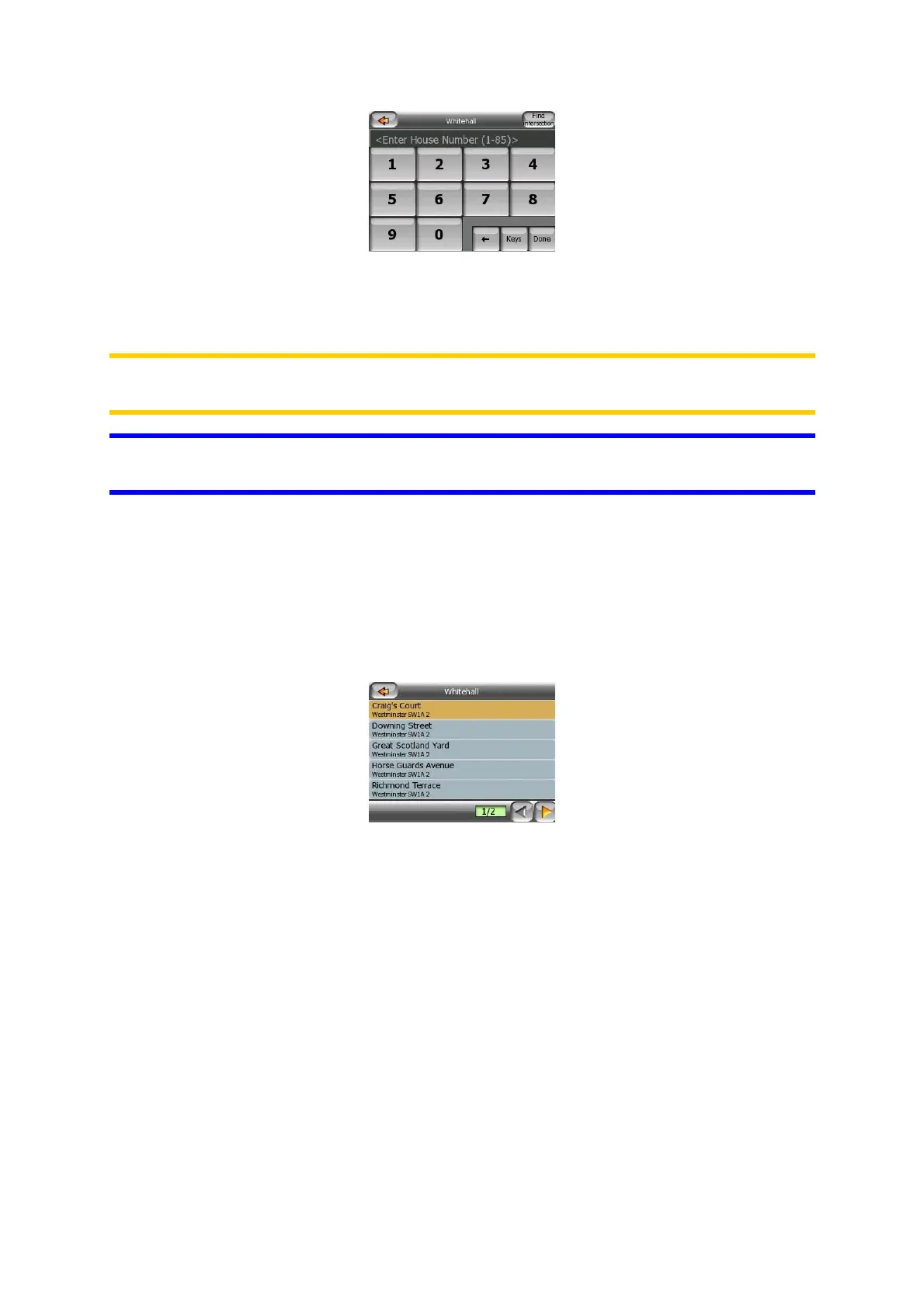
Enter the number, tap Done, and MioMap will show you the selected location on the
map (or will start navigating immediately if you have selected Find Address at the
Main menu screen).
Note: House numbers may not be available on the map of your region. Ask your
local dealer for details.
Tip: If you do not know the house number, just press Done, and the midpoint of the
street will be used as the selected location.
5.3.1.4 How to select an intersection instead of a house number
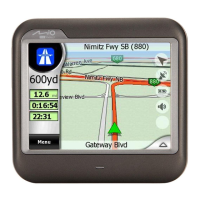
If you do not know the house number or it is easier to pinpoint the location with an
intersection, press the Find intersection button in the top right corner and select the
desired street name from the list of available intersections of the previously selected
street (displayed in the top center of the screen). The crossing of the two streets will
be the selected point.
5.3.1.5 An example for a full address search
This is an example for the most complex address search, finding an address from
abroad. In this example your current position is not in France, and you are looking for
an address in Paris, France, the address ’17 rue d’Uzès’. The following steps shall
be taken after entering the Find Address section:
• You see the list of recently used cities. Paris does not appear in the list.
• Tap Other City in the top right corner.
• Since you are in Europe, there is no state level between cities and countries, so
tap Change Country in the top right corner to change the country.
• Tap France in the list.
• Now select the city in France. Enter ‘Paris’ using the virtual keyboard.


 To Next Page