26
No. Display Control
turn****
21 Current speed limit***** n/a
* On Map screen only when a route is active
** Contents differ when a route is active
*** Appears only when a route is active
**** Appears only when a route is active and the next turn is near
***** Appears only if speed limit is known for the current road
4.3.1 Turn preview (No. 1)
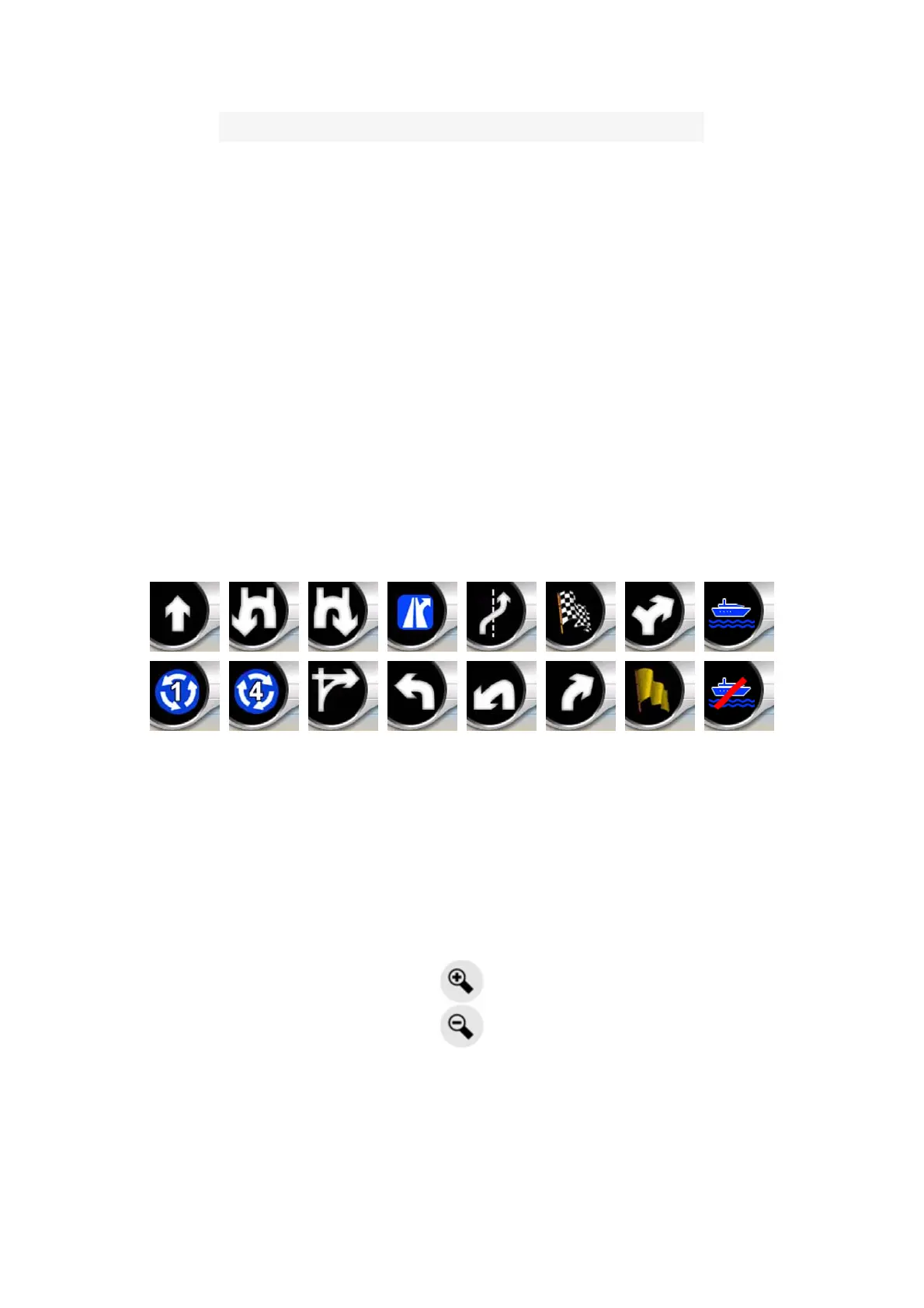
On the Cockpit screen this field shows a graphic illustration of the next maneuver.
For example when you approach a turn, an arrow will show whether it is a slight,
normal or sharp turn. When showing a roundabout, the number of the exit is also
given in the picture.
This field also serves as a button. Tap it to get to the Route menu (Page 47). The
Map screen will show a button called Route here if there is an active route. This also
leads to the Route menu.
4.3.2 Zoom in and out (No. 2 & 3)
These semi-transparent buttons are only displayed if "Zoom & Tilt" is enabled in the
Quick menu (Page 41).
Zoom will change the scale of the map. Zoom out shows a larger part of the map,
while Zoom in shows a smaller part of the map in more detail.
The automatic Smart Zoom function will do the necessary zooming for you when
navigating (zooms out if the next turn is at a distance to let you see far ahead and
zooms in when approaching a turn to give you a better view of the upcoming


 To Next Page