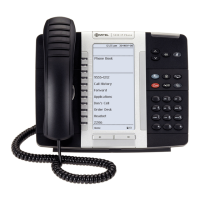
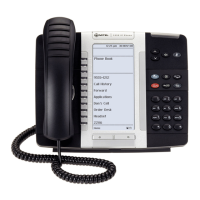
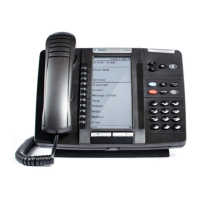
USING YOUR PHONE
NOTE: SK below refers to Softkey options that appear in the display
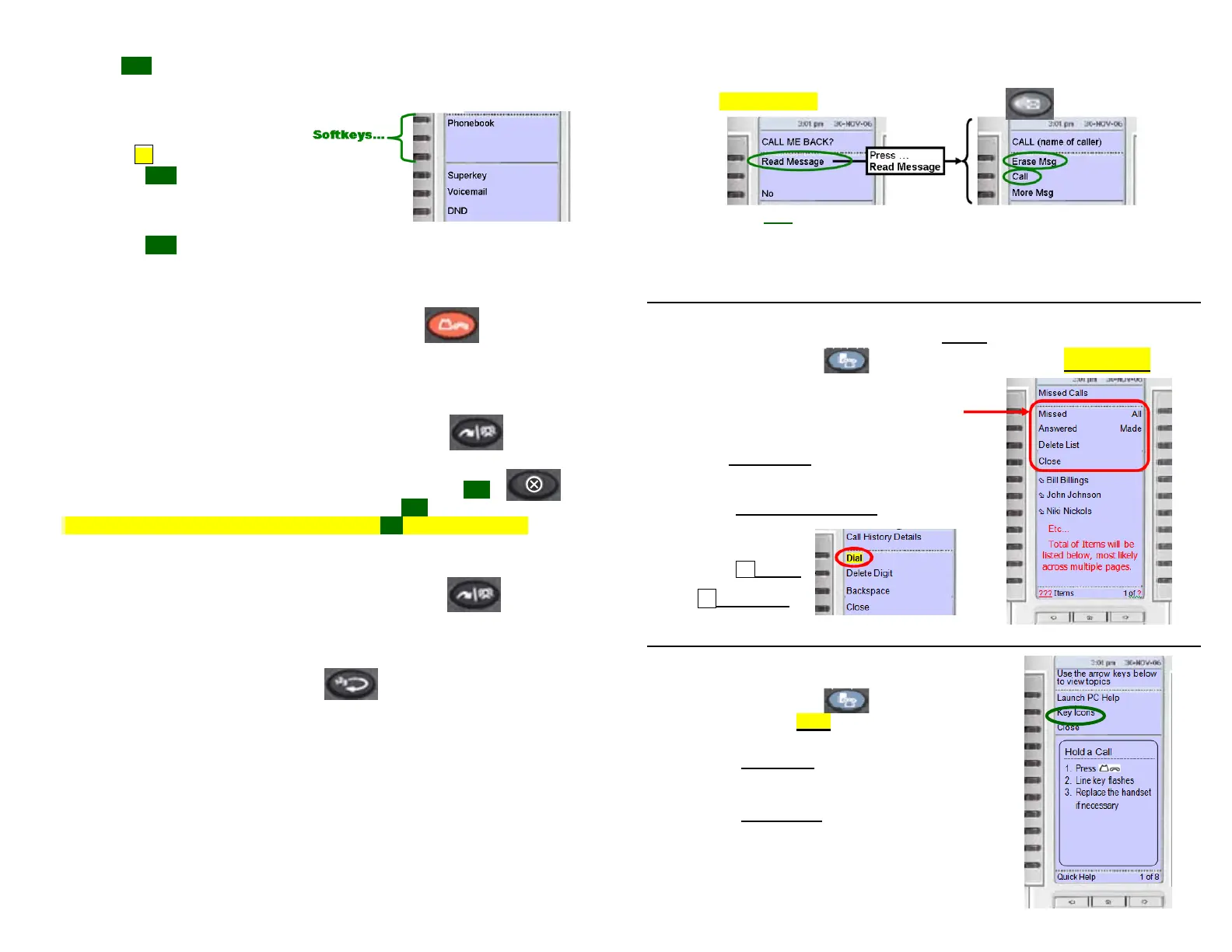
This is a very small sampling of softkey options that will appear as
you use your phone. Watch your display to see available options!
PLACE AN OUTGOING CALL
Dial .9. + the number you wish to call
SK = (backspace function)
PLACE AN INTERNAL CALL
Dial the extension number
SK = Call Me Back
(See M
ESSAGE KEY INSTRUCTIONS for more info)
PLACE A CALL ON HOLD
With a call on the line, press the red Hold key
To reconnect with the caller:
Press the flashing line key (on page 1 of your page keys)
TRANSFER A CALL
With a call on the line, press the Trans/Conf key
Dial destination number
(Optional) Wait for answer and announce call if desired
Press Cancel key to return to caller (or Back to Held SK )
Hang-Up to transfer call (or press Release Me SK )
Note: With a WIRED headset, press the Release Me SK , then the Cancel key.
CONFERENCE CALLS
With a call on the line, press the Trans/Conf key
Dial next party (internal or external)
Press the Trans/Conf key again to bring all parties together
REDIAL Dials the last outside number
DIALING 9 1 1 … For immediate access to emergency services.
Dial 9 and then Dial 911
Verify your location and state the nature of the emergency
M
ESSAGE KEY INSTRUCTIONS
Messages are either from another extension (a callback request)
or from the voicemail system (indicating new voicemail).
When blinking, press the Message key…
Press Call to ring the message center (
Voicemail System),
or to call the extension requesting a Call-Back.
Press Erase Msg to delete a Call-Back Request. It will NOT delete a
voicemail message, but will temporarily cancel the flashing indicator.
CALL HISTORY SCREENS: The BEST way to view call history!
Press the blue Applications key; then press Call History.
The display updates (yours may look slightly different)…
Select the category you wish to view.
Callers will be listed in chronological order.
Use the Page Keys to scan multiple pages.
Pressing the key next to a specific caller will
open the Call History Details screen.
To return outside
calls…. Press
8 + Dial
(or 8 + 1 + Dial if
long distance)
HELP SCREENS
Press the blue Applications key,
then press Help. (the display updates)
Press the Key Icons key to view 6 pages
showing the functions of the various screen icons.
Press the Quick Help key (where Key Icons previously
appeared) to return to the Quick Help pages.
Note…
Launch PC Help is not active on your system.
ance




 To Previous Page