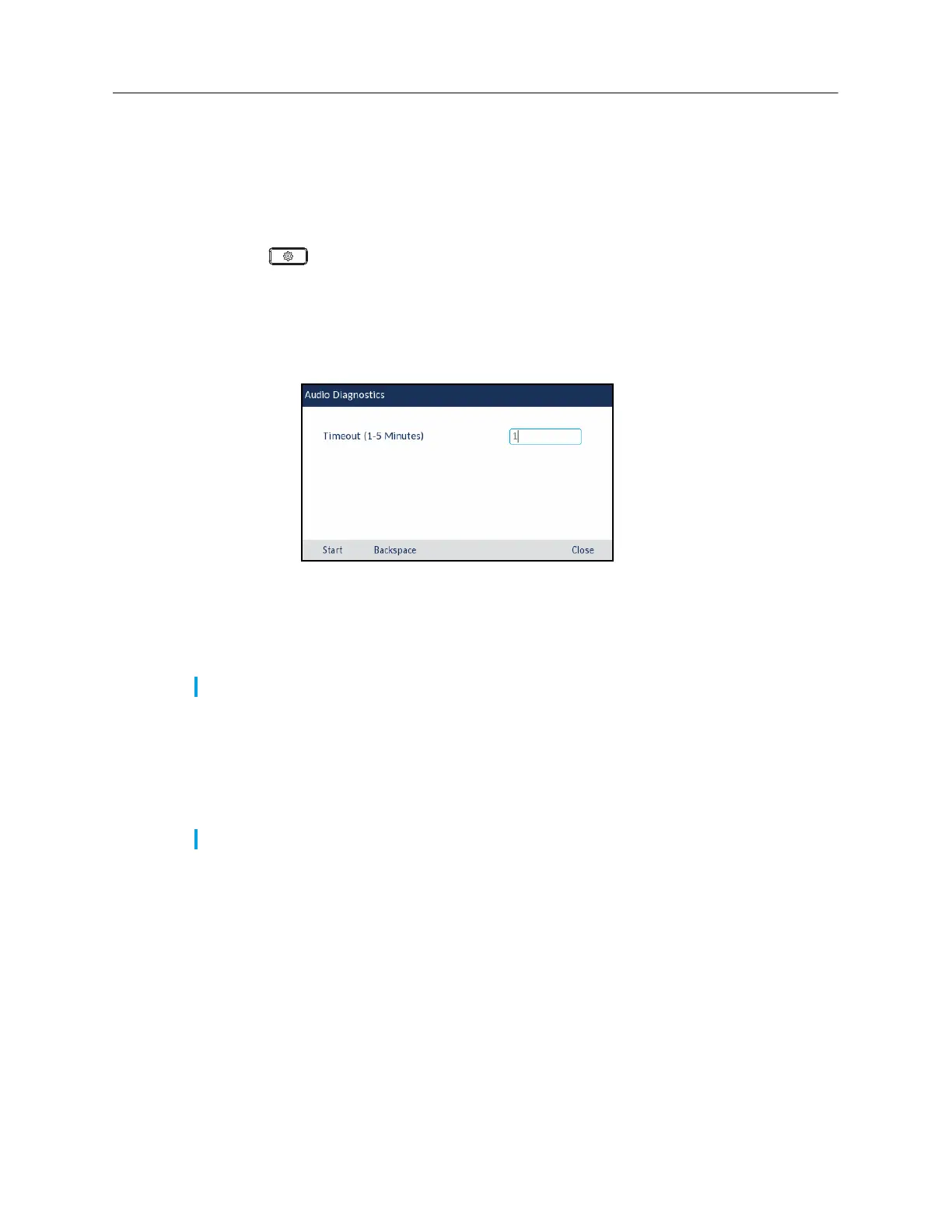
Audio Diagnostics
The
Audio Diagnostics
sub-menu allows you to collect up to 5 minutes of audio log files that can
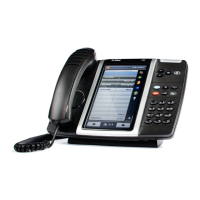
help to debug audio issues on the Mitel MiVoice 6930 IP phone.
To capture audio diagnostic logs on the Mitel MiVoice 6930 IP phone:
1.
Press the (
Settings
) key on the phone to enter the
Settings
menu.
2.
Press the
Advanced
softkey.
3.
Navigate to
Diagnostics
>
Audio Diagnostics
using the navigation keys and press the
Select
softkey.
4.
In the
Timeout
input field, enter the amount of time (in minutes from 1 to 5) you would like to
run the audio diagnostic tool for using the dialpad keys.
The IP phone displays "Capturing..." and when the timeout elapses, "Collecting Logs..." is
displayed. When all the logs have been collected, a "Complete..." message is displayed.
To save the audio diagnostic logs to your PC using the Mitel Web UI:
1.
Open your web browser and enter the phone’s IP address or host name into the address bar.
2.
Enter your username and password and click
OK
/
Login
.
The status window displays for the IP phone you are accessing.
Note:
Press the
Stop
softkey at any time to stop capturing the audio diagnostic logs.
Note:
The default username is "root" and the default password is "73738".
Mitel MiVoice 6930 Audio Diagnostics





 To Next Page